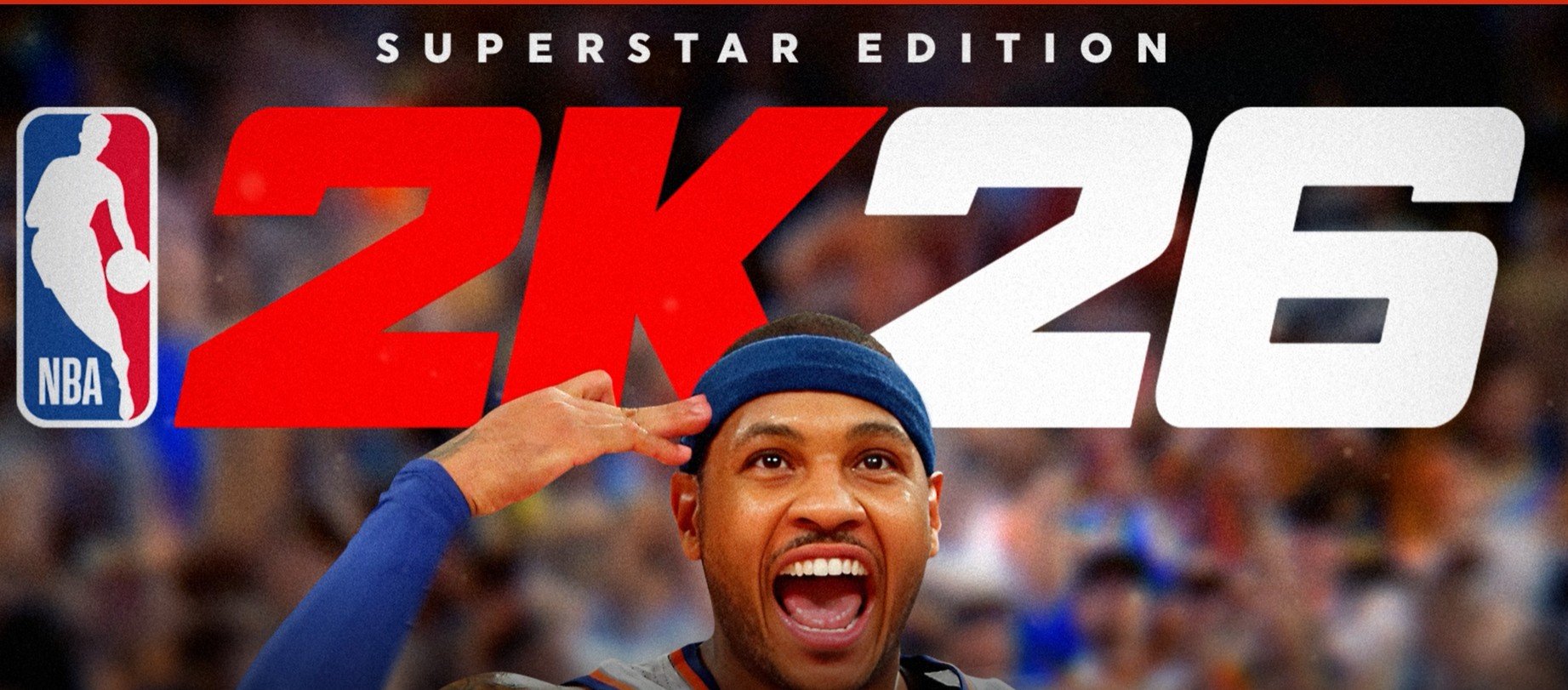
2k26 not working (8 proven fixes)
Readers help support Windows Report. We may get a commission if you buy through our links.

Read our disclosure page to find out how can you help Windows Report sustain the editorial team. Read more
2K26 not working usually comes down to cache corruption, half-installed updates, strict NAT, or overzealous overlays. Start with quick platform resets, then repair game data, fix network quality, and only reinstall as a last resort.
Before you start
- Back up saves to cloud or external storage.
- Close Discord, GeForce Experience, MSI Afterburner/RTSS, ReShade, and any recording overlays.
- Test an offline mode or scrimmage. If offline works but online fails, prioritize network steps.
- Check storage headroom: keep 15-20% free on the console SSD or game drive.
1) Power-cycle and clear the fast cache
Why this helps: A full power cycle clears temporary memory, kills hung processes, and resets the network stack the game relies on.
Steps:
- PS5/Xbox: Power off fully (not Rest/Standby). Unplug for 60 seconds. Reconnect and boot fresh.
- PC: Reboot Windows, then launch 2K26 first before other apps.
- Retest both offline and online modes immediately after boot, before overlays start.
Extra checks:
- On Xbox, go to Manage game > Saved data > highlight your profile > Clear reserved space (this only purges temp game cache, not your cloud saves).
- On PS5, delete only “cache/settings” if exposed by the game; do not remove saved data yet.
2) Update the game and system firmware completely
Why this helps: Launch-day hotfixes and live-service updates arrive often. Partial patches are a top cause of black screens, “pending” loops, and crash-on-title.
Steps:
- PS5: Check Downloads/Uploads to ensure all 2K26 add-ons and language packs finished installing.
- Xbox: Open the Queue. Let every 2K26 component fully complete before launching.
- PC (Steam/Epic/2K Launcher): Force an update check. If you see “disk write” or “content file locked,” pause, resume, or restart the client.
Pro tip:
- After big patches, start the game and idle at the main menu for a few minutes to allow shader pre-caching. This reduces first-match stutters and some crash spikes.
3) Repair game data and rebuild indexes
Why this helps: Corrupted indices and incomplete assets trigger start-screen freezes, missing textures, or instant crashes when entering modes.
Steps by platform:
- PS5: Boot into Safe Mode > Rebuild Database. This remaps content without touching saves. Then launch 2K26.
- Xbox: Manage game > Saved data > Clear reserved space (if you didn’t in Step 1). If issues persist, Delete local saved data (your cloud saves will resync on next launch).
- PC: Verify/Repair game files (Steam > Properties > Installed Files > Verify integrity). If using Epic or the 2K Launcher, run their equivalent repair. Also clear driver shader cache via your GPU control panel after a major driver update.
When to escalate:
- If verify/repair finds files every time you run it, the drive may be failing or nearly full. Move the game to a different SSD and test again.
4) Fix online: NAT, packet loss, and double NAT
Why this helps: Crossplay, matchmake, and VC wallet calls are very sensitive to NAT strictness and micro-drops. Even if bandwidth looks fine, a few% packet loss will break online modes.
Checklist:
- Go wired Ethernet if possible. Wi-Fi congestion causes rubber-banding and “unable to connect” errors.
- Power-cycle modem/router. If you have an ISP gateway + your own router, you might be on double NAT; put your router in bridge mode or enable the gateway’s “bridge/passthrough” to avoid strict NAT.
- Enable UPnP on the router to auto-open required ports. If UPnP is unavailable, use manual port forwarding for your platform services.
- Turn off VPNs, “accelerators,” or SmartDNS. These often route you to far regions and break crossplay handshakes.
- On console network settings, confirm NAT is Open/Type 1 or Moderate/Type 2. If Strict/Type 3, address double NAT and UPnP first.
- On PC, disable metered connections and any firewall rules that block your game platform client.
Stability tips:
- Avoid streaming, big downloads, or cloud backups while playing.
- If you must use Wi-Fi, connect to 5 GHz (or 6 GHz) and target a clear channel.
5) Kill overlays, third-party hooks, and OSDs
Why this helps: Hooks that capture or modify frames can crash or minimize the game, especially during matchmaking or cut-scenes.
Turn off:
- Discord overlay (Settings > Game Overlay).
- Steam overlay (Game Properties > uncheck Enable the Steam Overlay).
- GeForce Experience in-game overlay and Highlights.
- Xbox Game Bar (Windows Settings > Gaming).
- MSI Afterburner/RTSS on-screen display and custom frame limiters.
- ReShade, SweetFX, or any injector. Remove drop-in DLLs from the game folder.
- Screen recorders and auto-clip tools. Test without them.
If you need FPS control:
- Use the in-game FPS cap first. If unavailable, use the GPU driver’s per-app frame limiter (no OSD).
6) Reset graphics, audio, and controller profiles
Why this helps: Aggressive settings or corrupted configs cause device-lost errors, no-audio, input lag, or camera glitches.
Do this:
- In-game, switch to a safe preset (Medium/Default), cap FPS near your monitor’s refresh, turn off overly aggressive upscalers, and avoid forced V-Sync + external caps at once.
- Toggle Windowed Borderless if Fullscreen has alt-tab issues. If you get black screens after tabbing, try Windowed first.
- Reset audio device in Windows/console and pick the primary output (Stereo if HDMI ARC/eARC is flaky).
- Rebuild controller profile. Delete custom mappings and recalibrate sticks. If drift persists, test another controller or cable.
PC-only cleanup:
- Delete the game’s config file to regenerate defaults (keep a backup). Then re-apply only crucial tweaks one by one, testing between changes.
7) Refresh account, crossplay, and friend services
Why this helps: Stale entitlements or desynced account links break online menus, friends, and invites even when servers are fine.
Steps:
- Sign out of your platform account and 2K account, fully close the game, then relaunch and sign in again.
- Re-link 2K account to your platform if prompted. Accept the crossplay prompt and ensure cross-platform play is toggled on inside Settings.
- If invites/messages fail, have both players restart the game, then the platform, and try direct join from the in-game friends list.
Targeted guides:
8) Clean reinstall with a save-first approach
Why this helps: When everything else fails, a clean slate removes broken DLC entitlements, stuck shaders, and conflicted configs.
Back up first:
- PS5/Xbox: Sync saves to cloud. If you keep local copies, export to USB where possible.
- PC: Back up the save folder from your Documents/Game Save directory (and note any 2K profile folders).
Reinstall steps:
- Uninstall the game and reboot the system.
- Manually delete any leftover 2K26 folders in the install location (PC). Leave the save folder intact.
- Reinstall to a different SSD if you suspect drive issues.
- Launch the base game, let it reach the start screen once, then close and install all updates/DLC before playing online.
- Restore your saves and re-enable crossplay.
Tips
- If you only crash in a specific mode after a patch, try switching camera, turning down crowd/mesh detail, and playing one full game to rebuild caches.
- Cap FPS a bit below your worst-case minimum for smoother input, especially on VRR displays.
- If your ISP uses CGNAT, you may never get Open NAT at home. Use the console’s wired connection and rely on UPnP/port-preservation; avoid daisy-chaining routers.
- Keep at least 10 GB free for shader/temp caches after giant title updates.
FAQs
Why does 2K26 freeze at the start screen?
Usually partial updates or a corrupted index. Fully finish all add-ons, then Rebuild Database (PS5) or Clear reserved space (Xbox), or Verify files (PC).
Is crossplay down or is it my NAT?
If offline works and you can browse modes but fail to join friends, suspect your NAT. Get off VPN, fix double NAT, and aim for Open/Type 1–2.
My FPS is fine but input feels laggy. What now?
Disable screen recorders/overlays, use a wired controller or USB headset, and cap FPS just under your display refresh to reduce spikes and V-Sync penalties.
Face scan won’t upload. Is that a server issue?
It can be either. First log out/in, check your account link, and try again. If it persists, use the dedicated face scan guide linked above.
Do I lose my saves when clearing reserved space on Xbox?
Reserved space is a cache. Your cloud saves remain, and they’ll resync after you relaunch.
Summary (ordered steps)
- Power-cycle and clear cache
- Fully finish game + firmware updates
- Rebuild indexes and repair files
- Fix NAT/packet loss and avoid double NAT
- Disable overlays and third-party hooks
- Reset graphics/audio/controller profiles
- Refresh accounts, relink, and re-enable crossplay
- Clean reinstall after backing up saves
Conclusion
“2K26 not working” is usually solvable without a full wipe. Start by power-cycling and finishing updates, then rebuild indexes and stabilize your network. Kill overlays and reset profiles to remove easy crash points. If online features still fail, refresh account links and crossplay. Only then do a clean reinstall. For specific online, face scan, or friends/invite issues, use the focused guides on WindowsReport to go straight to the fix.