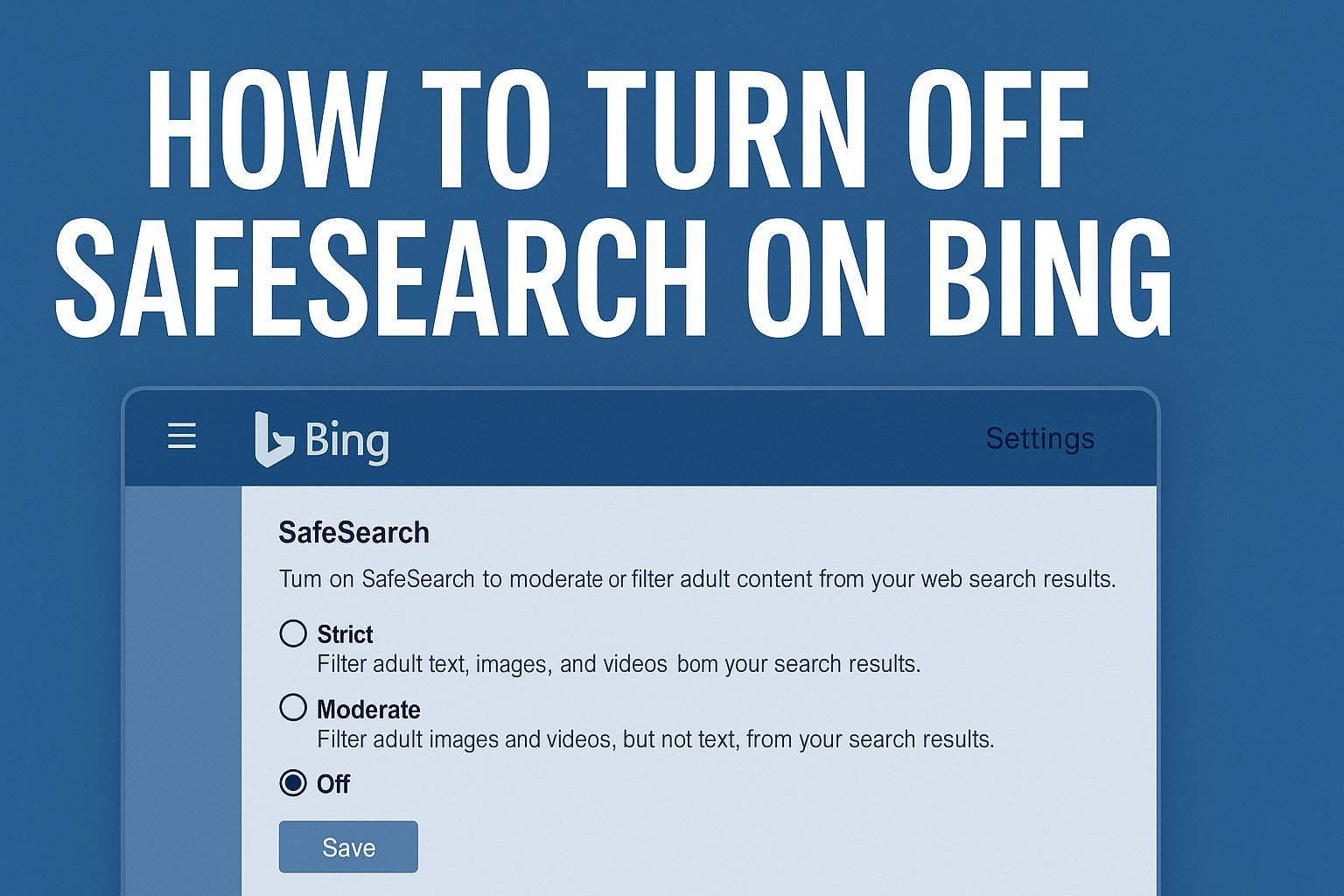
How to Turn Off SafeSearch on Bing in 3 Easy Steps
Readers help support Windows Report. We may get a commission if you buy through our links.

Read our disclosure page to find out how can you help Windows Report sustain the editorial team. Read more
SafeSearch is Bing’s built-in filter that blocks explicit or inappropriate content. By default, it may be enabled or set to “Moderate.” If you want more flexibility, you can change or disable it in just a few steps.
How to Turn Off SafeSearch on Bing?
1. Open Bing and Access the Settings Menu
- Go to Bing.com and sign in with your Microsoft account for permanent changes.
- Click the hamburger menu (three lines) in the top-right corner.

- Select Settings from the dropdown, then click Search to open search preferences.
If you prefer to stop using Bing entirely, you can remove Bing from Windows 11 and set another search provider as your default.
2. Adjust SafeSearch Mode
- Scroll down to the SafeSearch section.
- Choose one of the following options:

- Strict: Filters adult text, images, and videos.
- Moderate: Filters adult images and videos, but not text.
- Off: Shows all results, unfiltered.
Pick Off if you want SafeSearch disabled completely.
3. Save and Apply Changes
- Click Save at the bottom of the page.
- Refresh Bing to make sure your new settings take effect.
If you run into problems applying changes, check out solutions for when something went wrong on Bing errors that may prevent settings from saving correctly.
Why SafeSearch May Re-Enable Itself
Sometimes Bing forces SafeSearch if:
- A network admin or ISP locks it at the router level.
- You’re using a school or work account.
- Regional laws require filtering (e.g., certain countries).
In these cases, you may not be able to turn it off permanently.
FAQs
Your ISP, network admin, or local laws may enforce restrictions that override your settings.
Open Bing in your browser or the Bing app > go to Settings > SafeSearch > select Off > save.
Yes. If you’re signed in, changes can sync across Edge, Bing app, and Windows search.
Yes. A VPN can route your traffic through a country where SafeSearch isn’t enforced.
Yes, but keep in mind that explicit results may appear in searches.
Conclusion
Turning off Bing SafeSearch is simple if you follow the three steps: access settings, adjust the filter, and save your changes. However, restrictions from your network or region may override your preferences. If that happens, using a VPN can help you regain full control of your search results.
For more browsing flexibility, you may also explore the best Bing browser options to customize your search experience even further.