8 features I use for listening to any audiobook on Audible

Kaitlyn Cimino / Android Authority
Audible is one of the easiest media apps to use, which is probably why so many users never dig much deeper into it. For most people, it really is as simple as purchasing a book and pressing play. Yet after years of using the app, I’ve learned to tailor the experience quite a bit.
I rely on Audible for everything from long walks to laundry, and it’s my go-to fix for the occasional bout of insomnia. Over time, I’ve settled into a handful of settings and features I now adjust before starting almost any audiobook. None of them dramatically change the app, but they do make listening smoother and occasionally enforce more self-control than I’m capable of on my own.
What Audible features do you use?
80 votes
1. Timers

Kaitlyn Cimino / Android Authority
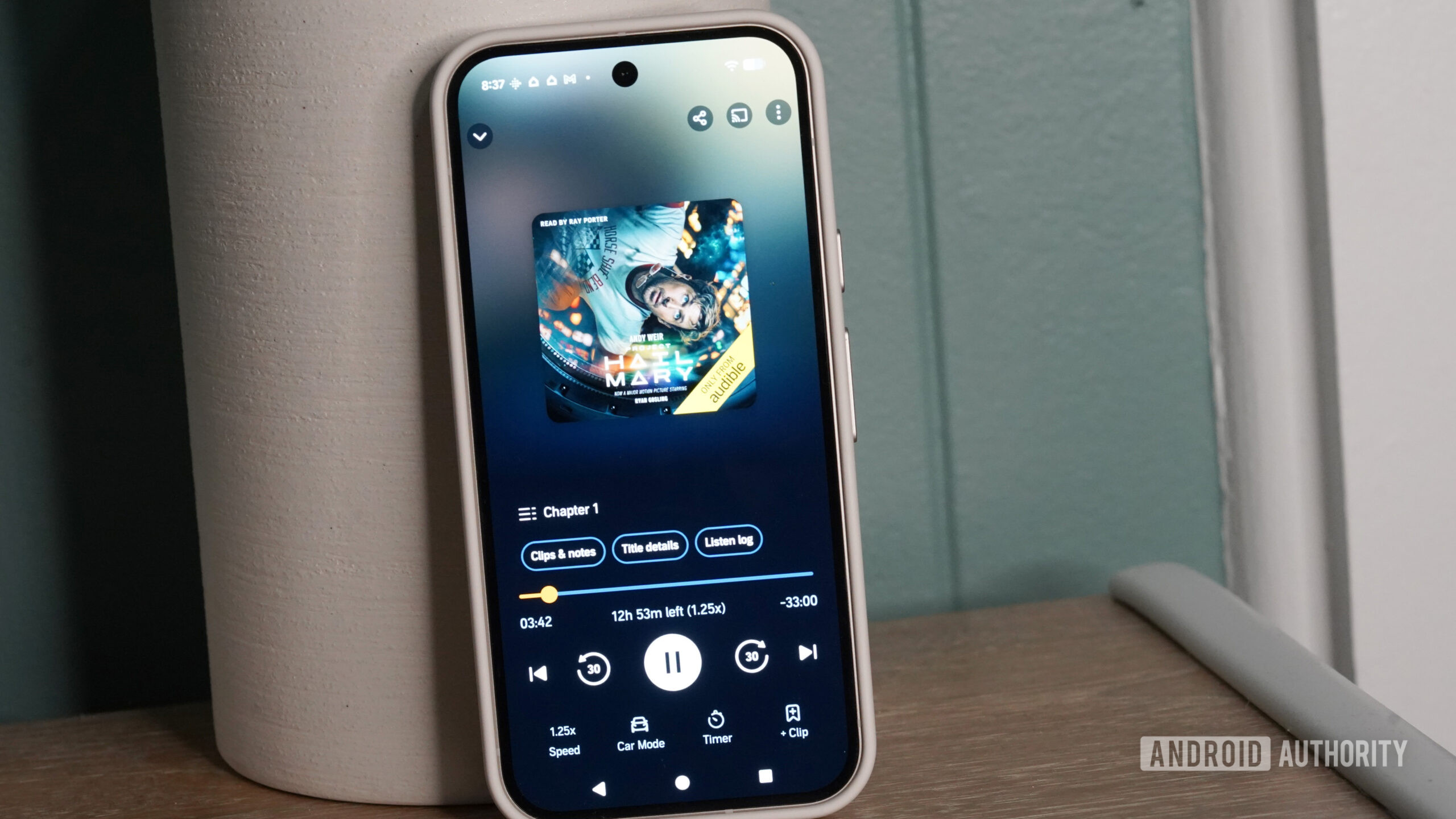
If you regularly listen to audiobooks at night, Audible’s Timer function is one of the app’s most useful features, and it lives directly on the playback screen. I usually estimate how long I think I’ll realistically stay awake, then overshoot it by about 15 minutes. That buffer gives me enough time to actually fall asleep, but prevents me from waking up six chapters ahead. I usually still need to rewind a bit at the start of the next listen, but it’s much faster to find my place. In the settings menu, you can also enable the Shake to Extend, which lets you add more time by shaking your phone instead of fumbling around the playback screen. If you shake too aggressively and accidentally launch your phone onto the hardwood floor, however, it may wake and startle your partner. I’ve heard.
2. End of Chapter

Kaitlyn Cimino / Android Authority
While Audible’s standard timer is great for bedtime listening, I specifically use the End of Chapter option during the day. Instead of stopping after a set amount of time, Audible waits until the current chapter finishes before ending playback. For me, it’s basically a discipline hack for when I know I’ll want to keep listening while also acknowledging that I do, unfortunately, have other things to do. If I’m cleaning, End of Chapter gives me a firm but satisfying stopping point, and it cuts me off before I find myself sitting on the couch with headphones still in, doing absolutely nothing else.
3. Variable playback speed

Kaitlyn Cimino / Android Authority
Pour one out for playback speed, which has gotten me through more painfully slow narration than I’d like to admit. Narrator pacing varies wildly from book to book, and while some titles sound perfect at normal speed, others, like dense nonfiction books, can feel like a slog. I’d rather do boring content at a chipmunk pace than a crawl. Audible’s controls are very granular, with a few quick presets to choose from and the option to fine-tune in smaller 0.05x increments from there. I will warn that speeding up books can feel slightly unsettling at first, but once your brain recalibrates, normal speed starts feeling sluggish.
4. Page sync

Kaitlyn Cimino / Android Authority
Page Sync is admittedly a somewhat niche Audible feature because it only works if you own both the audiobook and Kindle version of the same title. If that’s the case, it syncs your progress between formats so you can move between reading and listening without manually hunting for your place each time. I often read a few chapters on a Kindle before starting to feel tired, then switch to audio while I brush my teeth and get in bed. During the day, it’s also great for swapping from audio in the car to the Kindle version once I get home. Amazon’s closed ecosystem can absolutely be frustrating at times, but this is one area where the Kindle and Audible integration genuinely pays off.
Don’t want to miss the best from Android Authority?


5. Car Mode

Kaitlyn Cimino / Android Authority
Audible’s Car Mode is far from groundbreaking, but I recommend it. You can even set up Automatic Car Mode in the Player Settings menu, so it initiates as soon as your device connects via Bluetooth. The mode simplifies the playback screen with oversized controls that are significantly easier to glance at and tap while driving. I’m not trying to browse my library, tweak settings, or navigate menus at a stoplight. I just want large, obvious playback controls that don’t require precision tapping when I need to pause my book because my toddler requests Harry Styles.
6. Audible Plus catalog

Kaitlyn Cimino / Android Authority
Speaking of car rides, the Audible Plus catalog is easy to overlook, but I use it for lower-commitment listening, like when my current book wraps halfway through a road trip. Instead of spending credits on books I’m only mildly curious about, I’ll browse the included catalog for shorter nonfiction, Audible Originals, or genres I don’t normally read. The quality can be inconsistent, but the catalog has gotten significantly better over the years. Dungeon Crawler Carl was my most recent find.
7. Clipping

Kaitlyn Cimino / Android Authority
Audible’s clipping feature is one of the app’s most underrated tools. It lets you save short audio excerpts directly from an audiobook, essentially creating the audiobook equivalent of highlighting passages on your Kindle. I mostly use clips for saving useful explanations, memorable quotes, recommendations, or sections I know I’ll want to revisit later when I spin out on a fan theory. It’s one of the many buttons on my player menu, which is also more customizable than people realize.
8. Player settings

Kaitlyn Cimino / Android Authority
Audible lets you change which buttons appear on your Player screen, which isn’t the flashiest customization in the world, but it does make the app feel noticeably more tailored. First, you can choose four shortcuts for the playback controls at the bottom of the screen. To be honest, the defaults probably make the most sense for most people. Beyond those, though, you can also customize several other playback behaviors, including how far the skip forward and back buttons jump, whether the progress bar shows chapter progress or total listening progress, and how remaining listening time is displayed. You can even adjust the player controls on your lock screen.
Final quick tips

Kaitlyn Cimino / Android Authority
Audible works perfectly fine if you never touch a single setting. That’s part of why so many people never realize all the tweaks the app has to offer. But after years of daily listening, the features above are the small details I appreciate. Below are a few more quick tips worth mentioning as well.
- Dark Mode: If, like me, you spend a lot of time browsing your library or listening at night, Audible’s dark mode is significantly easier on the eyes than the default bright interface.
- Kids Profiles: Audible lets you create separate kid-friendly listening profiles with age-appropriate recommendations and a more curated experience for any kids in your household.
- Discover Tab: Audible’s Discover section gets noticeably better the more you use the app, especially once it learns your preferred genres, narrators, and listening habits.
- Title Details: Before starting a book, I almost always check the Title Details page for details like narrator information, runtime, series order, and whether the audiobook is part of the Audible Plus catalog. It also shows the book’s Goodreads rating.
Thank you for being part of our community. Read our Comment Policy before posting.