Excel Now Lets You Run Python Code to Analyze Images Within Sheets
Readers help support Windows Report. We may get a commission if you buy through our links.

Read our disclosure page to find out how can you help Windows Report sustain the editorial team. Read more
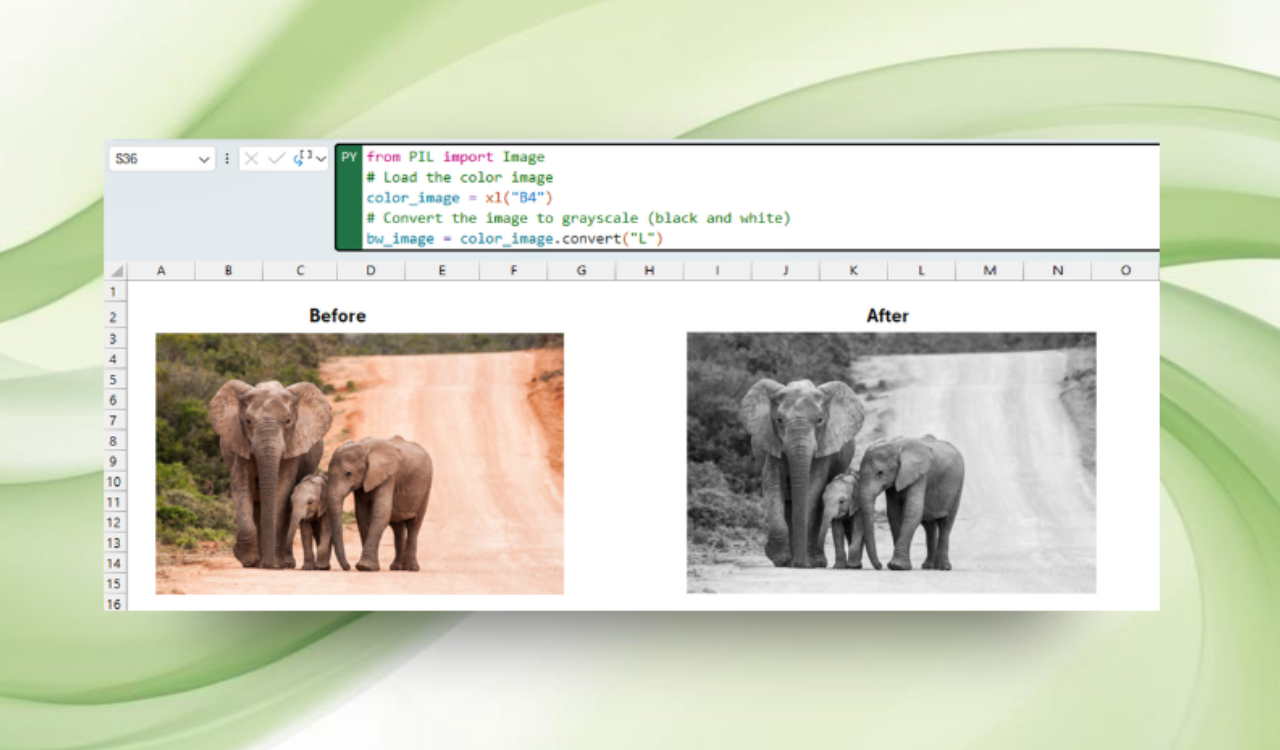
Microsoft has just announced a major upgrade to Python in Excel, allowing you to directly analyze and manipulate images within your spreadsheets. The feature is available for Excel on Windows, Mac, and the web.
The company says it is designed to make visual data analysis simpler and faster without extra tools. You can simply drop an image into a cell and run Python scripts on it, enabling tasks like image sharpness detection and metadata analysis.
That’s not all; it can also help you with transformations, such as adding watermarks or adjusting brightness.
How it works
To test the feature, Microsoft provided an example for detecting whether an image is blurry or sharp:
1. First, insert an image into a single cell by going to Insert > Illustrations > Pictures > Place in Cell, and select your image source (device, stock library, or online).

2. Then, make sure the image is entirely inside one cell, as Python references it directly.

3. Next, in an empty cell, type =PY( to start a Python formula. Now, copy and paste the script provided by Microsoft below:
from PIL import Image
import numpy as np
from scipy.signal import convolve2d
# Convert image to grayscale and array
image = xl(“A1”)
arr = np.array(image.convert(“L”), dtype=np.float32)
# Apply Laplacian filter
laplacian = convolve2d(arr, [[0, 1, 0], [1, -4, 1], [0, 1, 0]], mode=’same’, boundary=’symm’)
# Classify based on variance
“Blurry” if np.var(laplacian) < 100 else “Sharp”
4. Finally, run the code by pressing Ctrl + Enter, and the cell will display either “Sharp” or “Blurry” based on the analysis.

It’s worth noting that you can also experiment with other image tasks, such as brightness adjustments, color changes, logo overlays, and metadata extraction.
To manage performance, Excel offers a setting under File > Options > Advanced > Python in Excel that lets users choose image input sizes ranging from actual resolution down to 320×240.
Microsoft further says this feature opens the door to “a whole new class of data analysis workflows” inside Excel. that the feature is now rolling out to:
- Windows: Version 2509 (Build 19204.20002) or later
- Mac: Version 16.101 (Build 25080524) or later
- Excel for the web: Gradual rollout in progress