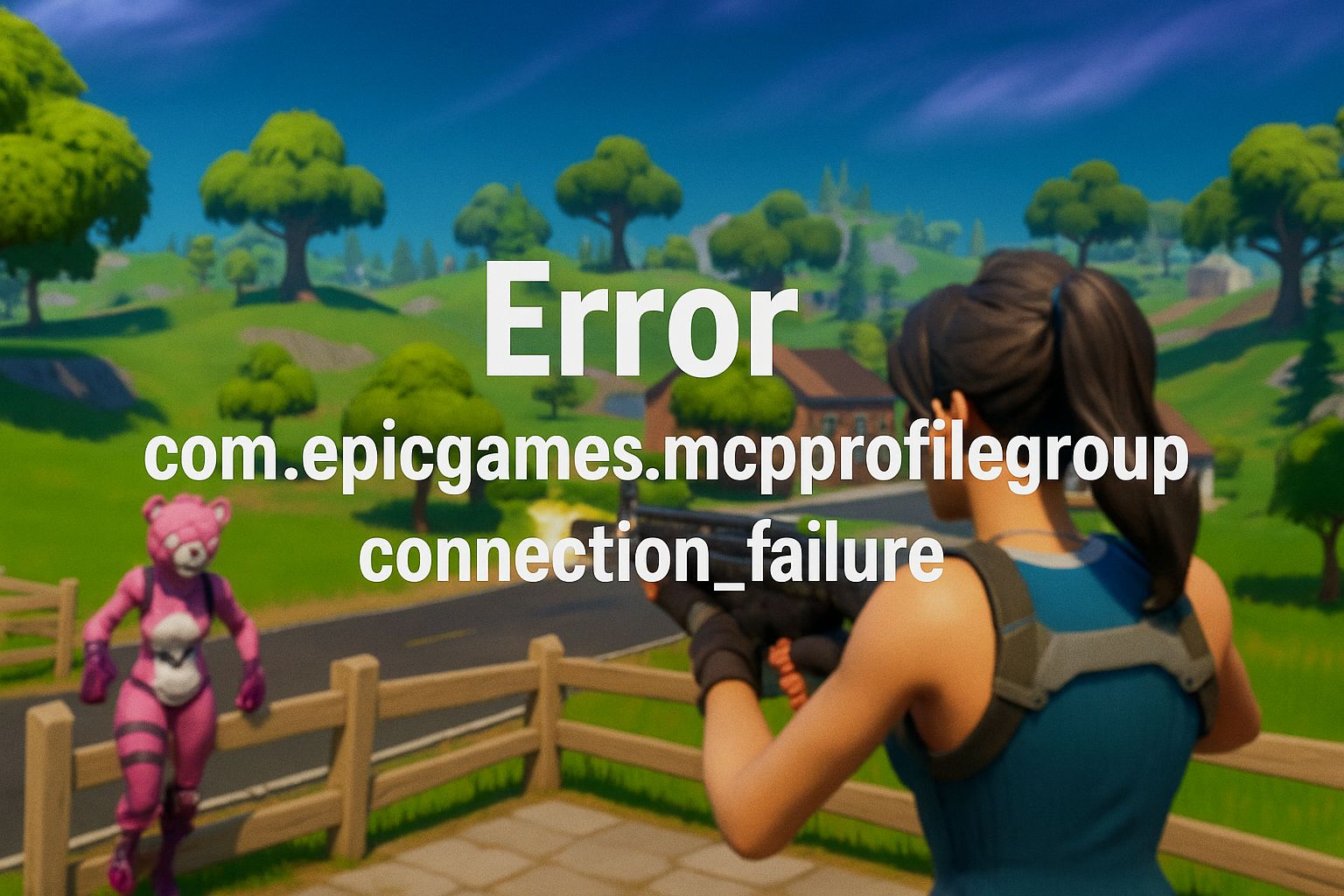
Fix Error.com.epicgames.mcpprofilegroup.connection_failure
Readers help support Windows Report. We may get a commission if you buy through our links.

Read our disclosure page to find out how can you help Windows Report sustain the editorial team. Read more
If you see the Error.com.epicgames.mcpprofilegroup.connection_failure message in Fortnite or the Epic Games Launcher, you will not be able to log in or access your profile. Here is how to fix the problem quickly and get back into the game.
1. Check your internet connection
- Restart your router and modem.
- Connect your PC or console directly with an Ethernet cable.
- Run a speed test to verify stability.
If the issue persists, it can resemble the request could not be completed Epic Games login error, which is also tied to connectivity.
2. Restart Epic Games Launcher
- Close the Epic Games Launcher from the system tray.
- Open Task Manager and end any Epic Games processes.
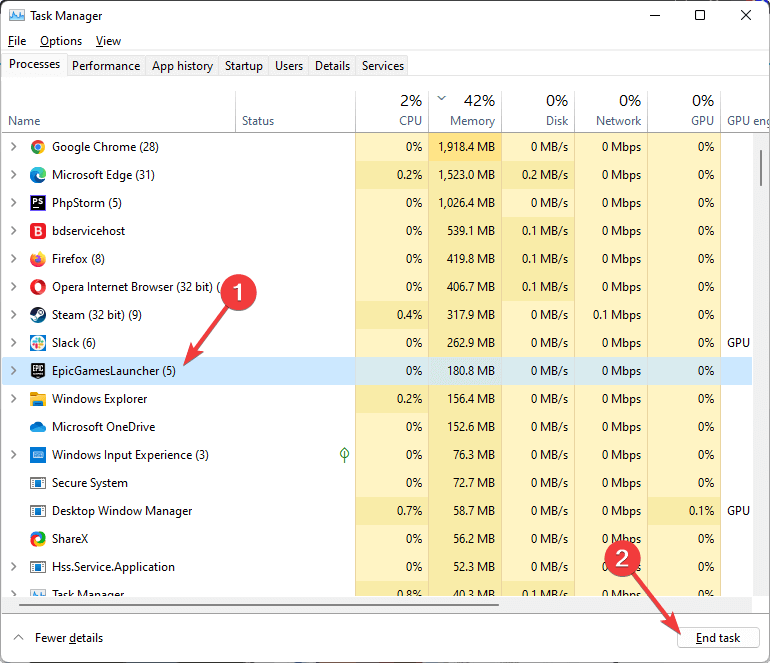
- Reopen the launcher and try logging in again.
A quick restart often clears temporary glitches similar to Epic Games error code 502 during short service disruptions.
3. Clear Epic Games cache
- Close the Epic Games Launcher.
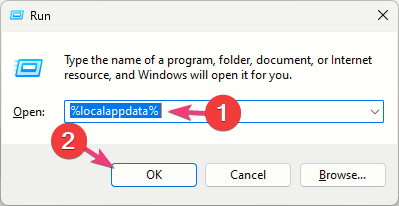
- Press Windows + R, type %localappdata%, and press Enter.
- Open the EpicGamesLauncher folder and delete the Saved folder.
- Reopen the launcher and sign in again.
Clearing cache helps with related issues such as the Fortnite item grant failed error.
4. Verify Fortnite files
- Open the Epic Games Launcher.
- Go to Library and select Fortnite.
- Click the three dots and choose Verify.

- Wait for the scan to complete, then relaunch the game.
5. Reinstall Epic Games Launcher
- Uninstall Epic Games Launcher from Windows Settings or Control Panel.
- Download the latest installer from the official Epic Games website.
- Install the launcher and log back in.
The Error.com.epicgames.mcpprofilegroup.connection_failure usually stems from network glitches, cache problems, or corrupted files. Follow the steps above to restore access and continue playing Fortnite without interruptions.
FAQs
It typically occurs due to unstable internet, launcher cache corruption, or damaged Fortnite files. Short service disruptions can also trigger it.
Sometimes. If many users report issues at once, wait a bit and try again after confirming your connection is stable.
No. Verifying checks and repairs game files without removing your personal settings. If corruption is found, the broken files are replaced.
Start with the launcher. If the error remains after all steps, reinstalling the game can help, but it is rarely necessary.