Fix Please update your AMD Radeon driver (Windows 11/10)
Readers help support Windows Report. We may get a commission if you buy through our links.
Read our disclosure page to find out how can you help Windows Report sustain the editorial team. Read more
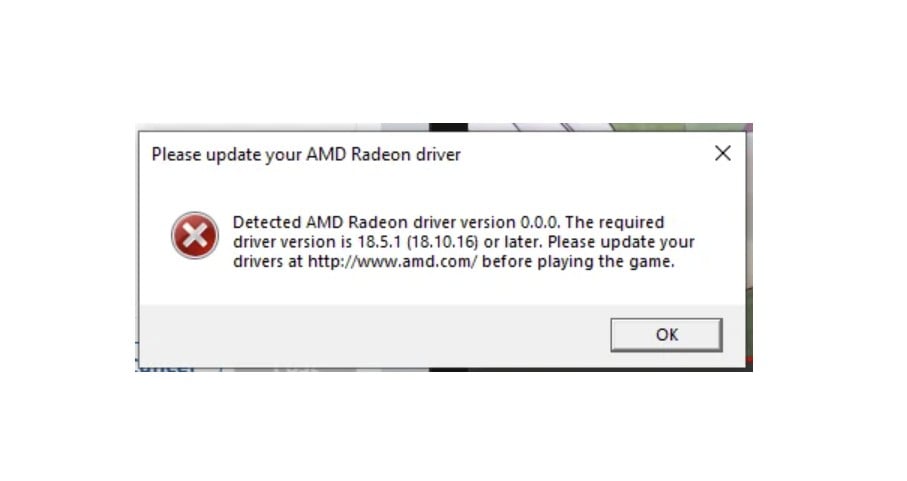
I“Please update your AMD Radeon driver” usually appears when a game or app detects an outdated or mismatched driver – often after Windows replaces Adrenalin with a generic update, or when a laptop launches the game on the wrong GPU. Follow the steps below in order for the quickest win.
Before you start
- Create a restore point and back up critical files.
- Note your current GPU model and driver version (Device Manager → Display adapters → AMD → Driver).
- If you’re on a laptop with integrated + discrete graphics, keep the model’s control app handy.
1) Do a clean Adrenalin reinstall (most fixes start here)
- Uninstall AMD Software from Settings → Apps → Installed apps → AMD Software → Uninstall.
- Reboot to Safe Mode and run AMD Cleanup Utility to remove leftover drivers.
- Restart normally and install the latest WHQL (recommended) Adrenalin for your exact GPU.
- Reboot again, open AMD Software → check the driver version under System.
Why it works
A clean slate removes mixed or preview drivers (often pushed by Windows) that can break version detection in games.
2) Stop Windows Update from overwriting your AMD driver
Windows 11 Pro/Enterprise/Education
- Press Win+R, type
gpedit.msc. - Go to Computer Configuration → Administrative Templates → Windows Update.
- Enable Do not include drivers with Windows Updates.
- Optional: In Device Installation Restrictions, block installs for your GPU’s hardware ID.
Windows 11 Home
- Pause Windows Update for a few days after you install Adrenalin, then resume once stable.
- If a specific driver keeps reappearing, temporarily roll back or uninstall it (see Step 5), then pause updates.
Why it works
Preventing automatic driver delivery stops Windows from replacing Adrenalin with a generic or preview build that triggers the message.
3) Force the game/app to use the discrete AMD GPU (laptops)
- Go to Settings → System → Display → Graphics.
- Find the game (or browse to its EXE) → Options → set to High performance (your discrete Radeon).
- Restart the game.
Why it works
Some laptops launch on the iGPU with an older driver, making the game think your Radeon driver is “outdated.”
4) Repair bad installs without a full wipe
- In Device Manager → Display adapters → AMD → Properties → Driver, try Roll Back Driver if available.
- If you see multiple “AMD Software” entries in Installed apps, remove all, reboot, then install Adrenalin once.
Why it works
Rolling back dodgy preview builds or removing duplicates fixes mismatched components that fail game checks.
5) Battlefield/Open-beta style prompts: fix version detection
If the game still insists you’re “out of date” even after a clean WHQL install, it’s likely a false version check:
- Close the game and AMD Software.
- Open Registry Editor and back it up.
- Navigate to
HKEY_LOCAL_MACHINE\SYSTEM\CurrentControlSet\Control\Video\{GUID}\0000. - Export the key, then verify ReleaseVersion matches your installed Adrenalin version.
- If it doesn’t, correct it to the exact installed version string, apply, and restart Windows.
- Launch the game again.
If the developer patches their check, restore the original value using your export.
Why it works
Some early game builds hard-check the ReleaseVersion string rather than the actual driver capability, causing false “update” prompts.
6) Quick stability passes
- Reset Shader Cache in AMD Software → Graphics.
- Disable overlays/recorders (ReLive, Discord, Afterburner) and relaunch.
- Toggle the game’s renderer once (e.g., DX12 → DX11) if it’s a beta with known detection quirks.
- Update your AMD chipset driver on Ryzen systems for better device stability.
7) If nothing works
- Try the previous WHQL driver (one step back), then the latest Optional driver only if the game lists it as required.
- Test on a different Windows user profile to rule out profile-bound corruption.
- For managed PCs (work/school), ask IT to allow the AMD driver install and block Windows from force-pushing a different one.
Tips
- After a clean install that works, export your AMD settings profile so you can restore quickly.
- Keep Windows Feature Updates paused during new game betas; update once the vendor posts a “game ready” WHQL.
- Avoid stacking multiple tuners/overlays—one at a time.
FAQs
Why did this start today if I didn’t change anything?
Windows Update can silently replace your GPU driver with a preview/generic build, confusing games.
Is the registry edit safe?
Yes if you export the key first and only adjust the ReleaseVersion string. Revert once the game patches its check.
Do I need the Optional driver?
Use WHQL unless the game release notes explicitly call for a newer Optional build.
Can I use DDU instead of AMD Cleanup Utility?
Use AMD Cleanup Utility for AMD-to-AMD swaps. Reserve DDU for vendor switches or persistent issues.
Summary (ordered steps)
- Clean uninstall and reinstall Adrenalin.
- Block Windows Update from installing drivers.
- Force the game/app to use the discrete Radeon GPU (laptops).
- Roll back or remove duplicate/preview drivers.
- Fix false prompts by verifying the ReleaseVersion registry value.
- Reset shader cache, disable overlays, and update chipset.
- Fall back to the previous WHQL or contact IT if managed.
Conclusion
In most cases, the message disappears after a clean Adrenalin install and blocking Windows from pushing a conflicting driver. For beta games that misread the version, confirm the ReleaseVersion string and keep playing while you wait for an official patch.
Research notes (skip copying into WordPress):
Early reports point to Windows pushing preview AMD drivers and game betas (e.g., Battlefield 6) performing strict version checks; clean installs and blocking Windows’ driver delivery resolve it for most users. Some players fixed persistent prompts by aligning the ReleaseVersion registry string to their installed Adrenalin version, while others had to force discrete GPU use on laptops. (Hardware Canucks, Reddit, EA Forums, PC Guide, pcforum.amd.com, amd.com, learn.microsoft.com)