How to Enable HDR in Stalker 2 Step by Step
Readers help support Windows Report. We may get a commission if you buy through our links.

Read our disclosure page to find out how can you help Windows Report sustain the editorial team. Read more
Want the best visuals in Stalker 2: Heart of Chornobyl? This step-by-step guide explains exactly how to enable HDR so you can unlock richer contrast and brighter highlights.
How to enable HDR in Stalker 2?
1. Check your Windows HDR settings
- Press Win + I to open Settings.
- Go to System > Display.
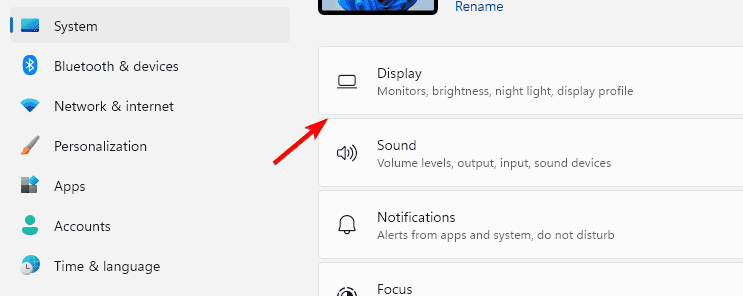
- Select your HDR-capable monitor.
- Toggle on Use HDR.
- Restart your PC.
2. Enable HDR in the game
- Launch Stalker 2.
- Open Settings.
- Go to Video.
- Turn on the HDR option.
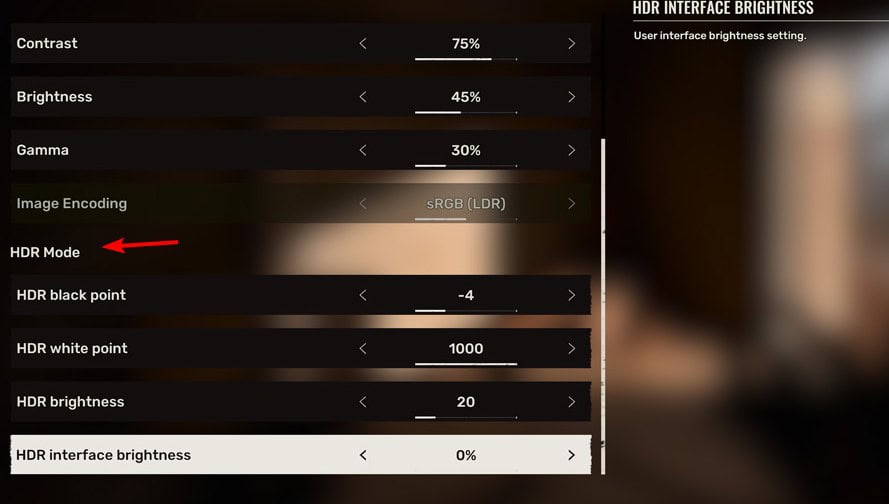
- Adjust peak brightness or tone mapping if available.
If the toggle does not appear, confirm Windows HDR is active and your display supports HDR10.
3. Update GPU drivers
- Press Win + X and open Device Manager.
- Expand Display adapters.
- Right-click your GPU and choose Update driver.
- Select Search automatically for drivers.

- Restart your PC.
If HDR stopped working after system changes, this guide can help: HDR not working after Windows update.
4. Calibrate your HDR display
- Open Settings and go to System > Display.
- Click HDR.

- Select Calibrate your display for HDR video.
- Follow the on-screen wizard.
- Save and apply the results.
For advanced tone mapping on supported hardware, see how to enable RTX HDR.
Is HDR worth it for gaming?
- Improves color depth and detail.
- Enhances contrast in dark areas.
- Makes lighting and effects more realistic.
- Boosts immersion in large environments.
- Adds a cinematic presentation.
For a deeper look at pros and cons, read is HDR good for gaming.
FAQs
It is usually disabled if Windows HDR is off or the display does not support HDR10. Turn on HDR in Settings > System > Display and confirm your cable is DisplayPort 1.4 or HDMI 2.0 or newer.
On most modern GPUs the impact is minimal. Ensure drivers are up to date and use the in-game HDR controls for accuracy.
In-game HDR usually offers better tuning. Auto HDR in Windows 11 can help for titles without native HDR support. See how to turn on Auto HDR.