How to Officially Download & Install Windows 11 Version 25H2 [Step-by-step Guide]
Readers help support Windows Report. We may get a commission if you buy through our links.

Read our disclosure page to find out how can you help Windows Report sustain the editorial team. Read more
Windows 11 version 25H2 is finally available to download and install for the Release Preview testers and in this guide we’ll show how to exactly do it without any hiccups. For the uninitiated, Microsoft rolled out the Windows 11, version 25H2 (Build 26200.5074) to the Release Preview channel on Friday, while confirming it’s nearing a stable launch later this year.
The 25H2 version is part of the annual update cycle and comes as an enablement package, so it installs faster than a full upgrade. It’s mainly focused on stability, admin controls, and security improvements. Without further ado, let’s jump into how you can grab it right now.
Note: If you want to officially download and install Windows 11 version 25H2, you must join the Windows Insider Program and opt into the Release Preview Channel.
How to Download Windows 11 Version 25H2 Release Preview Update Manually?
You can manually download and install Windows 11 version 25H2 by following the below steps, without any hassle:
Head to the Settings app
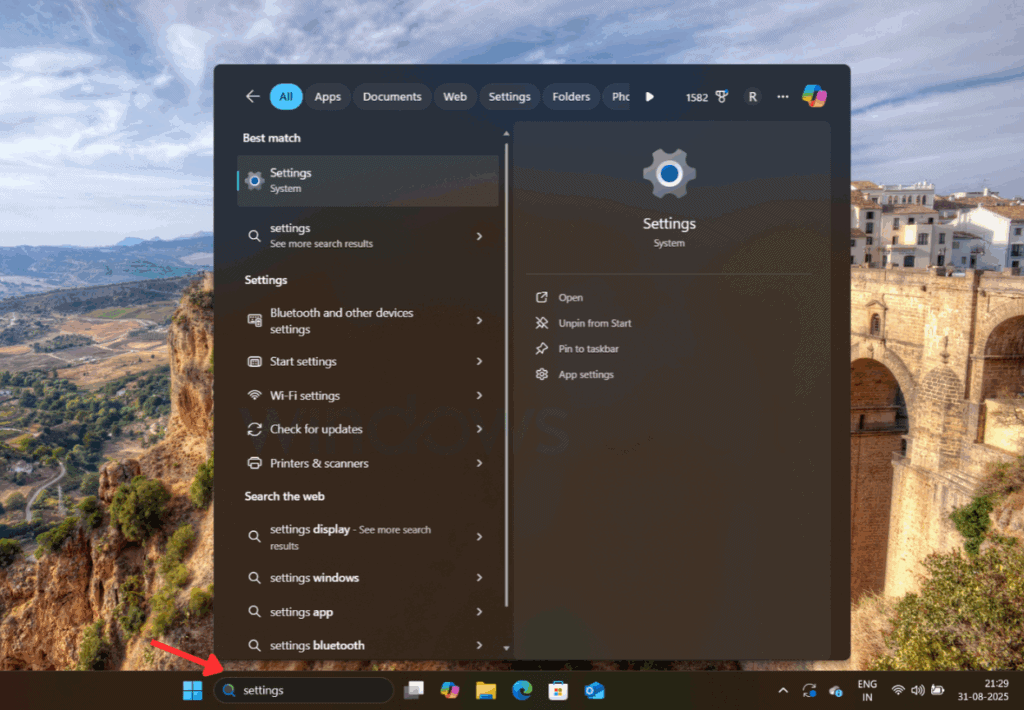
Step 1: First, search for “Settings” in the Start Menu search bar.

Step 2: Next, click “Open” to launch the Settings app on your PC.

Navigate to Windows Update section and check for the update
Step 3: From the left sidebar, navigate to “Windows Update.”

Step 4: Now, look for the banner showing Windows 11, Version 25H2 update. Then, click “Download and Install” to begin downloading the update.

Step 5: Once downloaded, click on “Restart now” to install Windows 11 version 25H2 update.

After this step, your PC will restart to install the downloaded update. You can verify this by going to the Update history section as shown below. That’s all you’ve to do and your PC will be running the latest Windows 11 25H2 build after the restart.

Windows 11 version 25H2 is much more than just a routine update; it gives us a glimpse at Microsoft’s next chapter for its flagship OS. If you want to take a look at what’s new in Windows 11 25H2, check out this official guide.
Yes, but only in the Release Preview Channel for Insiders right now.
It shares the same requirements as Windows 11 24H2: TPM 2.0, Secure Boot, 4GB RAM, and 64-bit CPU.
No. It’s an enablement package, so installation is quick and simple.
Microsoft confirmed a general rollout later in 2025 for all users.