How to Reduce It Quickly
Readers help support Windows Report. We may get a commission if you buy through our links.
Read our disclosure page to find out how can you help Windows Report sustain the editorial team. Read more
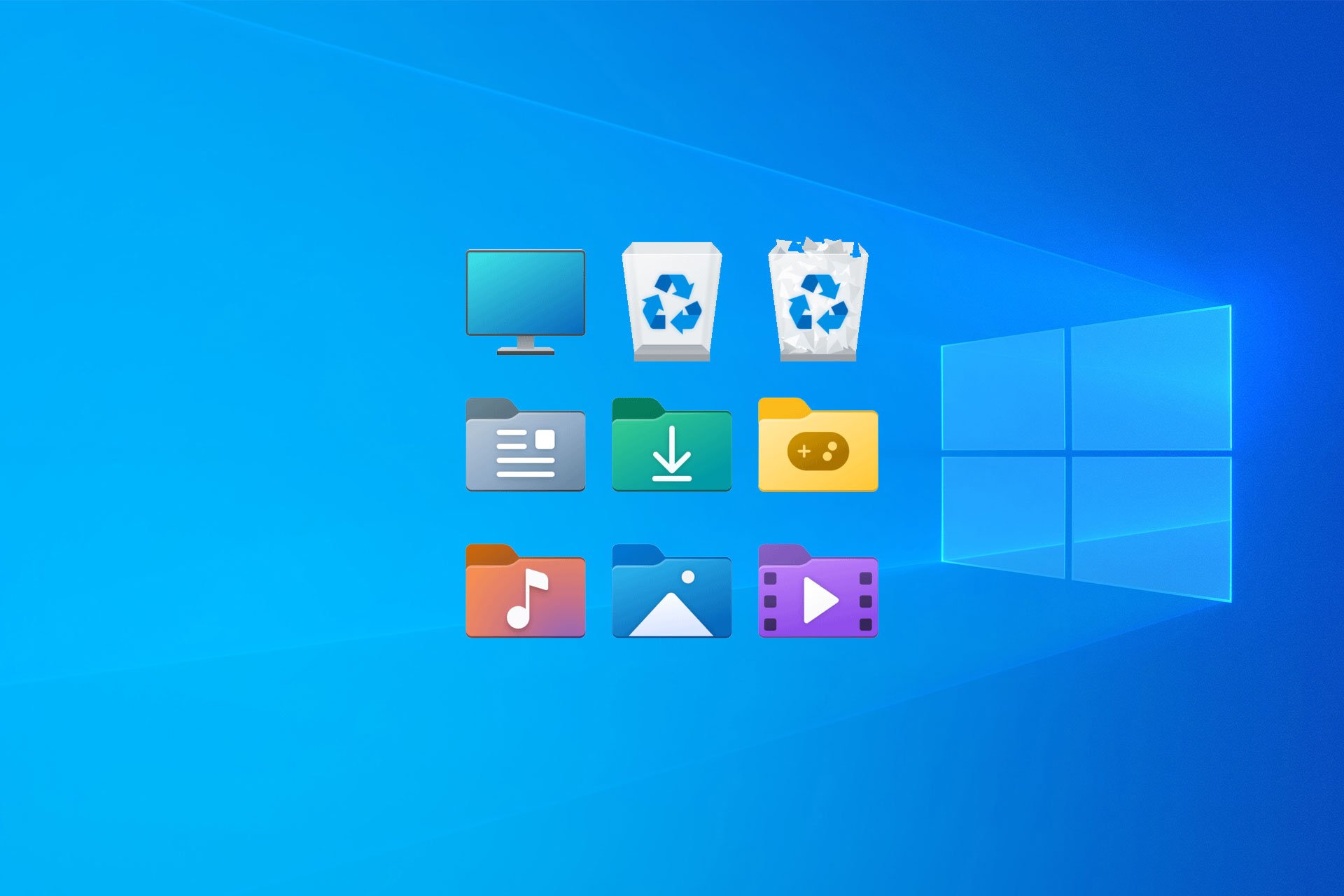
If your desktop icons look too big or too small, you can easily adjust them. In this guide, you’ll learn how to change desktop icon size in Windows 10 using a couple of quick methods.
How do I reduce desktop icon size in Windows 10?
1. Change icon size from the desktop
- Right-click anywhere on your desktop background.
- Select View from the context menu.
- Choose Small icons to reduce their size.

For more details, check this guide on changing icon size in Windows 10.
2. Use keyboard and mouse shortcut
- Click anywhere on the desktop.
- Hold down the Ctrl key on your keyboard.
- Scroll your mouse wheel up or down to increase or decrease icon size.
This method gives you more granular control than the preset small, medium, or large options.
FAQs
Large icons may be set as the default view or caused by a high scaling percentage. Adjusting the icon view or display scaling will fix it.
Yes. Use the Ctrl + mouse scroll shortcut to fine-tune the size beyond the preset small, medium, or large options.
No. Scaling changes everything on your display, including text, menus, and apps, not just icons.
Reducing icon size in Windows 10 is quick and easy, whether you use the right-click menu or the Ctrl + scroll shortcut. If you also want to optimize your desktop layout further, you can learn how to adjust Windows 10 icon spacing or check this guide on changing desktop icon size in Windows 11 for newer systems.