If Borderlands 4 is stuttering or crashing on PC, here’s how to fix it
Borderlands 4 is finally here, letting players jump into a brand-new adventure filled with chaotic combat, deadly enemies, and endless loot. While the game is exciting, many players have already noticed that it suffers from performance issues. Early tests showed signs of stuttering and freezing, and unfortunately, the final version also seems to carry these problems.
The good news is that there are a few reliable ways to fix or at least improve the performance of Borderlands 4. Below, we’ve put together methods that can help reduce stuttering and stop the game from crashing so you can focus on eliminating enemies and hunting loot.
How to fix Borderlands 4 stuttering and crashing on PC
If the issue isn’t going away on its own, then here are some methods that can help fix the issue.
Method 1: Verify Game Files on Steam
One of the most common causes of stuttering or crashes is corrupted or missing game files. Even if you installed Borderlands 4 recently, there’s always a chance that something went wrong during the installation or an update didn’t install correctly.
Prime Day may have closed its doors, but that hasn’t stopped great deals from landing on the web’s biggest online retailer. Here are all the best last chance savings from this year’s Prime event.
*Prices and savings subject to change. Click through to get the current prices.
Verifying your game files on Steam allows the launcher to check every single file in your Borderlands 4 folder and replace or repair any that are broken. This method is quick and often fixes performance issues.
- Open your Steam Library.
- Find Borderlands 4, then right-click on it.
- Select Properties from the menu.
- Go to the Installed Files tab.
- Click on Verify Integrity of Game Files.
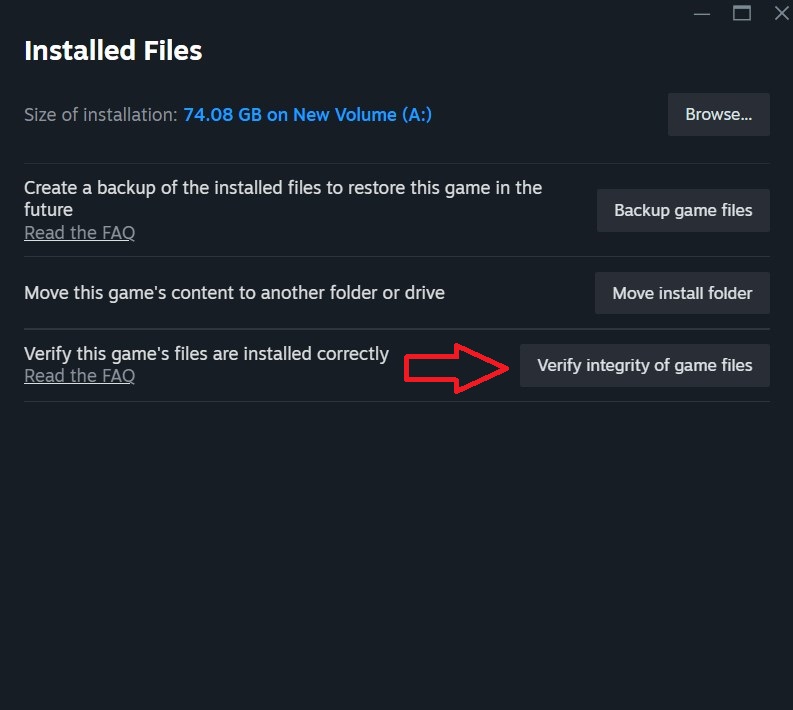
Steam will now check and repair any broken or missing files. Once the process is complete, restart your PC and launch the game again to see if the problem is fixed.
Method 2: Update GPU Drivers
Your graphics card drivers play a huge role in how well games run on your PC. If you’re using outdated drivers, Borderlands 4 may not be fully compatible with your system, leading to stuttering, graphical glitches, or even constant crashes. Nvidia, Intel, and AMD release driver updates optimized for new game launches, so it’s important to keep yours up to date.
Updating your drivers ensures the GPU is running at its best, supports the latest optimizations for Borderlands 4, and reduces the chances of crashes caused by compatibility issues. To update your drivers, use the dedicated application of your GPU, like the Nvidia App or AMD Radeon Software, or download the latest version from the manufacturer’s website.
Method 3: Close Background Applications
Another reason you may be experiencing stuttering in Borderlands 4 is because of background programs consuming system resources. Apps like web browsers, Discord, and recording software can consume a lot of CPU and RAM power, leaving less available for the game itself. Closing unnecessary apps helps free up resources, improving overall performance and stability.
- Press Ctrl + Shift + Esc to open Task Manager.
- Go to the Processes tab.
- Look for any applications that are using high CPU, RAM, or GPU resources.
- Right-click and select End Task to close them.
Method 4: Lower Graphics Settings
Borderlands 4 is a demanding game, and if you’re running it on older or weaker hardware, pushing the settings too high can cause serious performance issues. Lowering the graphics settings can make a big difference, reducing stutter and giving you a smoother experience.
Settings you should adjust first:
- Lower Resolution (try 1080p if you’re running higher)
Set Textures to Medium or Low - Turn off Ray Tracing if enabled
- Reduce Shadows and Effects quality
- Disable V-Sync if input lag is an issue
Start with lower settings and gradually increase them until you find a balance between visuals and performance. Remember, the goal is to keep the FPS stable and avoid stuttering, not to max out the graphics.