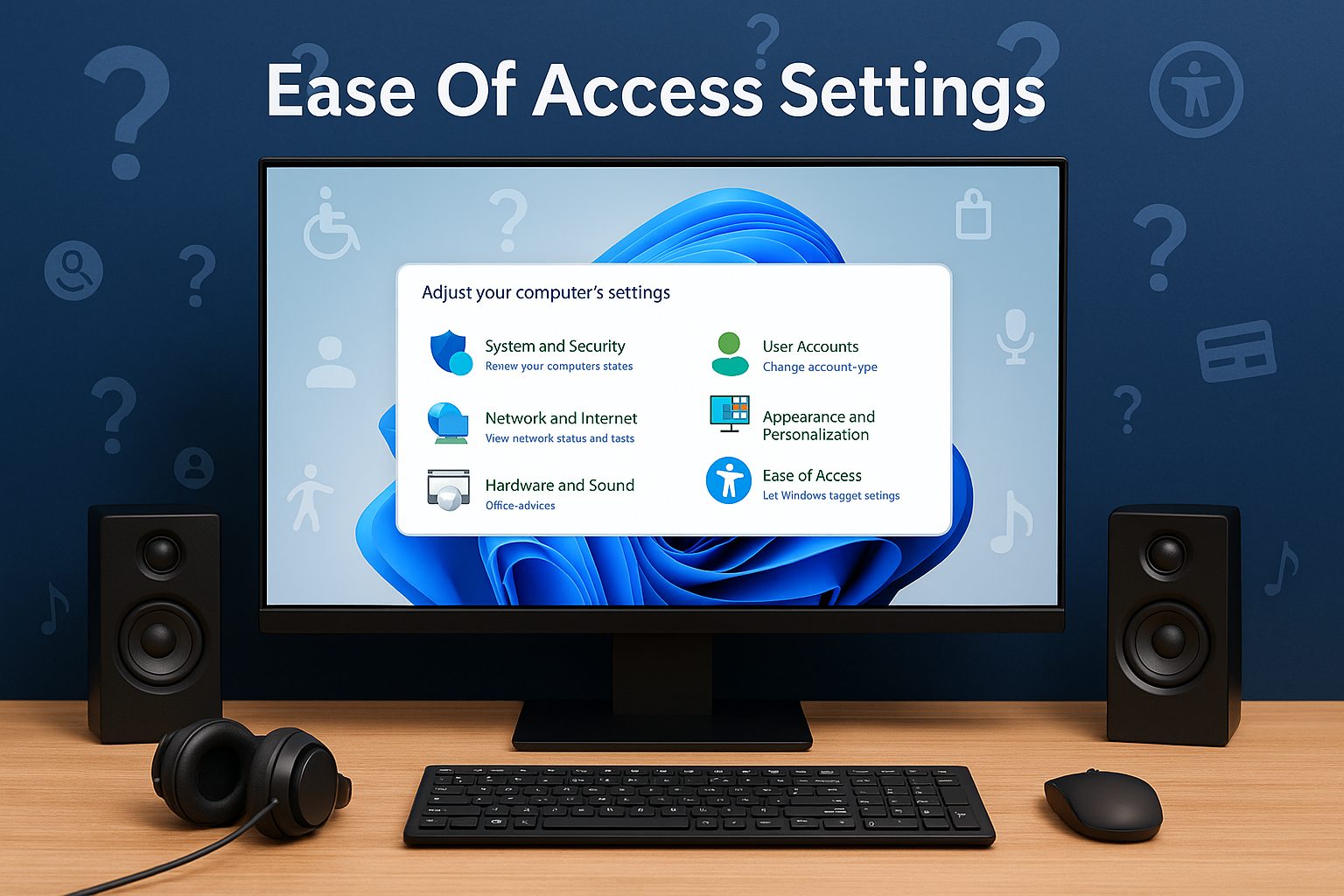
Open and Use Accessibility Settings on Windows 11
Windows 11 includes a full range of Ease of Access features designed to help you use your PC more comfortably. This guide will show you how to open, customize, and make the most of these Accessibility settings to improve visibility, hearing, and interaction.
How to Open Ease of Access Settings in Windows 11?
1. Open Settings
Use the main Settings app if you want the most direct path.
- Press Windows + I to open Settings.
- Select Accessibility on the left panel.

For a broader walkthrough of Windows configuration, see system settings in Windows 11.
2. Use the Search Box
Search is the quickest route if you prefer typing over menus.
- Click the Search icon on the taskbar.
- Type Ease of Access or Accessibility settings.

- Select the top result to open the menu.
3. Via Control Panel (Alternative)
Use the classic Control Panel if you are comfortable with traditional menus.
- Press Windows + R, type control, then press Enter.
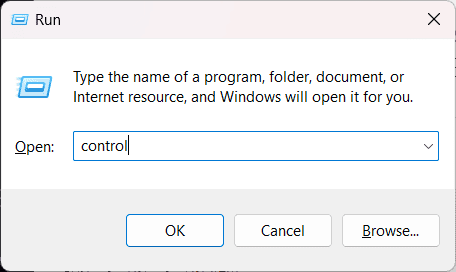
- Open the Ease of Access Center.

Key Accessibility Features You Can Customize
1. Vision Settings
Adjust visual elements to reduce strain and improve clarity.
- Text Size: Increase fonts for readability.
- Magnifier: Zoom into parts of the screen for detail.
- Contrast Themes: Apply high-contrast color themes.
2. Hearing Settings
Modify audio processing and add on-screen cues.
- Mono Audio: Merge left and right channels.
- Live Captions: Show captions for spoken audio.
- Visual Alerts: Replace sounds with screen flashes.
3. Interaction Settings
Control your PC more easily without a mouse or physical keyboard.
- Speech Recognition: Use voice to control Windows.
- On-Screen Keyboard: Type using a clickable keyboard.
- Eye Control: Navigate with eye-tracking hardware.
If you use keyboard shortcuts often, you can turn Sticky Keys on or off in Windows 11 to simplify multi-key combos.
What Are Ease of Access Settings?
Ease of Access, now labeled Accessibility, is a collection of tools that personalize how you see, hear, and interact with Windows 11.
You can also fine-tune typing behavior with Filter Keys in Windows 11 to ignore accidental key presses.
Why Use Ease of Access Features?
Accessibility features help you work and play more comfortably by improving visibility, audio clarity, and input control to match your needs.
FAQs
Go to Settings > Accessibility, then toggle off the feature you no longer need.
Yes. In Windows 11, Microsoft renamed Ease of Access to Accessibility; the tools are still there.
Yes. For example, press Windows + Ctrl + Enter to toggle Narrator or Windows + Plus (+) to open Magnifier.
Yes. Accessibility tools are available in all editions of Windows 11.
Conclusion
Ease of Access settings in Windows 11 make your PC experience smoother and more personal by adapting text, color, audio, and input to your preferences.


Readers help support Windows Report. We may get a commission if you buy through our links.

Read our disclosure page to find out how can you help Windows Report sustain the editorial team. Read more