Steam cart/checkout not working? [FIXED]
Readers help support Windows Report. We may get a commission if you buy through our links.

Read our disclosure page to find out how can you help Windows Report sustain the editorial team. Read more
If your Steam cart or checkout is not working, the cause is usually payment verification, region locks, or cached web components. Use these steps to complete the purchase.
Before you start
- Try the Steam mobile app and the web store as controls
- Disable VPN/Proxy; ensure system date/time is Automatic
- Confirm your billing address and card are up-to-date
1. Remove problem items from the cart
Region-restricted DLC, bundles you already own, or age-gated items can block checkout. Add items one by one to isolate the blocker.
2. Add funds to Steam Wallet first
Load a small amount into Wallet, then buy from Wallet. This bypasses some bank declines on direct card charges.
3. Complete 3-D Secure prompts
Do not block pop-ups. Approve the bank’s verification in your banking app or SMS page, then wait to return to Steam.
4. Switch purchase channel
If the client fails, use store.steampowered.com in a browser or the mobile app. If web fails, try the client.
5. Clear Steam web cache
In the Steam client: Settings → Web Browser → Delete Web Browser Cache and Cookies. Restart the client and retry.
6. Change payment method
Try a different card, PayPal, or platform wallet. Remove expired cards and re-add the primary method.
7. Check country/region and currency
If you recently traveled or use a VPN, Steam may flag the region. Disable VPN, ensure your store country matches your billing address, and restart.
8. Resolve “too many purchase attempts”
Multiple declines can trigger temporary blocks. Wait 30–60 minutes, then try a single transaction with a stable payment method.
9. Disable family view and spending limits
Family View PIN and spending limits can block purchases. Turn them off temporarily and retry.
10. Verify account standing
Community or market bans don’t usually block purchases, but payment fraud holds can. Review account alerts and clear outstanding issues.
11. Use a different network
Try a phone hotspot to rule out school/work firewalls that block payment gateways.
12. Re-log into Steam
Log out/in to refresh tokens. If needed, delete the client’s “config” and “htmlcache” after logging out, then log back in.
13. Retry later during store load spikes
Sales events can overload payment gateways. If all else fails, wait and retry outside peak hours.
Ask if the bank declined a 3-D Secure or foreign transaction. Pre-authorize the charge and retry.
Tips
- Keep one tab/window for checkout
- Don’t mix wallet funds and new payment methods mid-checkout
FAQs
Why does my card work elsewhere but not on Steam?
3-D Secure or region mismatch. Use Wallet or a different verified method.
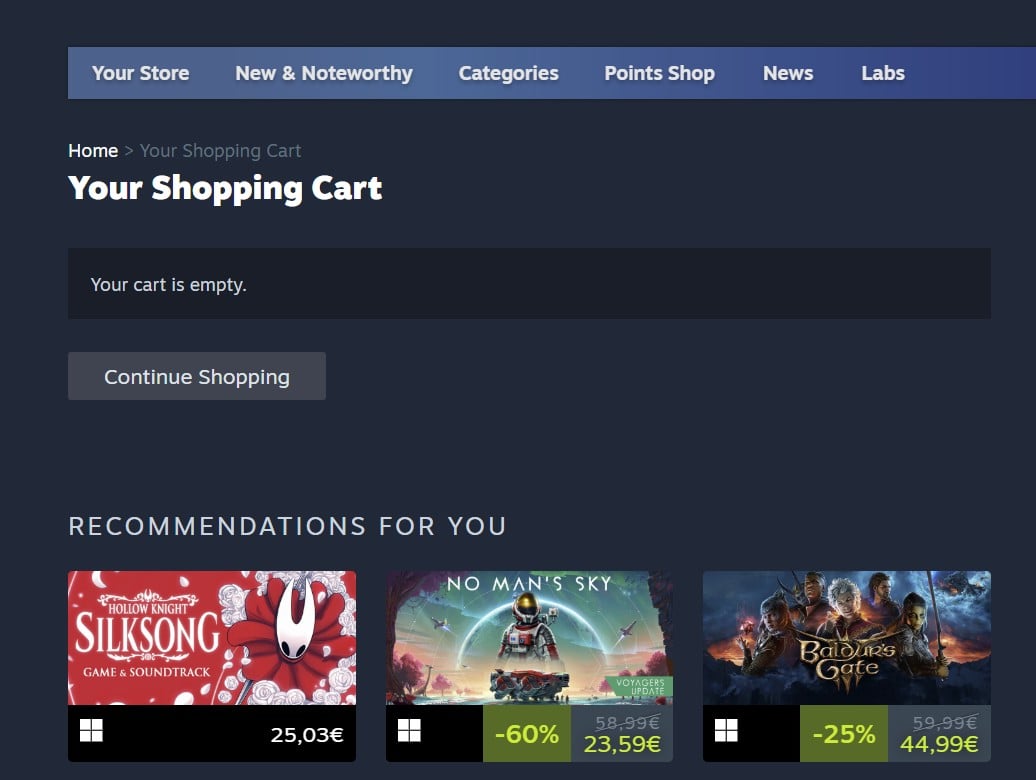
Why is my cart empty after I click Buy?
Cached web components or a blocked popup. Clear cache or use the mobile app.
Summary (ordered steps)
- Remove problematic items
- Use Wallet funds or change method
- Allow 3-D Secure pop-ups
- Switch client/web/mobile
- Clear Steam web cache
- Disable VPN; match region
- Wait out temporary locks; contact bank
Conclusion
Most Steam checkout issues are payment verification or region conflicts. With a clean cache, proper region, and an approved method, purchases go through quickly.