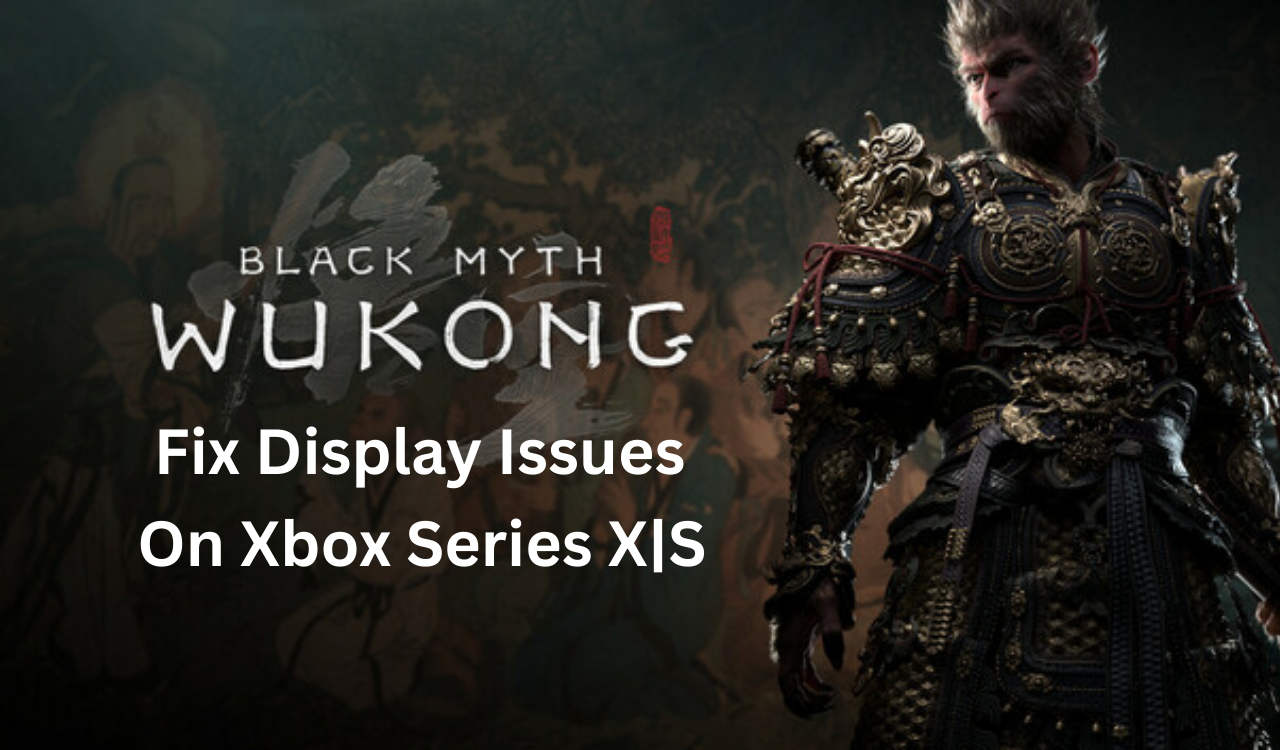
Wukong” Display Issues on Xbox Series X|S
Readers help support Windows Report. We may get a commission if you buy through our links.
Read our disclosure page to find out how can you help Windows Report sustain the editorial team. Read more
Are you facing display issues, including seeing muted colors, fuzzy edges, or generally worse image quality on Xbox while playing Black Myth: Wukong on Xbox Series X|S? Well, it seems you’re not alone. Over the past few days, there have been multiple reports on online forums like Reddit, X, and more.
In fact, a comparison video by YouTube channel Digital Foundry reveals screen tearing issues and more. In this short explainer, we’ll run you through some tried and tested fixes to resolve display issues while playing Black Myth: Wukon. So, without wasting further time, let’s jump into it.
How to Fix Display Issues (Washed-Out HDR, Blurry Image & Dull Colors) When Playing Black Myth: Wukong on Xbox Series X|S
1. Update everything
- Update the game and your Xbox Series X|S console (Settings > System > Updates).
- Next, reboot the console with a full power cycle (hold Power for 10 seconds) and try to play the game again.
2. Use HDR10, not Dolby Vision (for this game)
- First, go to Settings > General > TV & display options > Video modes. Remember, the navigation steps might be different depending on TV models.
- Then, disable “Dolby Vision for Gaming” and leave HDR10 on. Many users report Dolby Vision causing dim/washed output in some games; HDR10 tends to be more consistent on Xbox.
3. Run the Xbox HDR Game Calibration app
- Open HDR Game Calibration on Xbox and follow the three-page workflow to set black/white levels correctly (don’t crush blacks). This alone fixes “haze” for many.
4. Pick optimum video output settings
- Resolution / Refresh: Try 4K/60 first. If you run 4K/120, test whether HDR looks off, some displays mishandle 4K+120Hz+HDR combos.
- Variable Refresh Rate (VRR): Enable Variable Refresh Rate if your TV supports it. It reduces tearing in Performance/Balanced modes.
- Color space: Keep Standard (Recommended) unless you’re on a calibrated PC monitor; PC RGB can cause raised blacks or crushed shadow detail on many TVs.
- YCC 4:2:2: If colors still look off, toggle Allow YCC 4:2:2 and retest. Some TVs prefer it for 10-bit HDR over HDMI bandwidth limits; others don’t.
5. Fix your TV’s picture mode (important step)
- Use Game Mode/Filmmaker/Cinema as a baseline; turn off heavy “enhancements” like Dynamic Contrast/Black Enhancer/Live Color. These often wreck HDR tone-mapping and make images look milky or neon.
6. Dial back the sharpness on the TV
- Excess sharpness can add haloing and fake “blur.” Therefore, you should set sharpness near zero and add just a notch if the text looks soft.
7. Choose the right in-game mode
- On Series X, Performance/Balanced drops or changes global illumination compared to Quality, which can read as “flatter” lighting. Try Quality for the best image; use Balanced if you want higher FPS with better lighting than Performance.
- On Series S, Lumen GI isn’t used; all modes look simpler. Pick Quality for cleaner visuals; use Performance only if you value framerate over fidelity.
8. Bypass AV receivers or capture gear
- Plug the Xbox directly into the TV to rule out HDR tone-mapping/cable issues, then re-add devices. Use the Xbox-supplied Ultra High Speed HDMI cable.
9. Clear the game’s reserved space (Last resort)
- Clear the game’s reserved space (Manage game > Saved data > Reserved space) and relaunch, or reinstall if corruption is suspected. Please note that clearing local saved data will resync from the cloud on the next launch.
Why Display Issues Happen On Xbox With Black Myth: Wukong
- Different graphics tech on Xbox modes: Independent testing shows Lumen GI is absent in Series X Performance mode and missing entirely on Series S. That reduces bounce lighting and scene depth, so the image can look flatter next to Quality mode or other platforms.
- HDR handling quirks: Community reports across Xbox titles show Dolby Vision can appear dim/washed on some TVs, while HDR10 behaves more predictably. Mis-matched color space, over-aggressive TV “enhancements,” or uncalibrated HDR also produce haze/grey blacks.
Summing Up
That’s all for now; we hope the display issues while playing Black Myth: Wukong have been fixed on Xbox Series X|S. You should always start simple by turning off Dolby Vision for Gaming, recalibrating HDR, and using Quality mode, especially on Series S. Lock Standard color space, experiment with YCC 4:2:2, and avoid TV “enhancements.” If you want higher FPS, Balanced often looks better than straight Performance on Series X, thanks to lighting differences. These tweaks fix the “flat/blurred” look for most players.
Quick FAQs
Performance targets higher FPS and drops/changes GI features on Xbox, which reduces perceived depth and detail. Try Balanced or Quality.
No, use HDR10. Many users report that Dolby Vision appears dim or washed out in several Xbox games, depending on the TV and firmware.
Standard (Limited RGB) is recommended for most TVs. PC RGB can cause crushed or raised blacks unless the TV is calibrated for it.
Yes. If your TV supports VRR, enable it to smooth out fluctuations in Performance/Balanced modes. Otherwise, use Quality for a steadier image.
Yes. Series S omits Lumen GI for this title, so visuals are pared back across modes. Choose Quality on S for the cleanest look.