You’re Not Up to Date but No Updates: Easy Fix
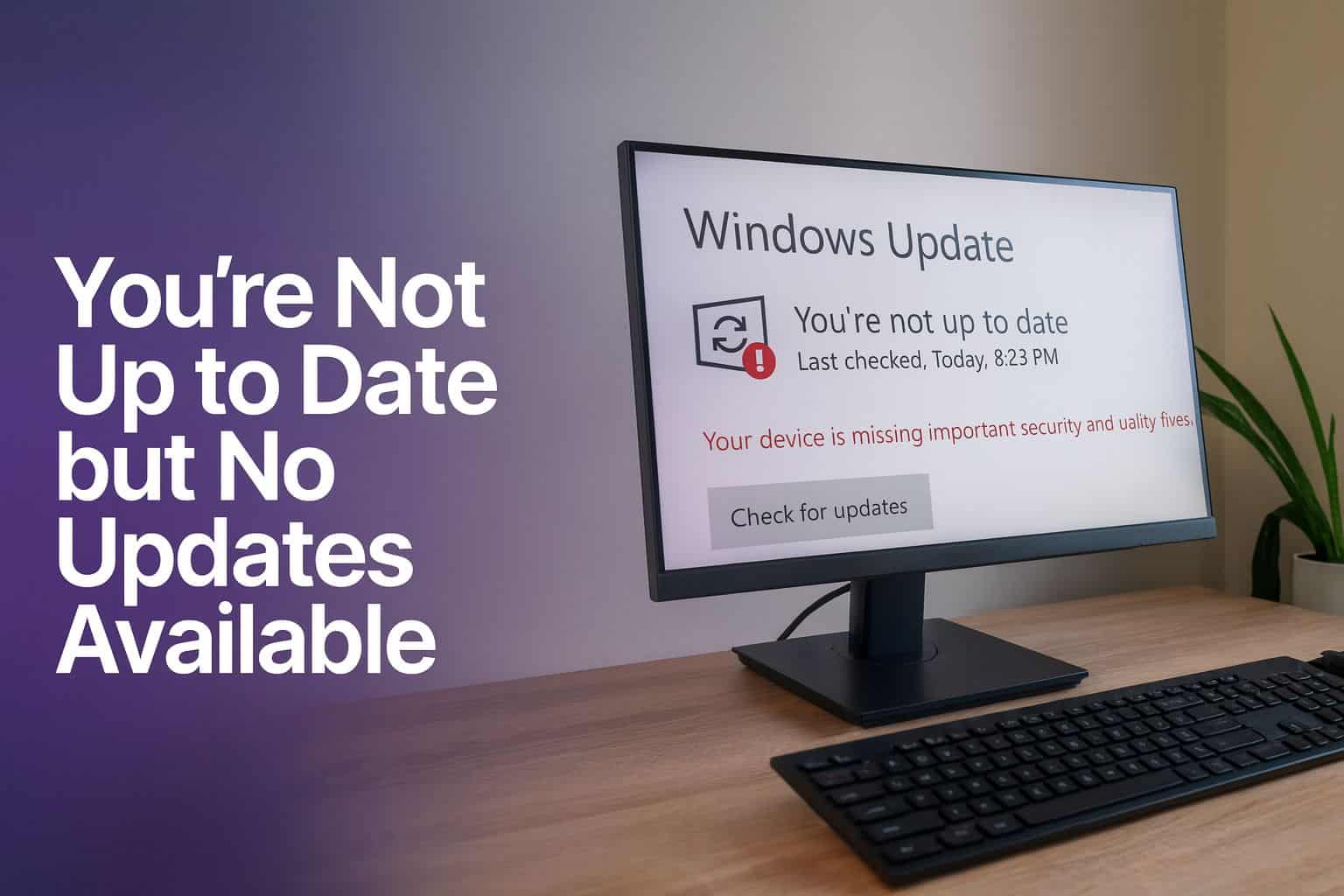
The “You’re not up to date” message in Windows Update can appear even when no new updates exist. This issue often confuses users who keep their systems regularly updated. Follow this quick guide to resolve the error and restore accurate update checks.
How to Fix the “You’re Not Up to Date but No Updates” Error?
1. Restart the Windows Update Service
Restarting the update service often clears temporary glitches.
- Press Windows + R and type services.msc.

- Find Windows Update in the list.
- Right-click it and select Restart.

- Wait a few seconds, then check for updates again in Settings > Windows Update.
If the update keeps looping, try pausing and resuming updates. You can also learn how to disable Windows 11 updates temporarily for more control.
2. Clear the Windows Update Cache
If the cache is corrupted, Windows may falsely show an outdated status.
- Press Windows + R, type cmd, and press Ctrl + Shift + Enter to run as administrator.

- Enter each command and press Enter after each:
net stop wuauserv
net stop bits
del /s /q %windir%\SoftwareDistribution\*
net start wuauserv
net start bits
Once complete, open Settings > Windows Update and click Check for updates again.
3. Run the Windows Update Troubleshooter
Windows includes a built-in repair tool that fixes most update issues automatically.
- Press Windows + I to open Settings.
- Go to System > Troubleshoot > Other troubleshooters.
- Next to Windows Update, click Run.

- Follow the on-screen instructions and apply the recommended fixes.
If updates still fail, see this guide on Windows Update and Restart not working in Windows 11.
4. Reset Update Components via Command Prompt
A full reset helps when the troubleshooter cannot fix the underlying issue.
- Open Command Prompt (Admin).
- Run these commands one by one:
net stop wuauserv
net stop cryptSvc
net stop bits
net stop msiserver
ren C:\Windows\SoftwareDistribution SoftwareDistribution.old
ren C:\Windows\System32\catroot2 catroot2.old
net start wuauserv
net start cryptSvc
net start bits
net start msiserver
Afterward, restart your PC and recheck for updates.
5. Verify Date, Time, and Region Settings
Incorrect system settings can block update verification.
- Go to Settings > Time & language > Date & time.
- Enable Set time automatically and Set time zone automatically.

- Restart the computer and check for updates again.
6. Use the Microsoft Update Assistant
If the error persists, use Microsoft’s official tool to manually update your system.
- Visit the official Windows 10/11 Update Assistant page.
- Download and run the tool.
- Follow the on-screen steps to install the latest version manually.
If your PC shows low disk space during installation, learn how to fix Windows needs more space errors to complete the update successfully.
Why Windows Says “You’re Not Up to Date”
This message appears when Windows Update cache or related services malfunction. It can also occur if update components are paused, corrupted, or stuck. Resetting services and clearing the cache ensures Windows communicates properly with Microsoft’s servers.
Why This Works
These steps reset broken update services, rebuild corrupted files, and restore proper synchronization with Microsoft’s servers. After completion, your update status should refresh correctly.
FAQs
It happens due to corrupted cache files or stopped update services. Restarting them usually resolves the problem.
Yes. Windows automatically recreates this folder after you restart the update services.
Sometimes. Third-party antivirus tools may block update servers. Temporarily disable them and try again.
No. Reinstallation should be the last resort. The steps above usually fix the issue without reinstalling your OS.
Conclusion
The “You’re not up to date but no updates” message often results from minor Windows Update glitches. Restarting services, clearing cache, and resetting update components typically resolve it. If your system still refuses to update, consider running the Update Assistant or checking the linked guides for more targeted solutions.


Readers help support Windows Report. We may get a commission if you buy through our links.

Read our disclosure page to find out how can you help Windows Report sustain the editorial team. Read more