Chrome’s New Tab Page adds AI Mode and a + button to ask with context in Canary
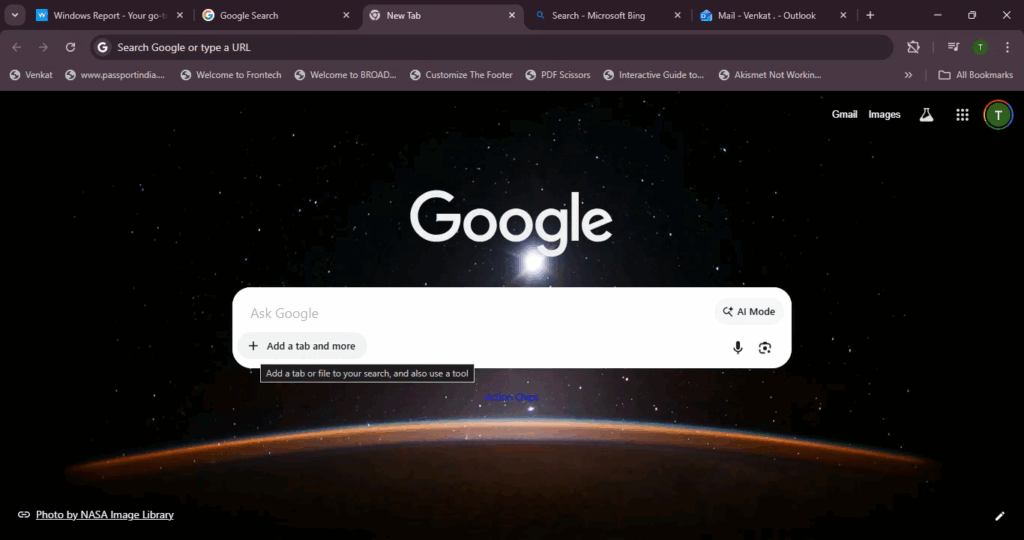
Recently, we reported that Google is working on the “Next” version of Chrome’s New Tab Page and its search box. In the Canary version, the box appears with a new layout, an AI Mode button, and a + button that lets you add files, images, or recent tabs before you ask.
Click the + inside the box, and the panel opens instantly with no delay. You see your most recent tabs, along with “Add Image” and “Add File.” The list reflects what you have open, so you can pull a page in before asking your question.
Under the box are blue text prompts in the space where “Action chips” are expected. These look like early task starters, but they are not clickable yet.

This makes the New Tab Page feel like a place to begin a task with context. You can bring in a tab, attach a file or image, and then ask.
Ask with Context on the New Tab Page
What you can do now
Open a new tab in Canary, click the + inside the AI-style box, and pick a recent tab or use “Add image” or “Add file”. Type your question and send. AI Mode answers in the same tab.

On the present stable New Tab Page, Chrome shows a simple Google Search bar with shortcuts below it. It is a space to type a quick query or open a site.
In Canary, the box is shaped for longer questions. Instead of a short bar, you get an AI-style input with AI Mode and a + inside it. The New Tab Page becomes a place to begin a task, not just search the web.
AI apps have changed what users expect from a text box. It is now a place to ask a question, plan, or get help with something. Chrome’s New Tab Page now shows that change. The box looks ready for a question with context rather than a short search query.
Chrome already shows an AI Mode shortcut on the New Tab Page on Android, but on the desktop, it now lets you add context from tabs, images, or files before you ask.
Also, Chrome will soon support opening dragged links in the same tab, and could get high-quality audio recording, an Immersive Reader mode, and new search preference warnings.
Readers help support Windows Report. We may get a commission if you buy through our links.

Read our disclosure page to find out how can you help Windows Report sustain the editorial team. Read more