Fix Outlook Notifications Not Working on Windows 11 & 10 [Easy Guide]
Readers help support Windows Report. We may get a commission if you buy through our links.

Read our disclosure page to find out how can you help Windows Report sustain the editorial team. Read more
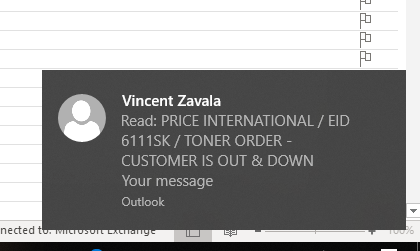
Missing Outlook notifications can cause you to skip important emails and reminders, or even meetings. Whether you rely on desktop alerts, sounds, or mobile push notifications, a glitch can seriously disrupt your workflow (or even put your job in danger). Luckily, there are several reliable fixes to restore them.
Outlook notification issues appear for many reasons:
- outdated apps
- misconfigured settings,
- conflicts with Windows and iOS systems.
Below are the most common solutions explained step by step.
How to Restore Missing Outlook Notifications?
Check Outlook Notification Settings
Time needed: 3 minutes
- Open Outlook Options
Go to File > Options inside Outlook to access the main settings menu.
- Navigate to Mail Settings
In the left-hand panel, select “Mail” to open the message arrival options.
- Enable Desktop Alerts
Under “Message arrival,” check the box for “Display a Desktop Alert.”
- Turn On Notification Sounds
In the same section, check “Play a Sound” to make sure alerts include audio.
- Save and Restart Outlook
Click OK to apply changes, then restart Outlook to test if notifications appear.
If sounds specifically are not playing, follow this dedicated guide on Outlook notification sound not working for more detailed fixes.
Update or Repair the Outlook App
Bugs in older versions can stop notifications from working. Updating to the latest version often resolves the problem. Here is how to do it:
- Open Microsoft Store (or App Store on iOS).
- Search for Outlook and check for updates.
- Install any pending updates.
- Restart your device and test notifications.
If Outlook fails to launch altogether, which can prevent notifications entirely, you’ll need to apply the solutions in Outlook not opening on Windows 10.
Enable Notifications for Subfolders
By default, Outlook only triggers alerts for emails landing in the main inbox. If rules move emails into subfolders, you won’t get notified unless you configure it manually.
This is a common frustration for users who organize their messages. The fix requires setting up rules that apply desktop alerts to subfolders as well. For instructions, see the guide on Outlook notifications for subfolders.
Fix Outlook Notifications on iPhone
Many users also run into issues where Outlook doesn’t send push alerts to iOS. If this happens, check iPhone notification permissions.
Steps:
- Open Settings > Notifications.
- Find Outlook and enable “Allow Notifications.”
- Choose how alerts appear (banner, sound, lock screen).
- Reopen Outlook and test with a new email.
More tailored iOS fixes can be found in the article on Outlook notifications not working on iPhone.
Final Verdict: Restoring Outlook Alerts Quickly
If Outlook notifications stop working, start with simple fixes like re-enabling alerts, updating the app, and checking system permissions. Configure subfolder alerts if your messages skip the inbox, and verify push notifications on iPhone if you’re on mobile. With the right adjustments, your alerts should return, helping you stay on top of every email.
FAQs
They might be disabled in Outlook or blocked in Windows notification settings.
Yes, but you must create rules that trigger alerts for those folders.
Push notifications may be disabled in iOS settings, or Outlook needs an update.
Repairing or updating Outlook often resolves bugs that block notifications.