How to Fix Windows 11 KB5062553 Update Not Installing
Readers help support Windows Report. We may get a commission if you buy through our links.

Read our disclosure page to find out how can you help Windows Report sustain the editorial team. Read more
If the KB5062553 update is not installing on Windows 11, you are not alone. Many users have reported running into installation failures, often with the error code 0x800f0922 or messages like “Updates failed. Your device is missing important security updates.”
Can’t install KB5062553 update on Windows 11? Here’s how to fix
This cumulative update is critical for system stability and security, so getting it installed is essential. Below, we break down the most effective solutions, step by step. You don’t need to try all of them; start from the top and work your way down until the issue is resolved.
1. Run the Windows Update Troubleshooter
Windows has a built-in troubleshooter designed to detect and fix common update problems automatically.
Follow the on-screen steps and check if the problem is resolved.
2. Disable Windows Sandbox
The Windows Sandbox feature uses virtualization to run isolated apps, but it can lock critical system files and interfere with updates like KB5062553.
1. Open the Control Panel by simply searching on the Start Menu search
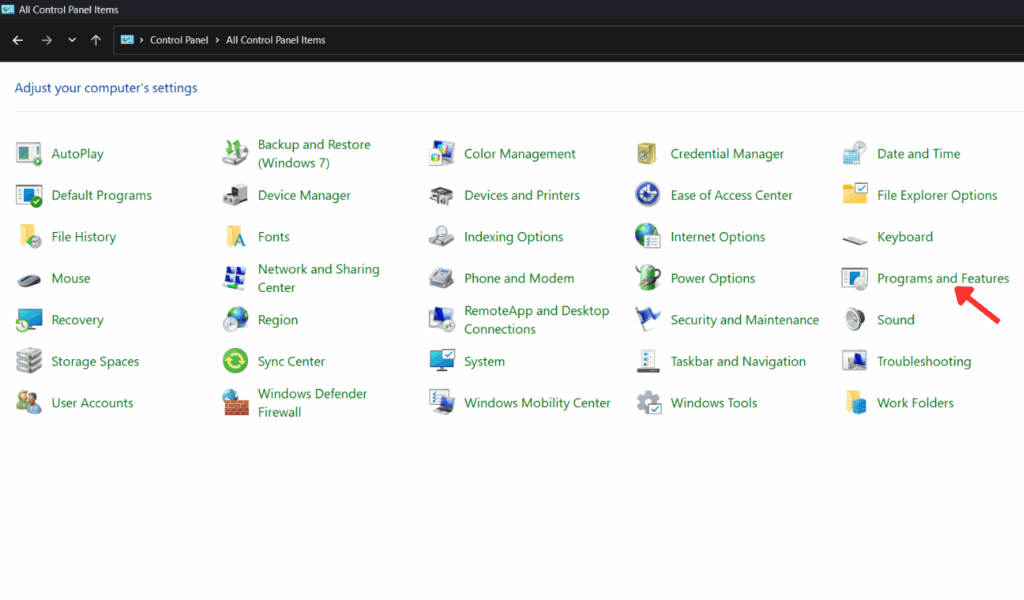
2. In Control Panel, go to Programs and Features

3. Then, click on Turn Windows features on or off.

4. Locate Windows Sandbox, uncheck it, and click OK.
5. Finally, restart and try installing the update again.
Note: You can re-enable Sandbox later if needed.
3. Manually Install via Microsoft Update Catalog
If Windows Update keeps failing, installing KB5062553 manually can bypass the error.
- Visit the Microsoft Update Catalog.
- Download the correct version of the update for your system (e.g., x64 for most PCs or arm64 for ARM devices).
- Confirm your system type by pressing Win + X > System.
- Once downloaded, right-click the .msu file and select Copy as path.
- Open Command Prompt as Administrator and type:
DISM /Online /Add-Package /PackagePath:"<your update file path>- Wait for the installation to finish, then restart your PC.
4. Repair Corrupted System Files
Damaged system files often cause update errors. Luckily, Windows has built-in tools to repair them.
- Open Command Prompt as Administrator and type the following command:
sfc /scannowThis scans and replaces corrupted files.
- If issues persist, run the following DISM commands one by one:
DISM /Online /Cleanup-Image /CheckHealthDISM /Online /Cleanup-Image /ScanHealthDISM /Online /Cleanup-Image /RestoreHealth - Once complete, restart your PC and try the update again.
5. Don’t Forget to Update Device Drivers
Outdated or incompatible drivers, especially graphics, network, or storage drivers, can block updates.
- Update manually via Device Manager. Open it by simply searching for the term from the Start Menu.
- You can also download the latest versions from your PC manufacturer’s site.
- Restart your system after updating.
For faster updates, you can also use third-party driver utilities that automatically detect and install the correct versions.
FAQs
Error 0x800f0922 typically indicates either a missing .NET Framework component or insufficient free space in the system’s EFI System Partition (ESP). It can also be triggered by VPNs or firewall settings that interfere with installation connectivity.
Firest, open Disk Management, check the EFI System Partition size, especially if it’s below 100 MB. If needed, use a partitioning tool to expand it. Once there’s enough space, retry installing KB5062553.
Yes. KB5062553 may require updated dependencies in the .NET Framework. Open Windows Features and ensure .NET Framework 3.5 (.NET 2.0 and 3.0) is enabled. You try instaling the update after running the following command:
dism /online /enable-feature /featurename:NetFx3 /All /LimitAccess /Source::\sources\sxs
Absolutely, it’s often overlooked. VPNs and firewalls can disrupt update downloads or installations. Disable them temporarily (or disconnect from VPN), attempt the update (KB5062553) again, then re-enable your network safeguards once it’s successful.
That’s all we have in this guide for you to help fix KB5062553 update not installing on Windows 11. For those still getting error 0x800f0922 while installing Windows update, make sure to check this guide.