How to Log in to Router Quickly
Readers help support Windows Report. We may get a commission if you buy through our links.

Read our disclosure page to find out how can you help Windows Report sustain the editorial team. Read more
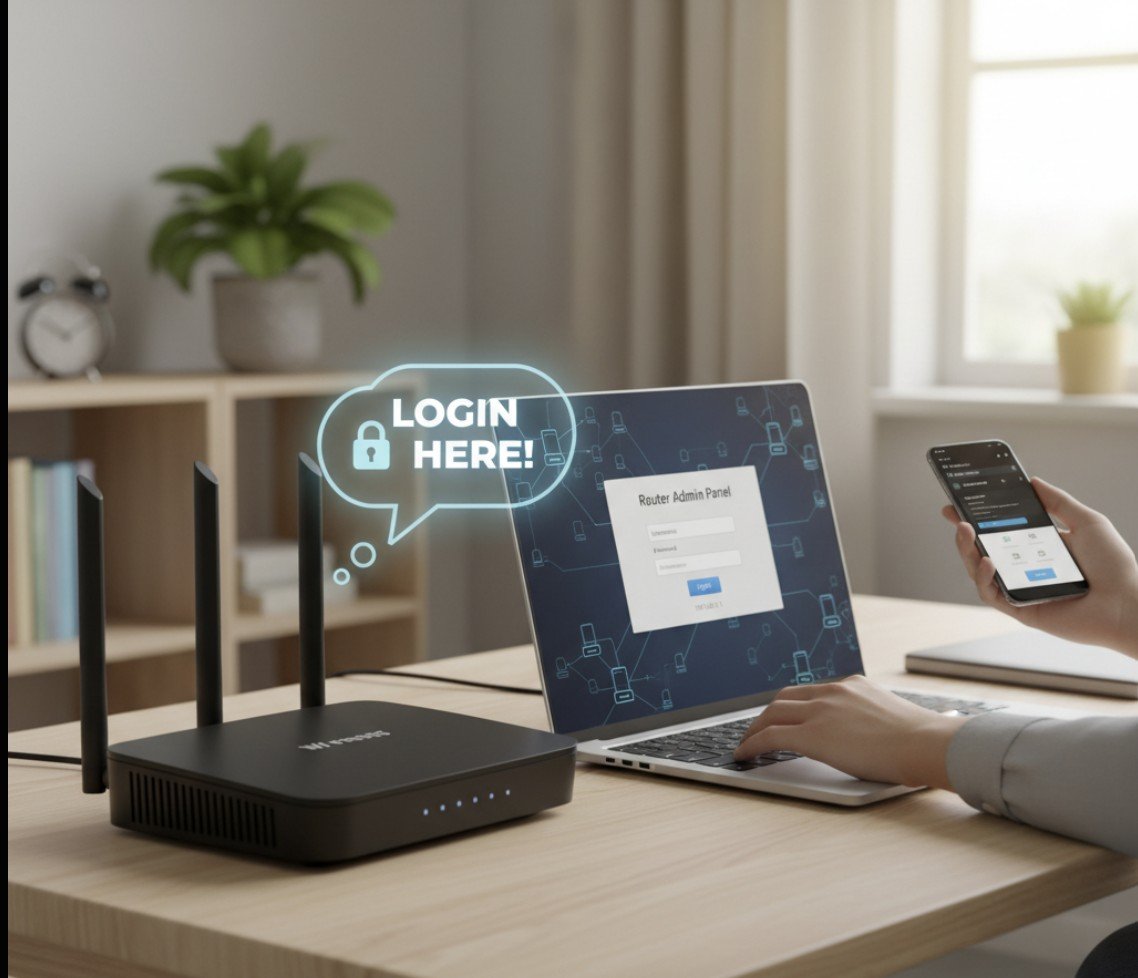
Can’t open your router’s settings? The usual causes are using the wrong IP address, typing the address into a search box, or blocked access by VPN/proxy or cached browser data. Follow these fast checks to get to the login page and sign in safely.
Applies to: Windows 11/10 Skill level: Beginner Time to complete: 3–5 minutes
Before you start
- Connect to the router’s Wi‑Fi or via an Ethernet cable.
- Temporarily turn off any VPN or proxy app.
- Have the admin username/password ready (often on a label on the router).
- If possible, use a desktop browser.
1) Find your router’s IP (Default gateway)
Quickest: Press Win + R, type cmd, press Enter, then run ipconfig. Look for Default Gateway (for example, 192.168.1.1 or 192.168.0.1). See our guide on using ipconfig or finding IP addresses on Windows 11 for more options.
Also try: Open Settings > Network & internet > Properties for your active network, or check the sticker on the router for “Gateway/Router IP.”
2) Open the login page in your browser
- In the address bar (not the search box), type the gateway IP exactly:
http://192.168.1.1(or yours). - If your router uses a custom port, add it (example:
http://192.168.1.1:8080). - If you see a certificate warning, choose Continue/Advanced > Proceed for local access.
3) Sign in with the admin account
Enter the router’s admin username and password (they’re different from Wi‑Fi credentials). Defaults vary by brand, so check the router label. If you’ve changed and forgotten them, use the Forgot password option if available or reset the router (see below).
4) If the page won’t load or you can’t log in
- Verify the IP: Re‑run
ipconfigand confirm the Default Gateway value. - Try another browser or clear cache/cookies (see how to clear Edge cache).
- Disable VPN/proxy and retry. If name resolution fails, see Your DNS server might be unavailable.
- Power cycle the router (off 15 seconds, then on) and your PC.
- Use Ethernet instead of Wi‑Fi to avoid captive portal issues.
- Factory reset (last resort): Hold the router’s Reset pin for 10–15 seconds. You’ll need to reconfigure everything afterward. If you still can’t reach the page, try the tips in can’t access router page.
5) Secure things after your first login
- Change the admin password to a unique one.
- Update firmware: look for Administration or Update in your router UI.
- Use WPA2/WPA3 for Wi‑Fi security and set a strong Wi‑Fi password.
- Back up settings so you can restore quickly after a reset.
Troubleshooting quick commands (run in Command Prompt)
ipconfig /all
ping 192.168.1.1
ipconfig /flushdns
ipconfig /release && ipconfig /renew
FAQs
What is the most common router login IP? 192.168.1.1 and 192.168.0.1 are typical, but always confirm with ipconfig on your PC.
Where do I find the default username and password? Check the sticker on the router. If changed and forgotten, reset the router to factory settings.
Why does the page say “can’t reach this page”? You might be typing the IP into a search bar, using the wrong IP, or a VPN/proxy is interfering. See our guide on fixing router page access.
Summary
- Find the gateway IP with
ipconfigor in Settings. - Open the IP in your browser’s address bar.
- Sign in with the router’s admin account.
- If blocked, clear cache, disable VPN/proxy, power cycle, then reset.
- Change the admin password and update firmware.
Readers help support Windows Report. We may get a commission if you buy through our links.
Read our disclosure page to find out how can you help Windows Report sustain the editorial team. Read more