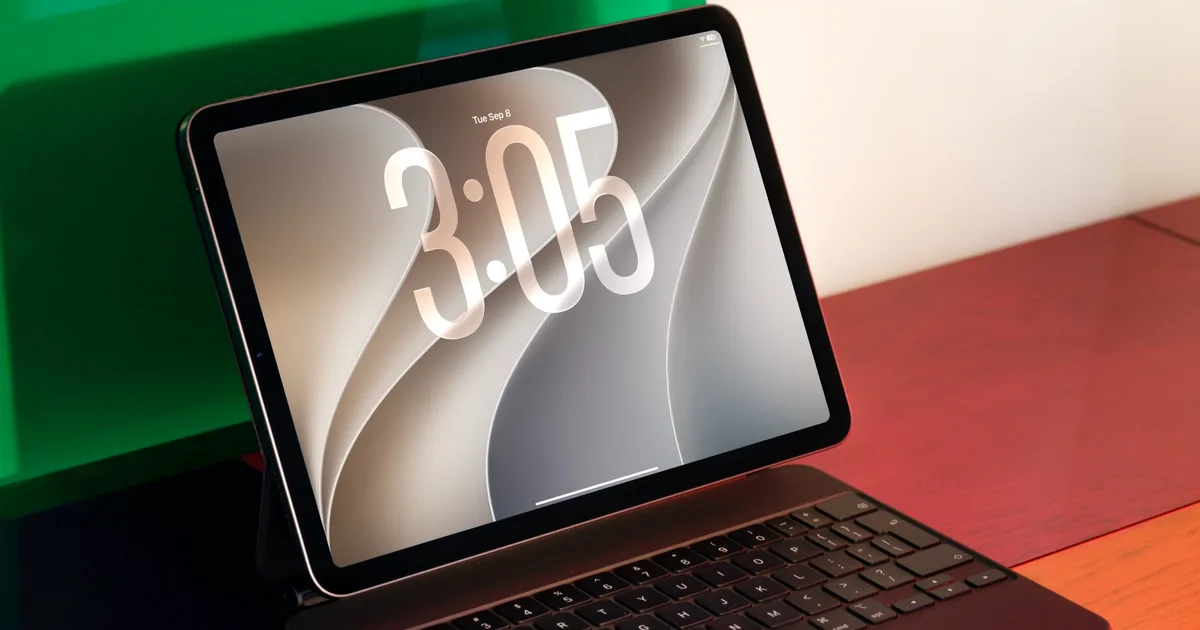
How to reset an iPad: soft restart, force restart, and factory reset
Even the best hardware from Apple isn’t immune to glitches. iPhones, iPads, and MacBooks are known to run for years without issues, but every so often, your iPad needs a reset to get back on track.
The good news is that resetting an iPad is one of the easiest things you can do on any Apple device. It takes just a few minutes and doesn’t require any tech expertise. That said, there are three very different types of resets, and mixing them up can cause more problems than it solves. You don’t want to wipe your entire iPad when all you needed was a quick restart.
Here’s a full breakdown of every reset method, when to use it, and how to do it right.
Quick answer: which reset do you actually need?
If you’re in a hurry and just want the short version, here’s how to think about it. A soft restart is for an iPad that’s acting a little slow or glitchy but still responds when you touch it. A force restart is for a frozen screen that won’t respond no matter what you tap.
A factory reset is the nuclear option, and it’s meant for iPads with a lingering issue that survives the first two fixes, or for when you’re selling, gifting, or recycling the device entirely. Start with the least drastic option first, and only move up the list if it doesn’t solve your problem.
Soft restart: your first move for a sluggish iPad
A soft restart is best for times when your iPad feels slow, an app keeps freezing, or something isn’t loading right, but the screen is still responding to your taps. It works just like rebooting a computer and clears out background processes that might be causing the hiccup. Nothing gets deleted in the process, so it’s always safe to try first, and honestly, it fixes more problems than people give it credit for.
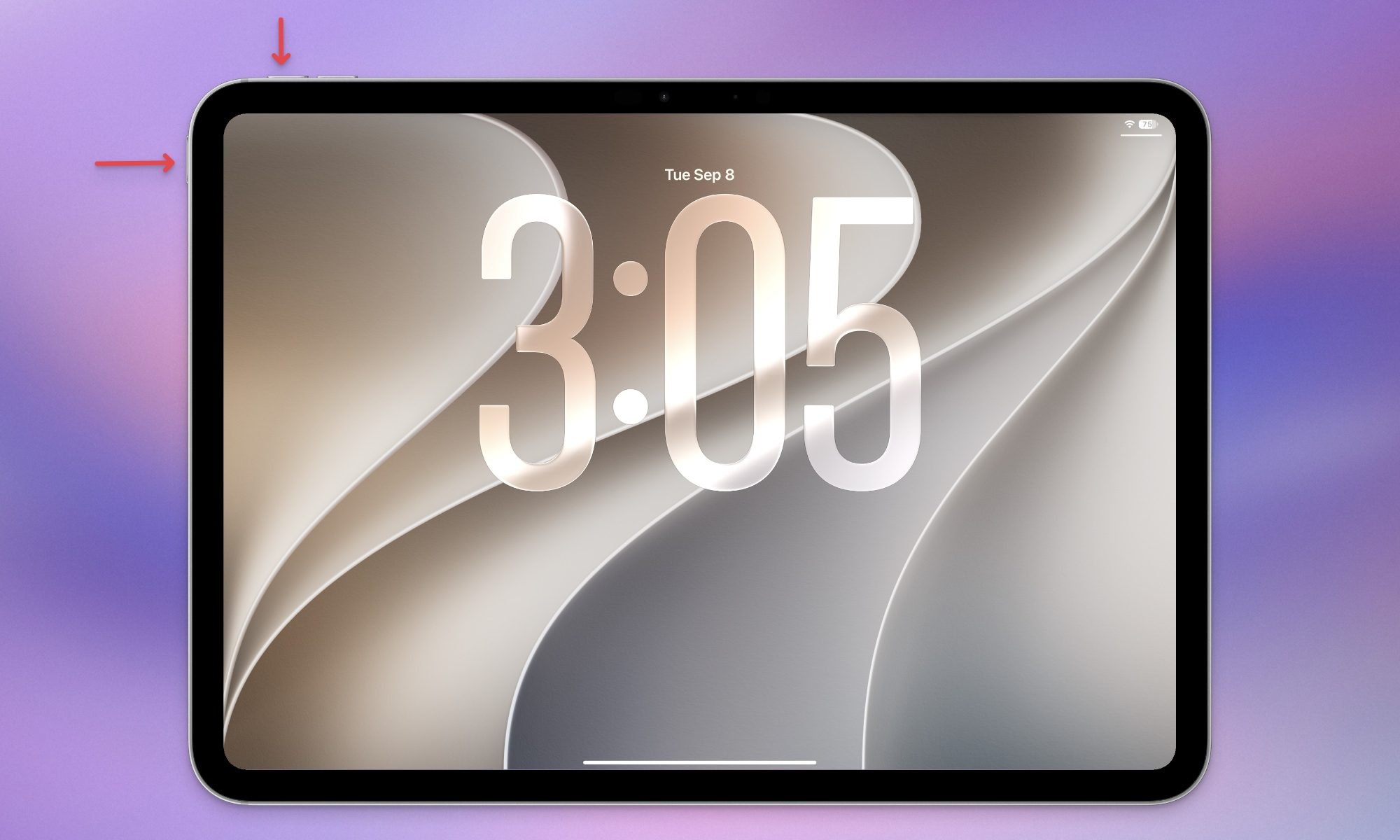
Step 1: On an iPad with Face ID or Touch ID built into the top button, press and hold the top button along with either volume button until the power-off slider appears. If your iPad has a Home button, just hold the top button by itself.
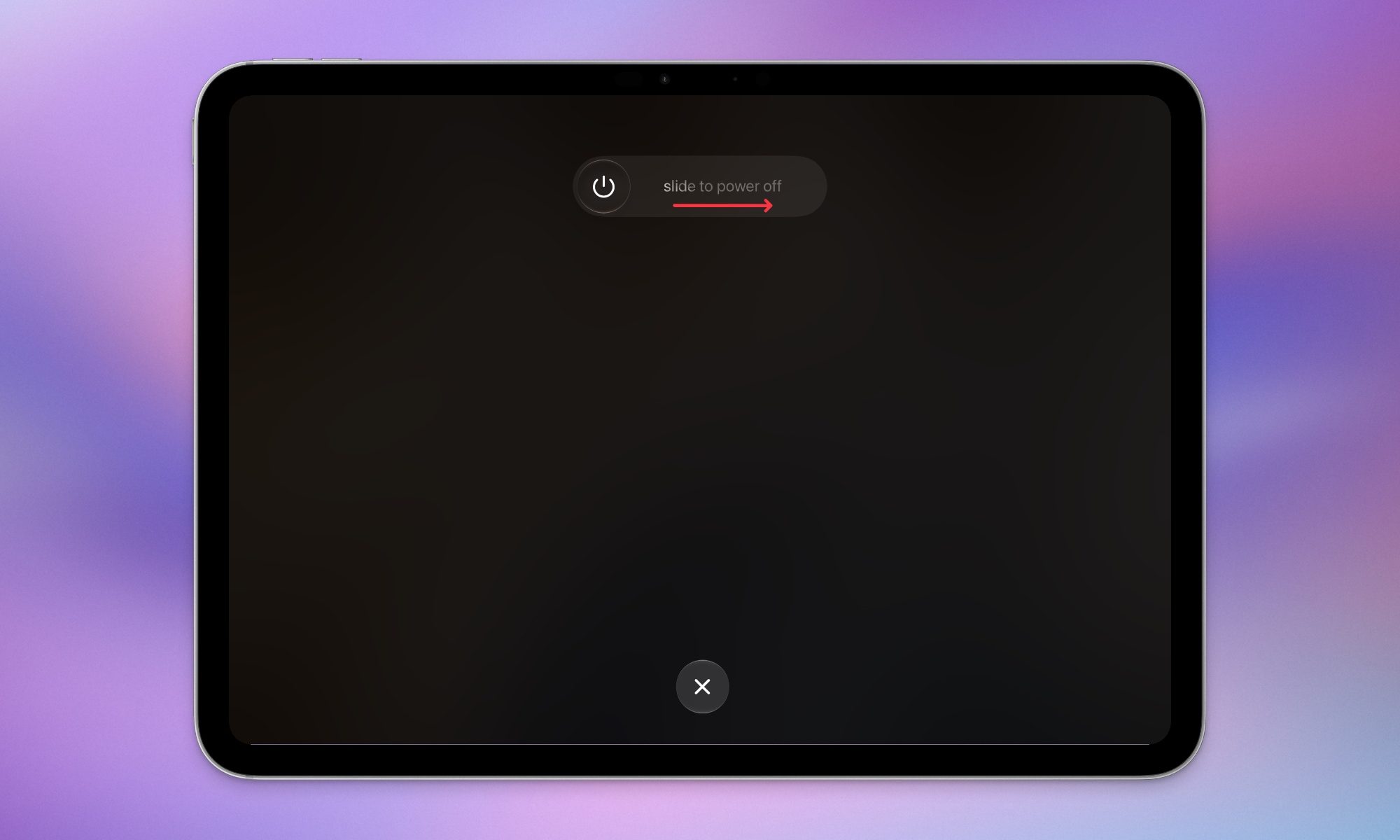
Step 2: Drag the slider from left to right to power down.
Step 3: Wait about 30 seconds, then press and hold the top button again until the Apple logo shows up.
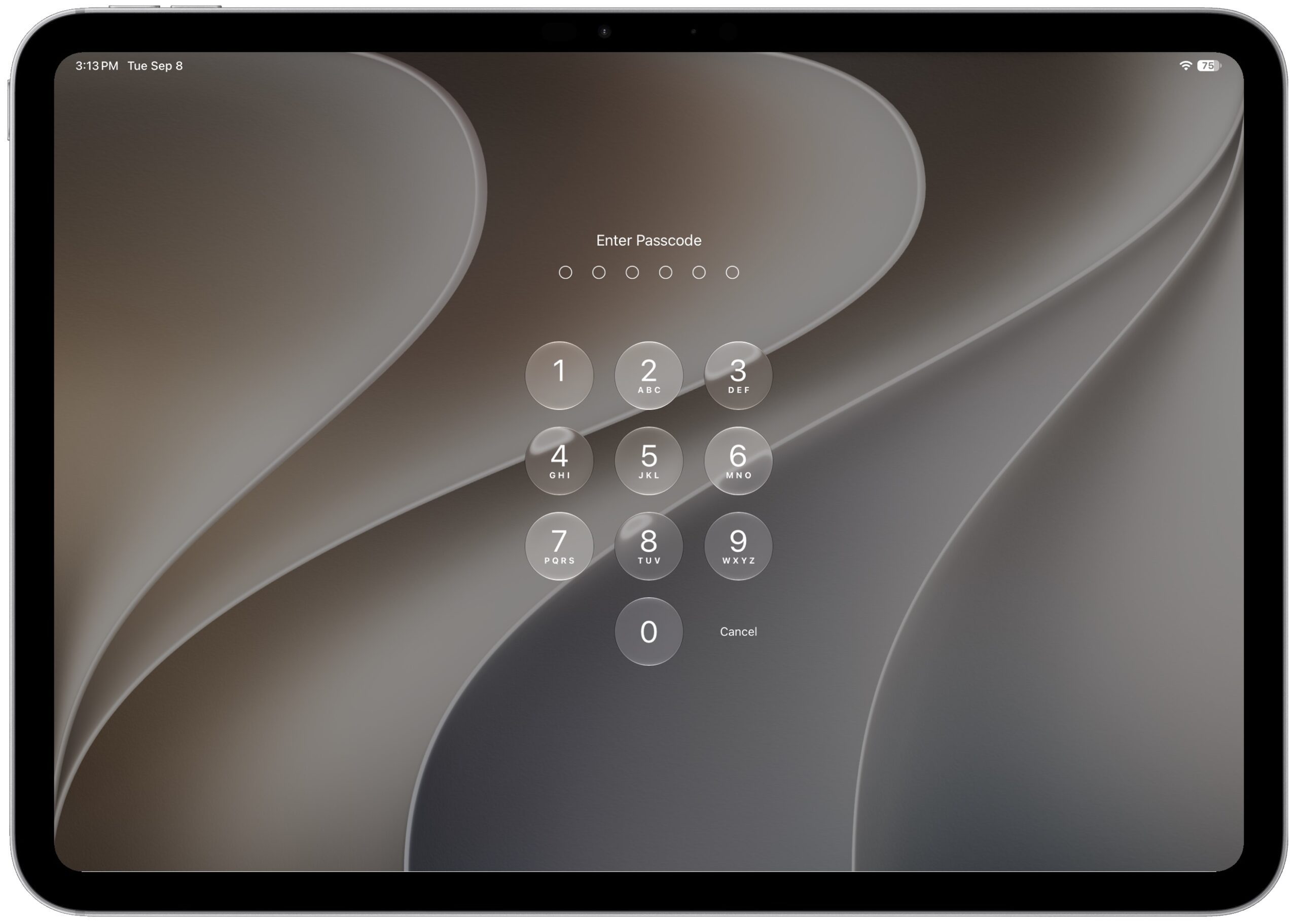
Step 4: Once you’re back at the lock screen, enter your passcode to unlock it. Apple requires this after a restart, so Face ID or Touch ID won’t work until you’ve typed it in at least once.
Force restart: for when your iPad won’t respond at all
Use this when your screen is completely frozen and you can’t even reach the power off slider, let alone drag it. It’s still just a way of turning your iPad off and back on, and it won’t erase anything either, so there’s no real risk in trying it. The exact button combination depends on which iPad you own. You won’t lose any data or settings, and nothing will be deleted from your iPad when you do a force restart.
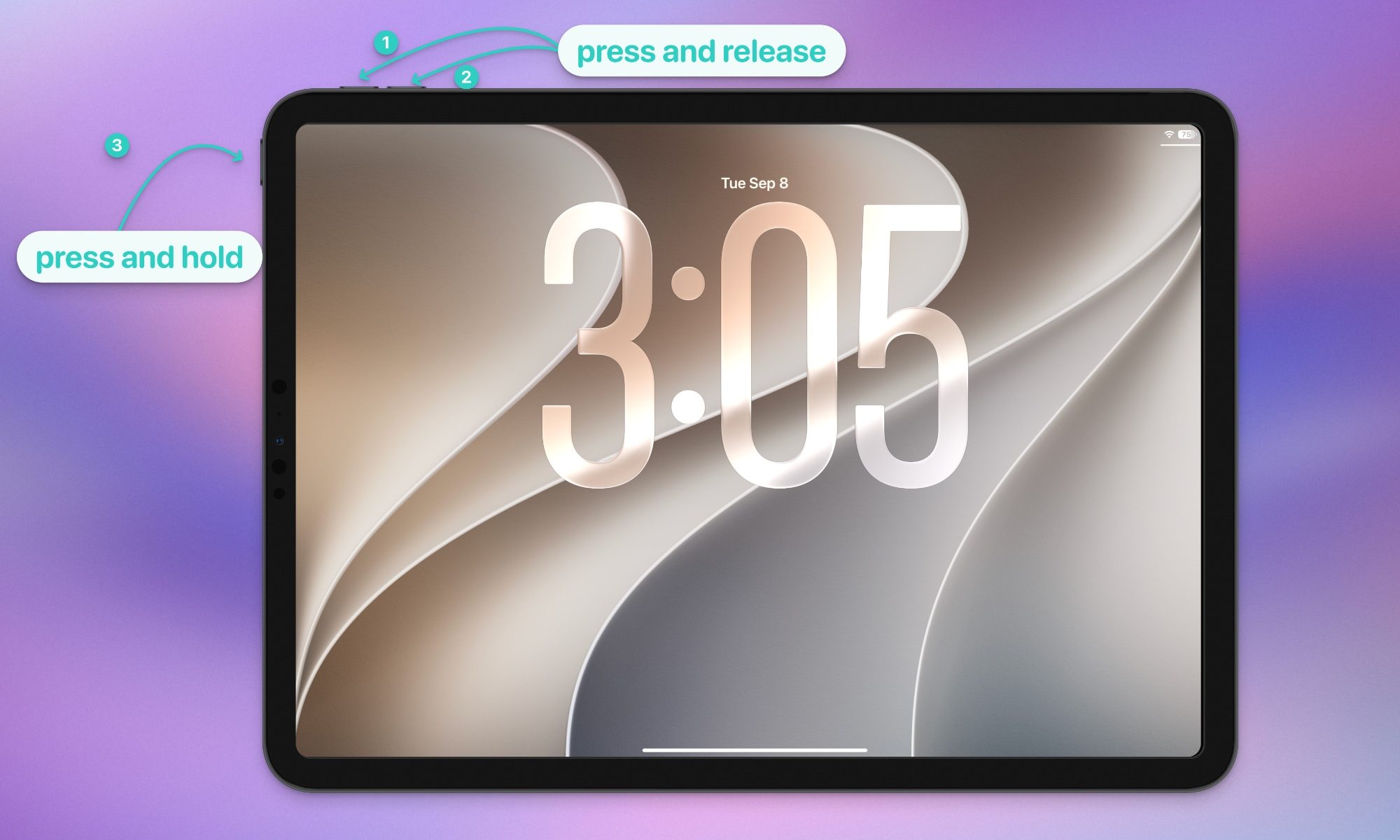
If you have an iPad with Face ID (like the 2022 iPad Pro):
This model doesn’t have a Home button, so the button combination is a little different.
Step 1: Quickly press and release the volume-up button.
Step 2: Quickly press and release the volume down button.
Step 3: Press and hold the top button until the device restarts.
If you have an iPad with Touch ID in the top button (like the 2022 iPad or 2021 iPad mini):
These models use the same button sequence as the Face ID iPads, just with Touch ID built into the top button instead.
Step 1: Quickly press and release the volume-up button.
Step 2: Quickly press and release the volume down button.
Step 3: Press and hold the top button until the device restarts.
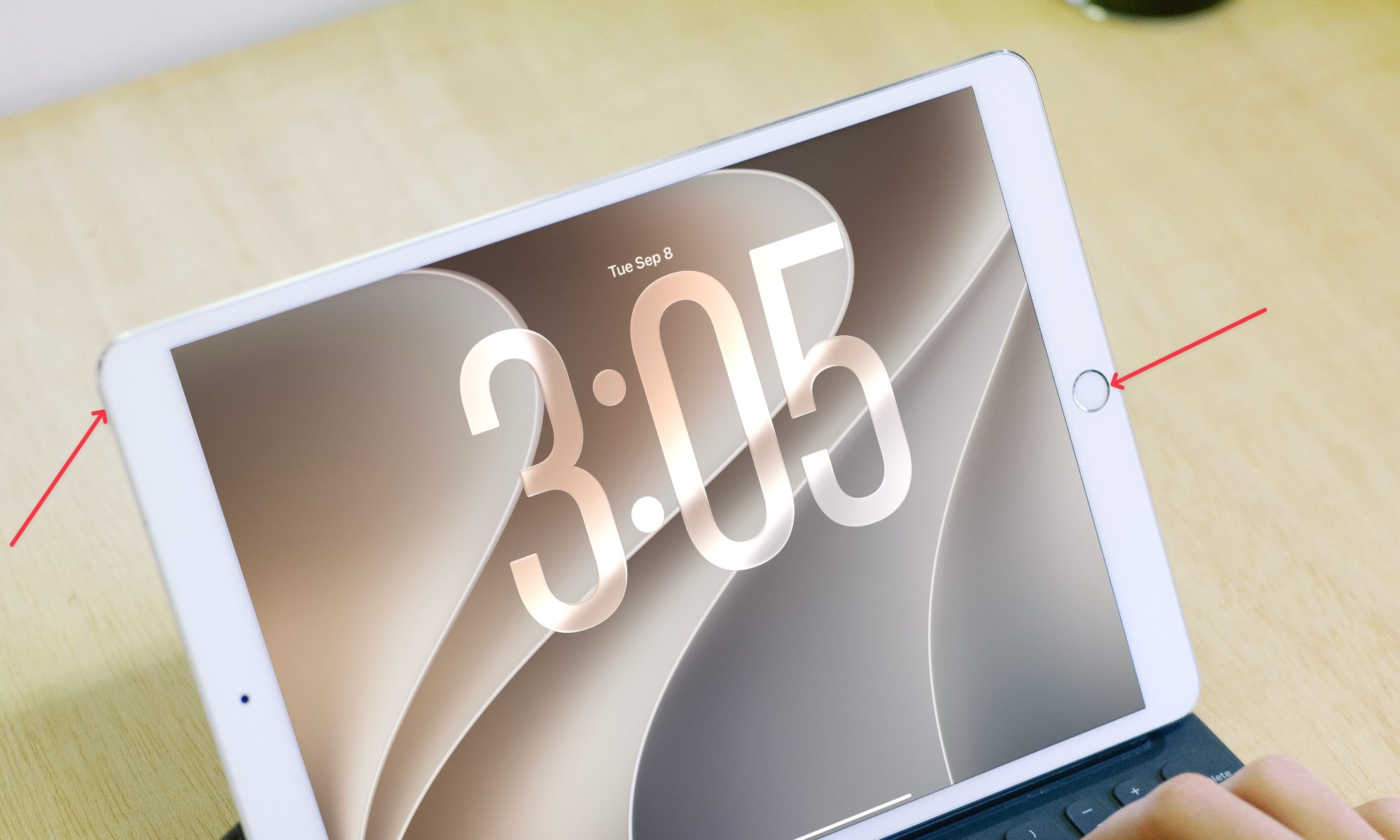
If you have an iPad with a Home button:
Older iPads make this even simpler since you only need two buttons.
Step 1: Press and hold the Home button and the top button at the same time.
Step 2: Keep holding until you see the Apple logo appear.
If neither of these gets your iPad to respond after a few tries, don’t panic. It’s rare, but if a force restart genuinely doesn’t work, that usually points to a hardware issue rather than a software one, and it’s worth reaching out to Apple Support or booking a Genius Bar appointment instead of repeatedly trying to force it.
How to backup iPad using iCloud
If your iPad is really causing you problems, sometimes a factory reset can help to clear things up. We’ll talk about how to do that shortly, but since a factory reset erases everything on your iPad, you’ll want to make sure you’ve backed up all of your important data first.
If you’re paying for iCloud storage, the easiest way to do this is to back up your iPad to iCloud over a Wi-Fi network. In fact, your iPad may already be doing this depending on which options you chose when you set it up. iCloud Backup will run automatically every 24 hours as long as your iPad is plugged in and connected to Wi-Fi.
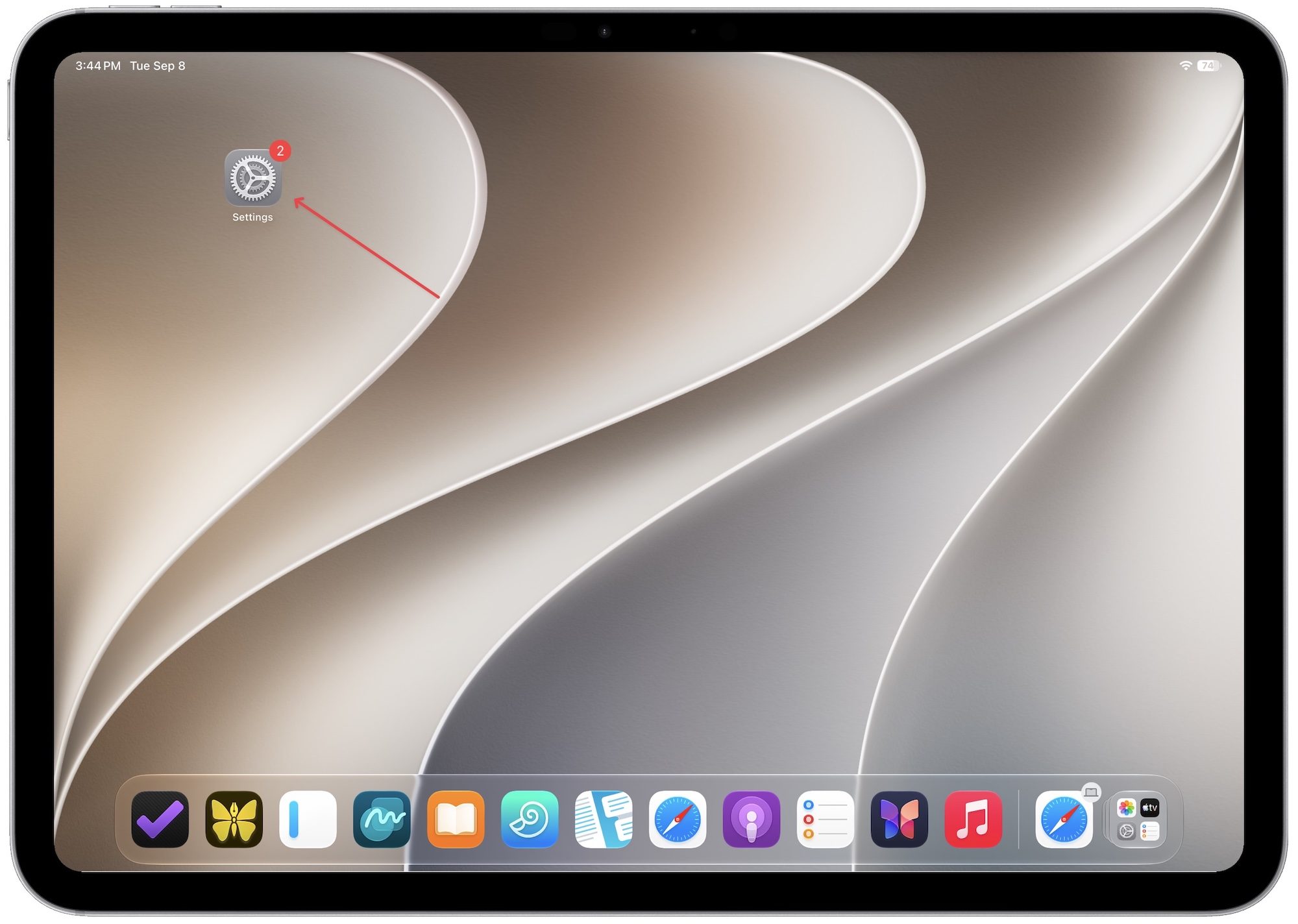
Step 1: Open the Settings app on your iPad.
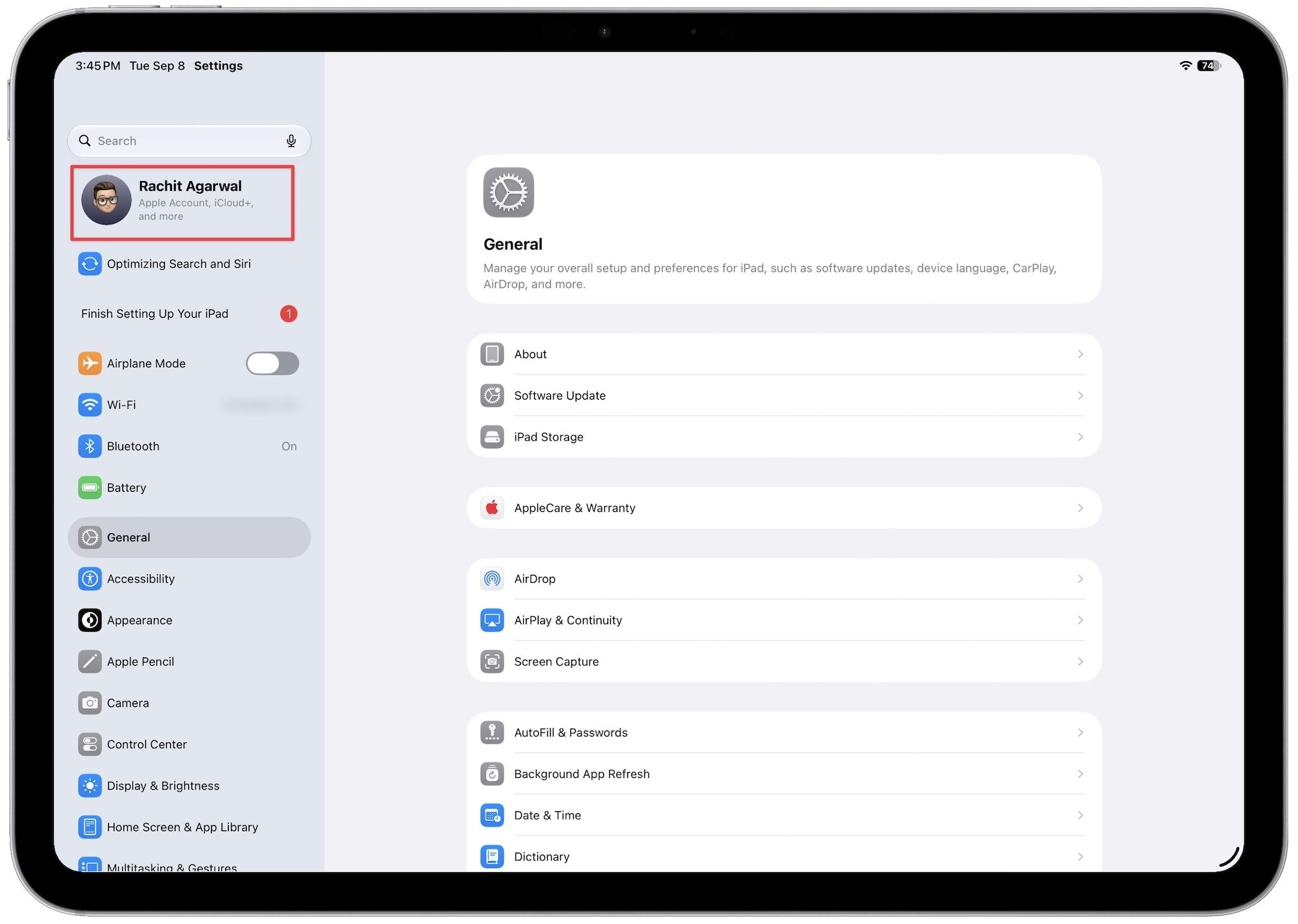
Step 2: Select your name in the top-left corner.
Step 3: Tap on iCloud.
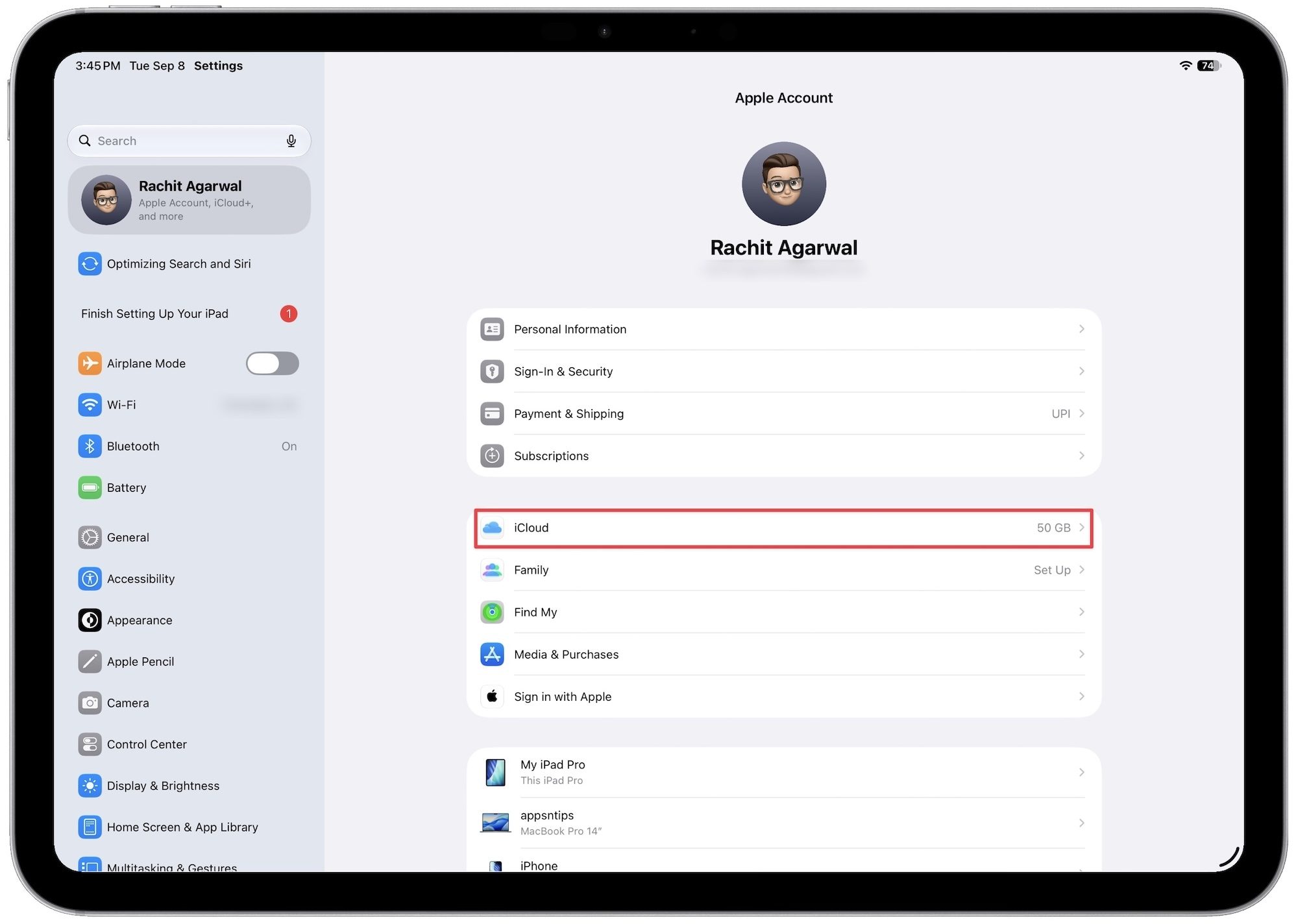
Step 4: Select iCloud Backup.
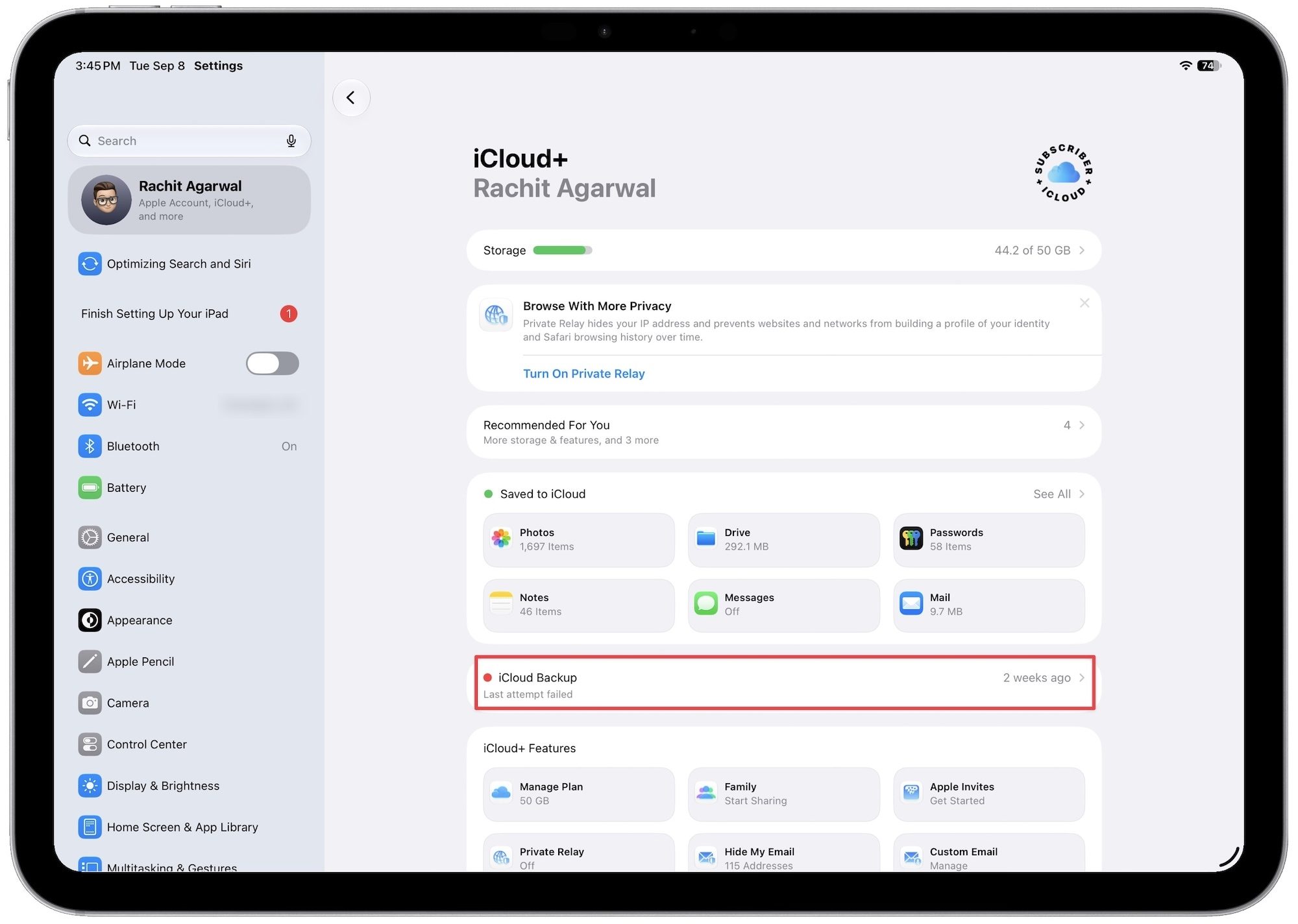
Step 5: Ensure the switch beside “Back Up This iPad” is toggled on. You should see the last time a successful backup was made below the Back Up Now button. Tap on Back Up Now to perform a manual backup of your iPad.
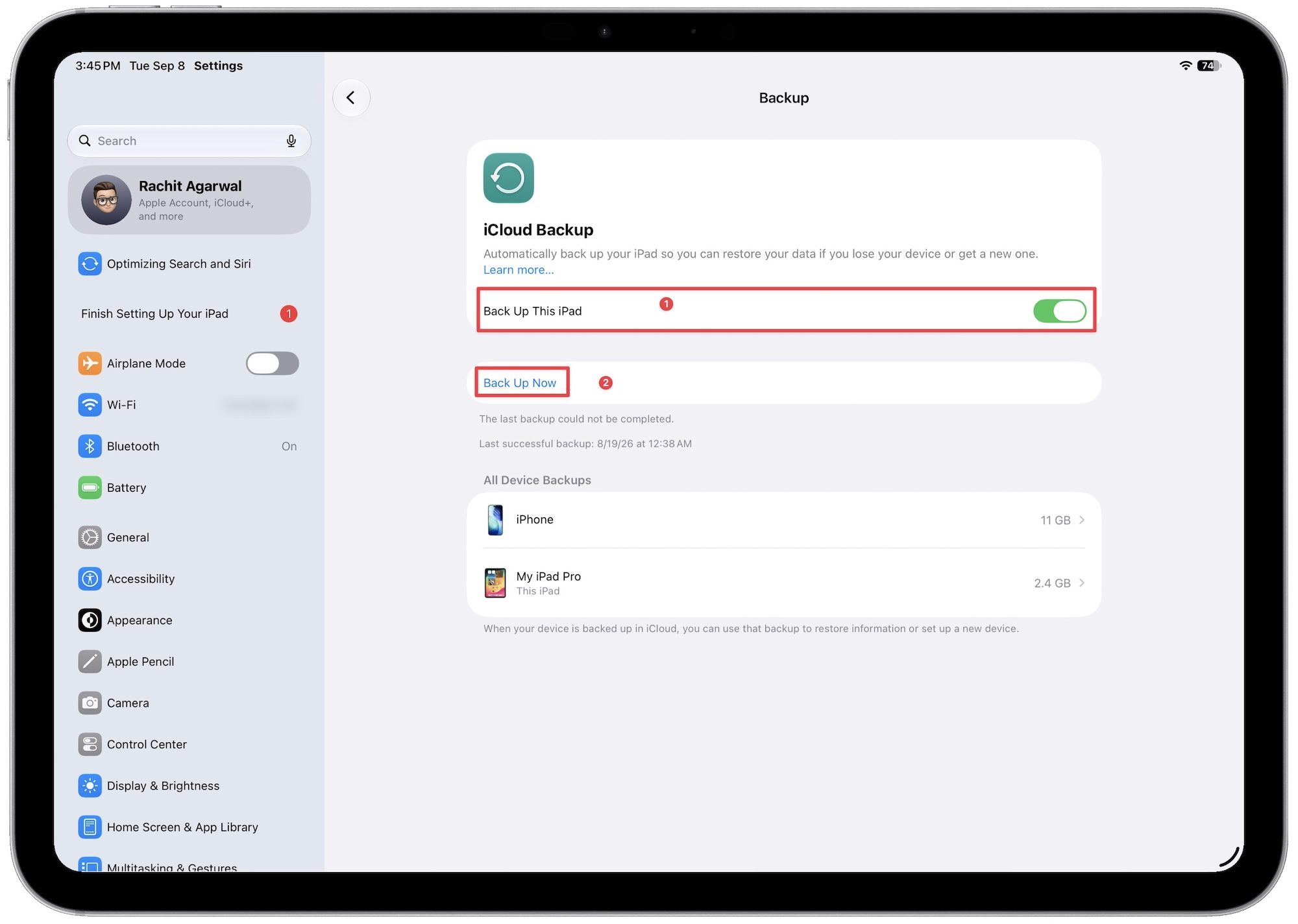
This may take anywhere from a few minutes to an hour or more depending on the speed of your internet connection and how recently your last backup was made.
How to backup your iPad to your Windows PC or Mac
If you don’t subscribe to an iCloud storage plan, it’s unlikely you’ll be able to use iCloud Backups. Apple only offers a paltry 5GB of free storage, which typically won’t be enough to back up even the smallest iPad.
Fortunately, you can still back up your iPad to your computer over a USB connection. If you’re using a Windows PC or a Mac running macOS Mojave (10.14) or older, this is done through Apple’s iTunes app. Folks running macOS Catalina (10.15) or newer will use Finder instead, but the process is otherwise nearly identical; the only difference is really where the device options are located.
Step 1: Connect your iPad to your computer using an appropriate Lightning or USB-C cable.
Step 2: Open iTunes (Windows or macOS Mojave or earlier) or Finder (macOS Catalina or later).
Step 3: Select your iPad from the sidebar on the left.
Step 4: If prompted, click “Trust” on your iPad and “Allow” on your Mac to authorize your computer to connect to your iPad.
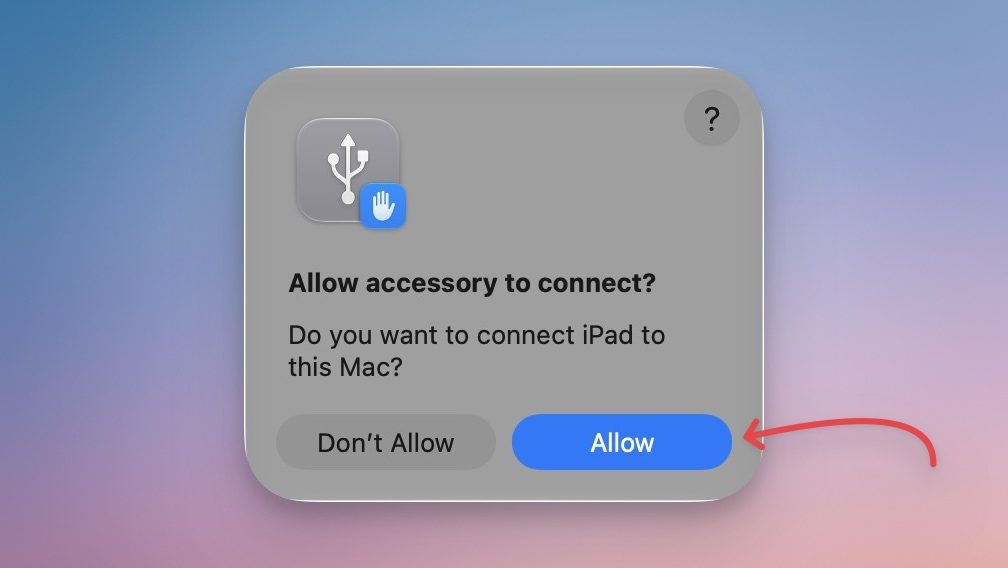
Step 5: On your iPad, enter your device passcode when prompted.
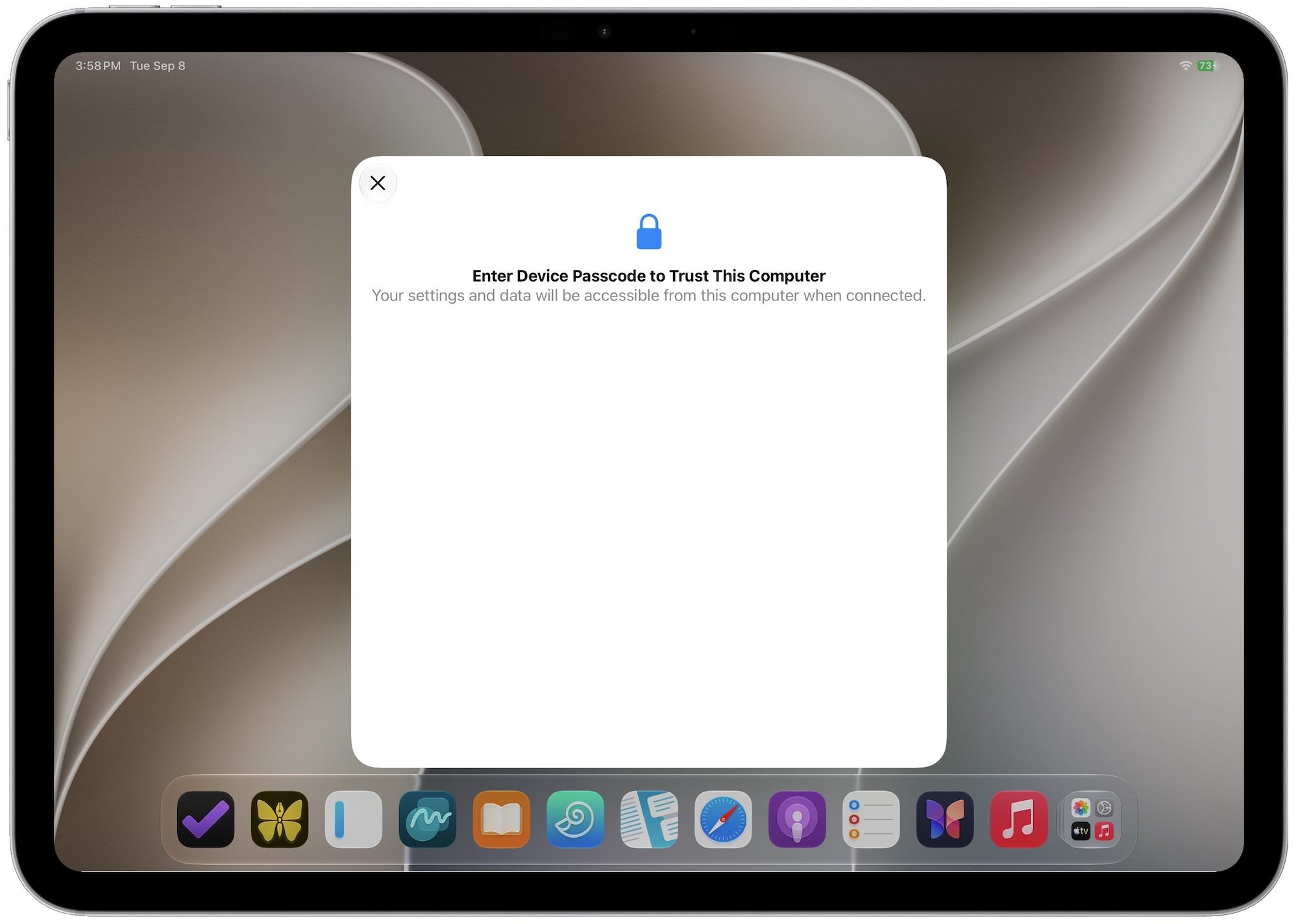
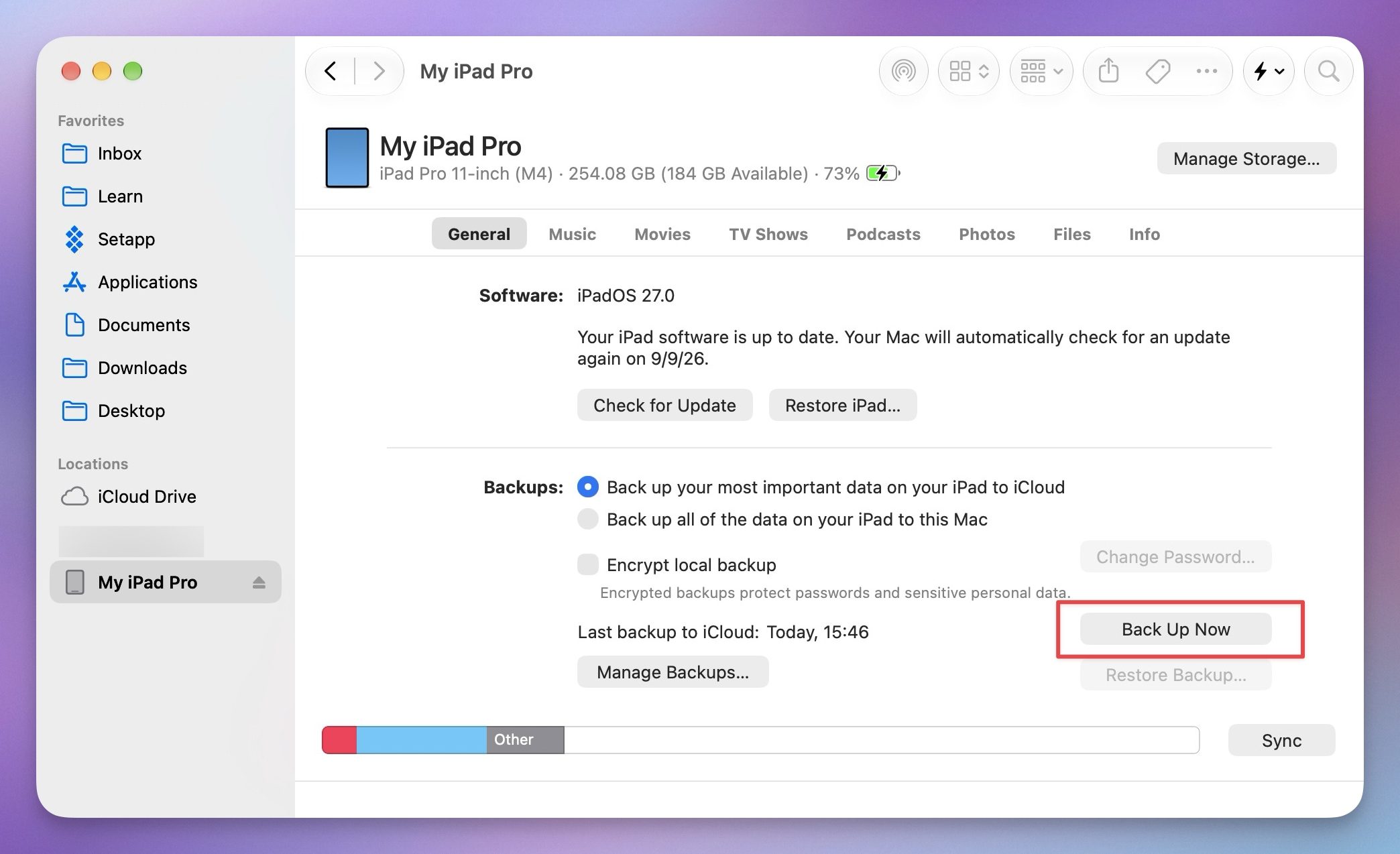
Step 6: Under “Backups” tap on Back Up Now.
Step 7: Select Encrypt local backup to ensure that your backup contains your passwords and other sensitive personal data. For security and privacy reasons, iTunes or Finder will not back this information up to an unencrypted backup.
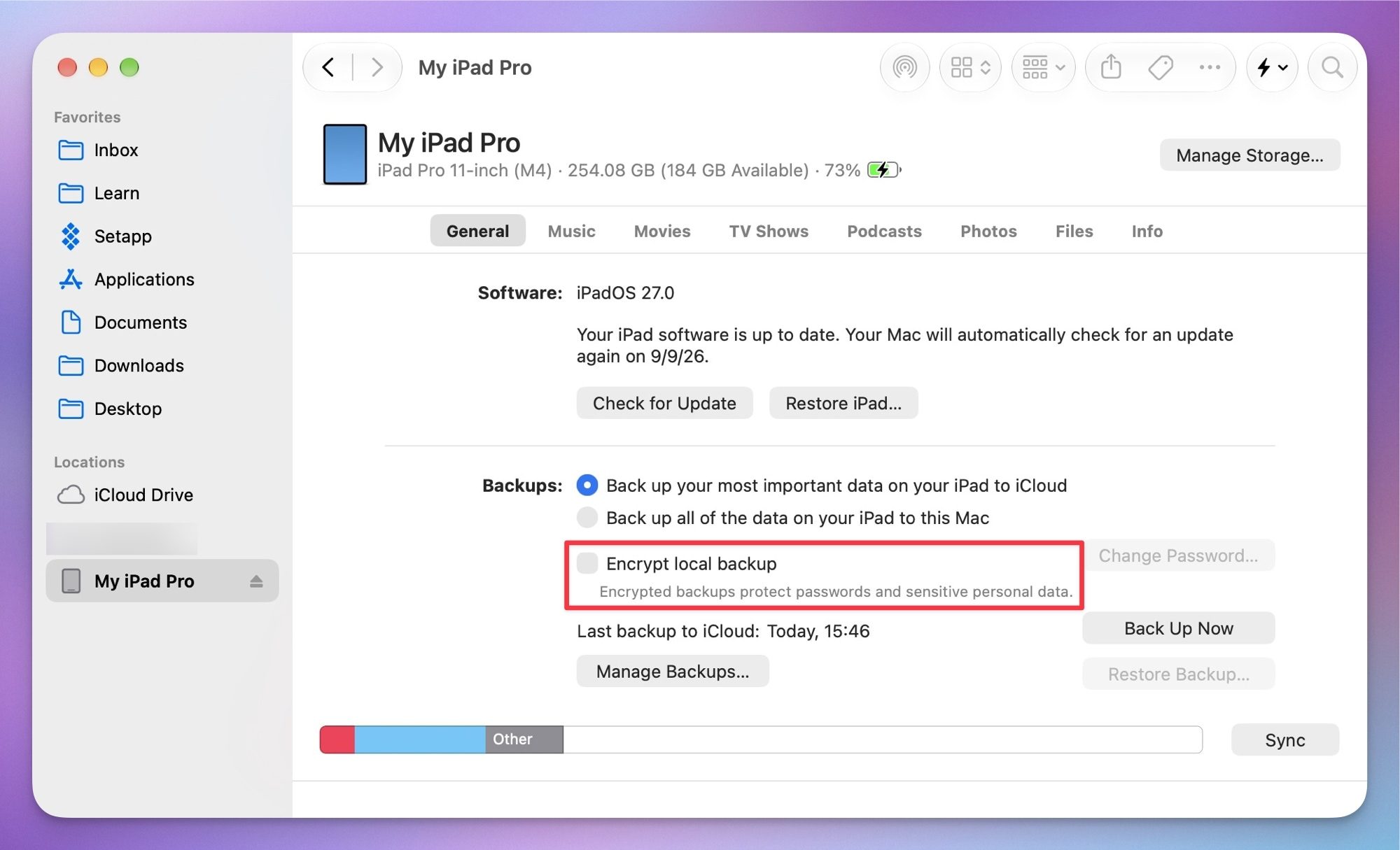
Step 8: When prompted, enter a password to protect your local backup and confirm it by entering it again. If you’re using a Mac, you can also choose to store this password in your keychain. Be sure to remember this password, as you will not be able to restore your backup without it.
How to factory reset your iPad
Performing a factory reset on your iPad can help you solve any issues that linger even after you’ve tried a soft restart or force restart. You should also factory reset your iPad before you sell it or give it away to someone else so they can’t access your data. A factory reset will completely wipe everything on your iPad. It will permanently delete all of your music, photos, messages, and everything else on your iPad, returning it to the way it was when you first took it out of the box.
Be sure to back up all of the files on your iPad before you start the factory reset, or they’ll be gone for good. You can back up using iTunes or iCloud, as described in the steps above, and we have a backup guide for the iPhone, which will work just fine for your iPad. Once you’ve backed up, you can follow these steps to factory reset your iPad:
Step 1: Open the Settings app on your iPad.
Step 2: Now, tap on General.
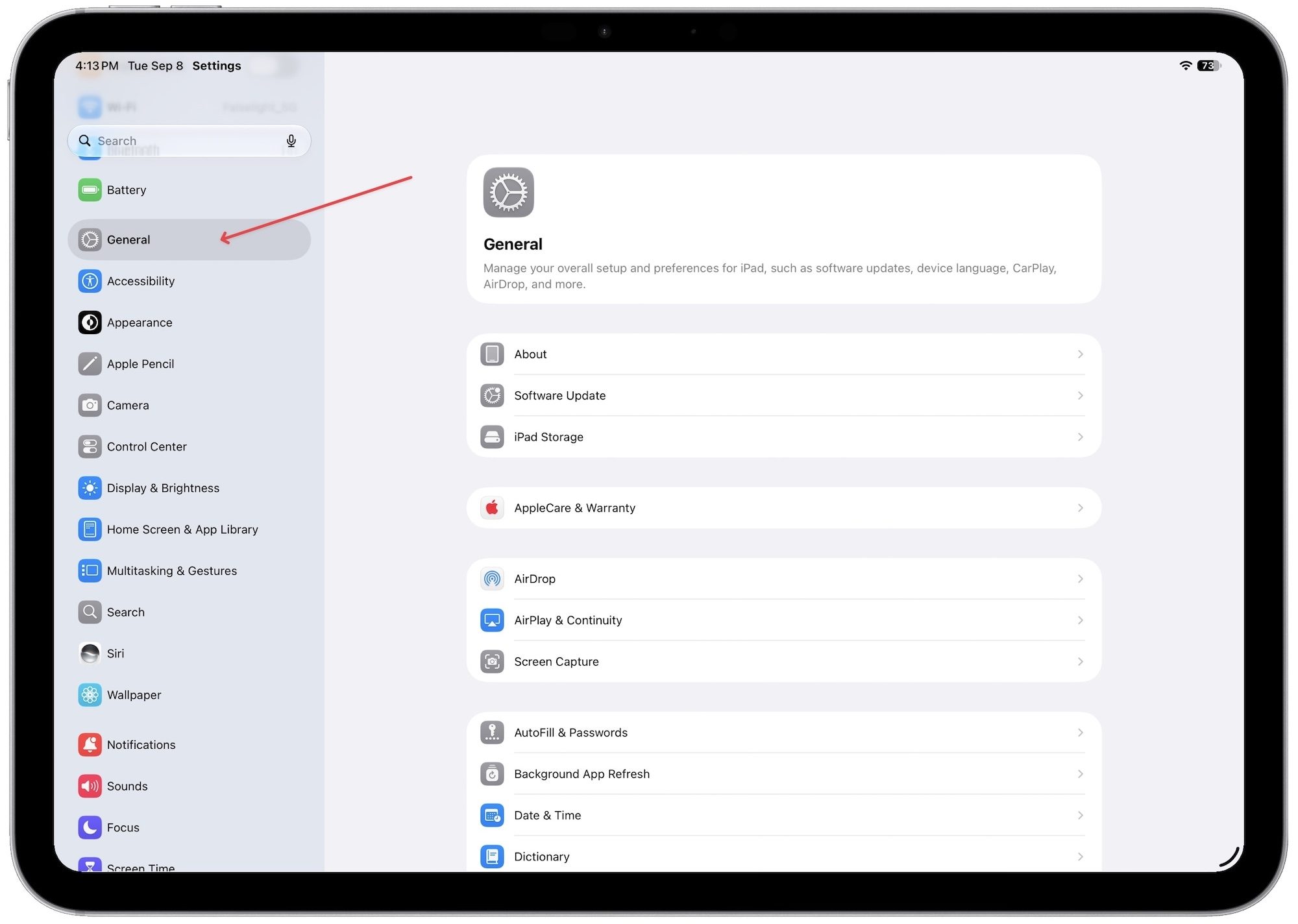
Step 3: Scroll down to the bottom and tap on Transfer or Reset iPad.
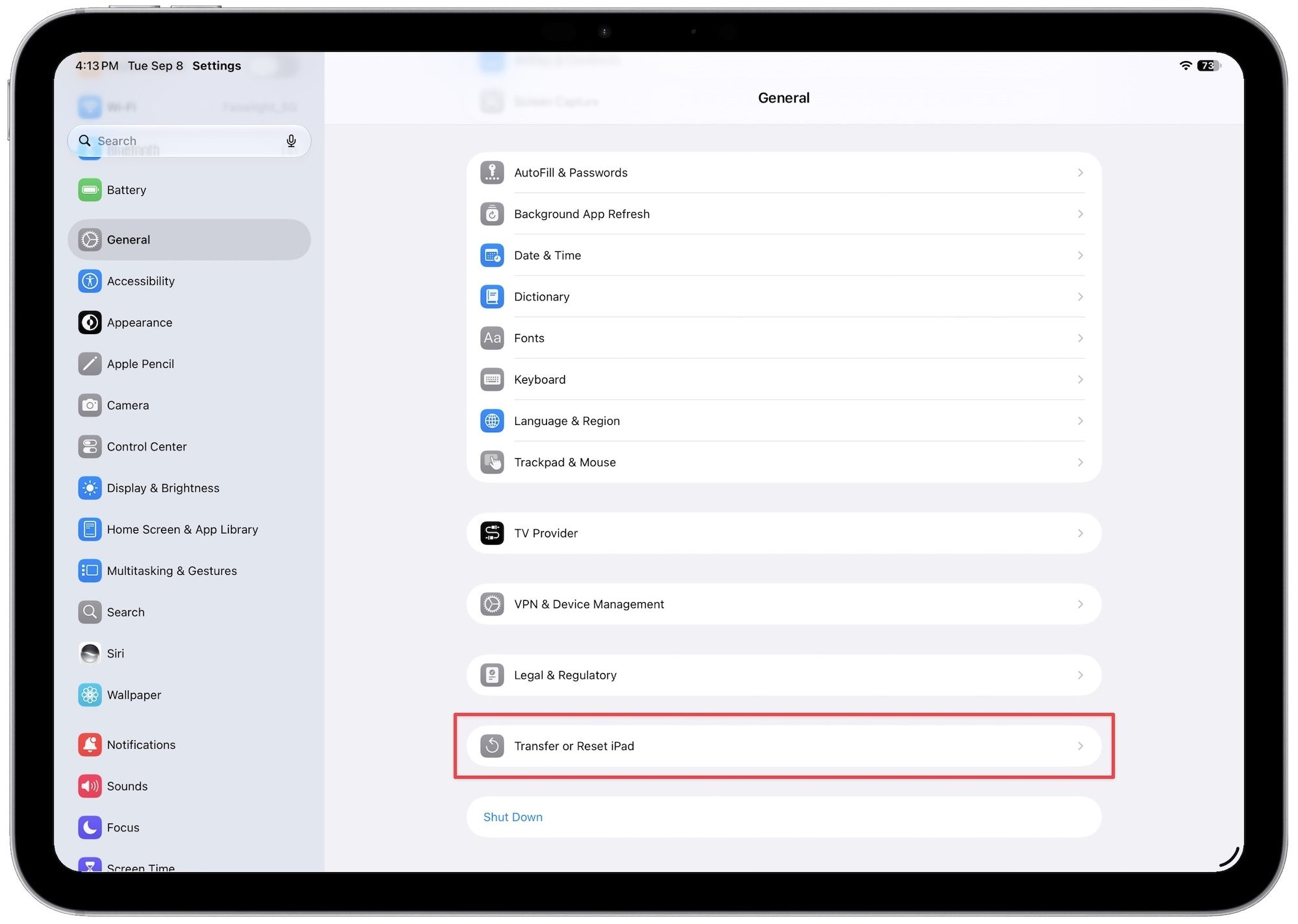
Step 4: Now, tap on Erase All Content and Settings at the bottom.
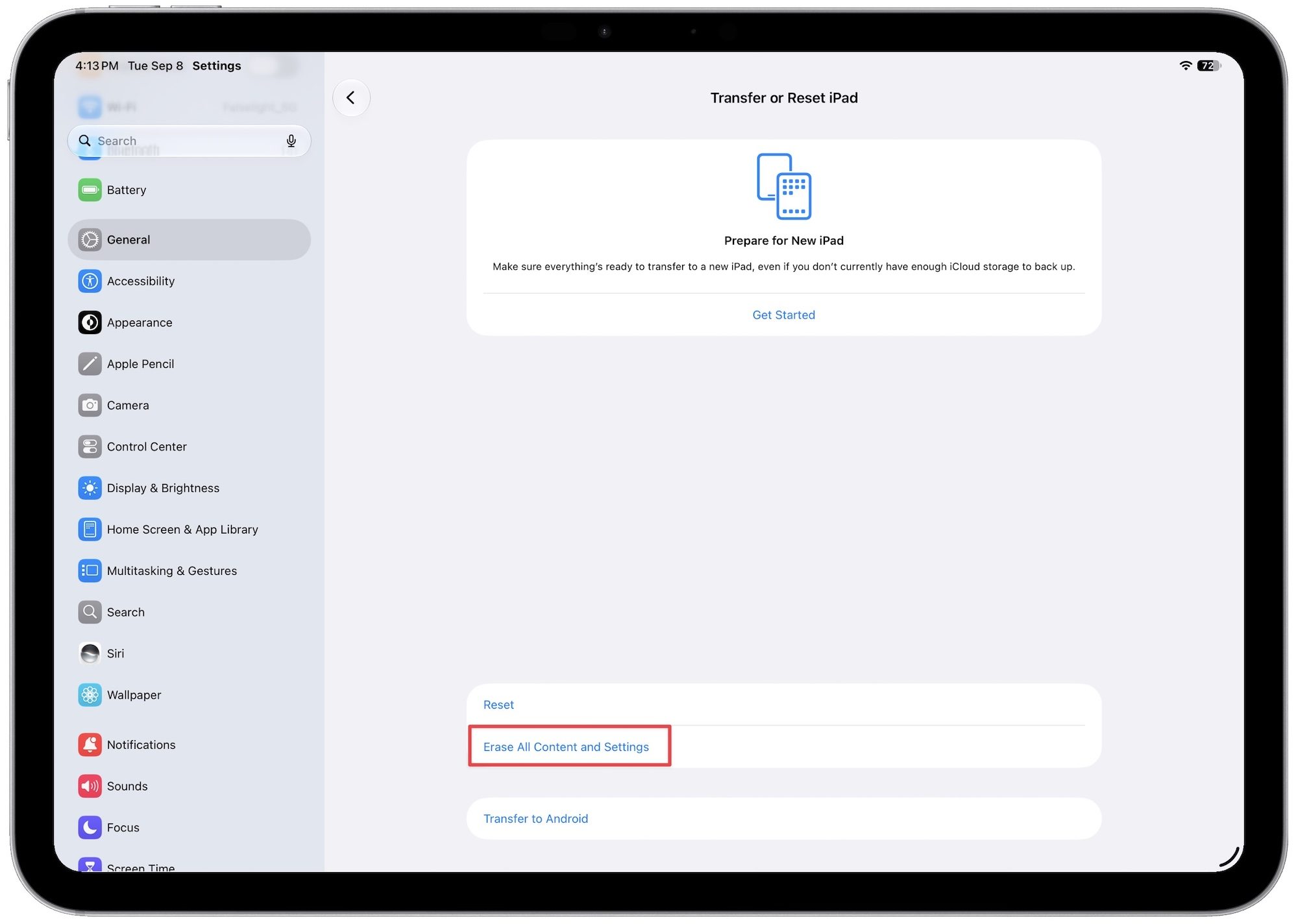
Step 5: Follow the prompts to confirm. You’ll need to enter your passcode and Apple ID password, since this also turns off Find My iPad and Activation Lock.

Step 6: Once it’s done, you’ll land on the same setup screen you saw when you first turned on your iPad. From here, set it up fresh or restore it from a backup.
What actually gets erased?
Just so there’s no confusion, a factory reset removes everything stored locally on the iPad itself. That means your photos, apps, messages, notes, saved Wi-Fi networks, and any files sitting in local storage are all gone.
What it doesn’t touch is anything you’ve already saved to iCloud or backed up to your computer, since that data lives separately from the device. This is exactly why backing up first matters so much. If you skip it, there’s genuinely no way to get that information back.
Forgot your passcode? Here’s how to reset without it
If you’re locked out and can’t remember your passcode, a factory reset is the only way back in, but the good news is you don’t actually need the passcode to do it. This method only works if Find My is already turned on, which it usually is by default unless you specifically turned it off.
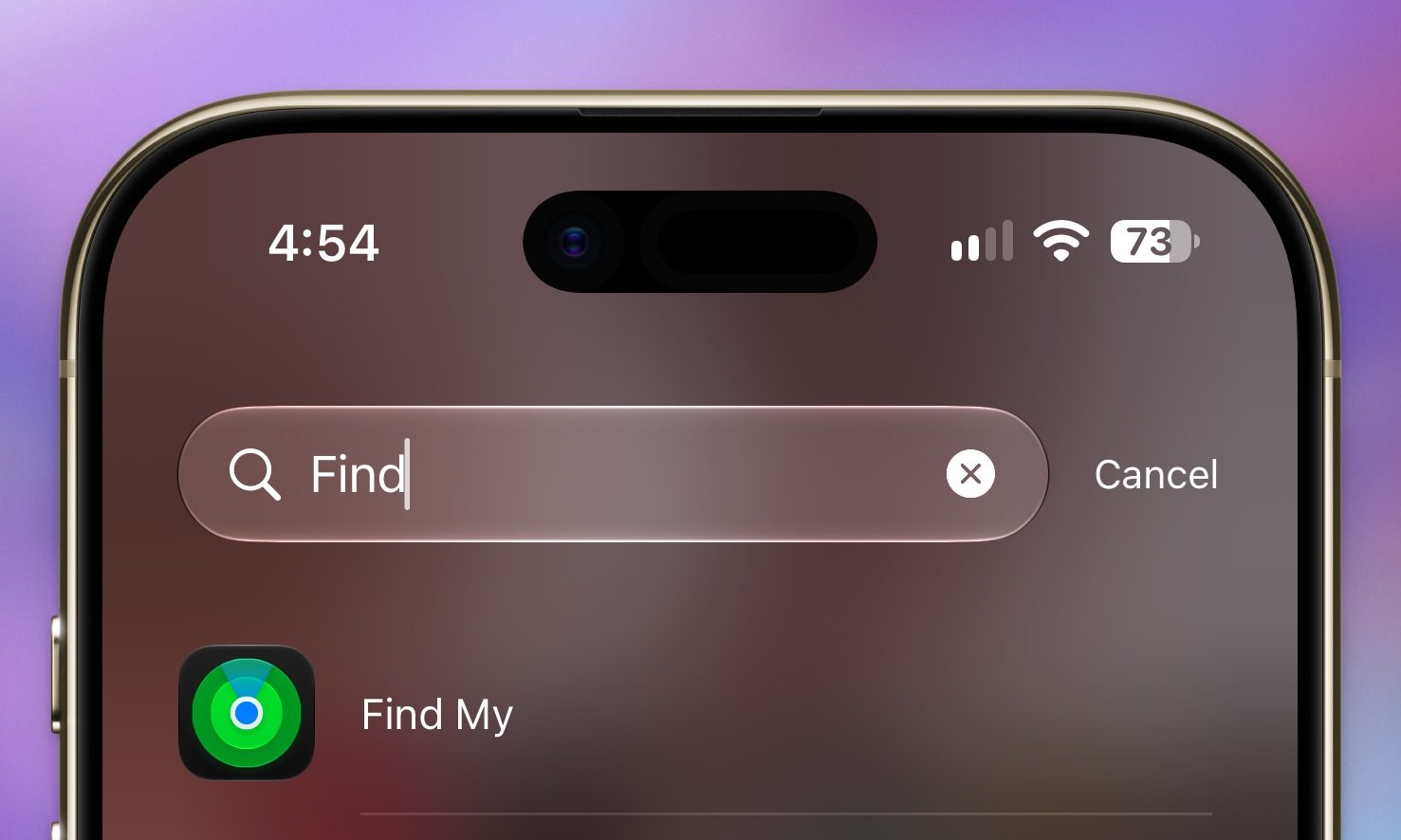
Step 1: Open the Find My app on a Mac or iPhone, or go to iCloud.com and sign in with your Apple ID and password.
Step 2: Open the Devices tab and tap to select your iPad.
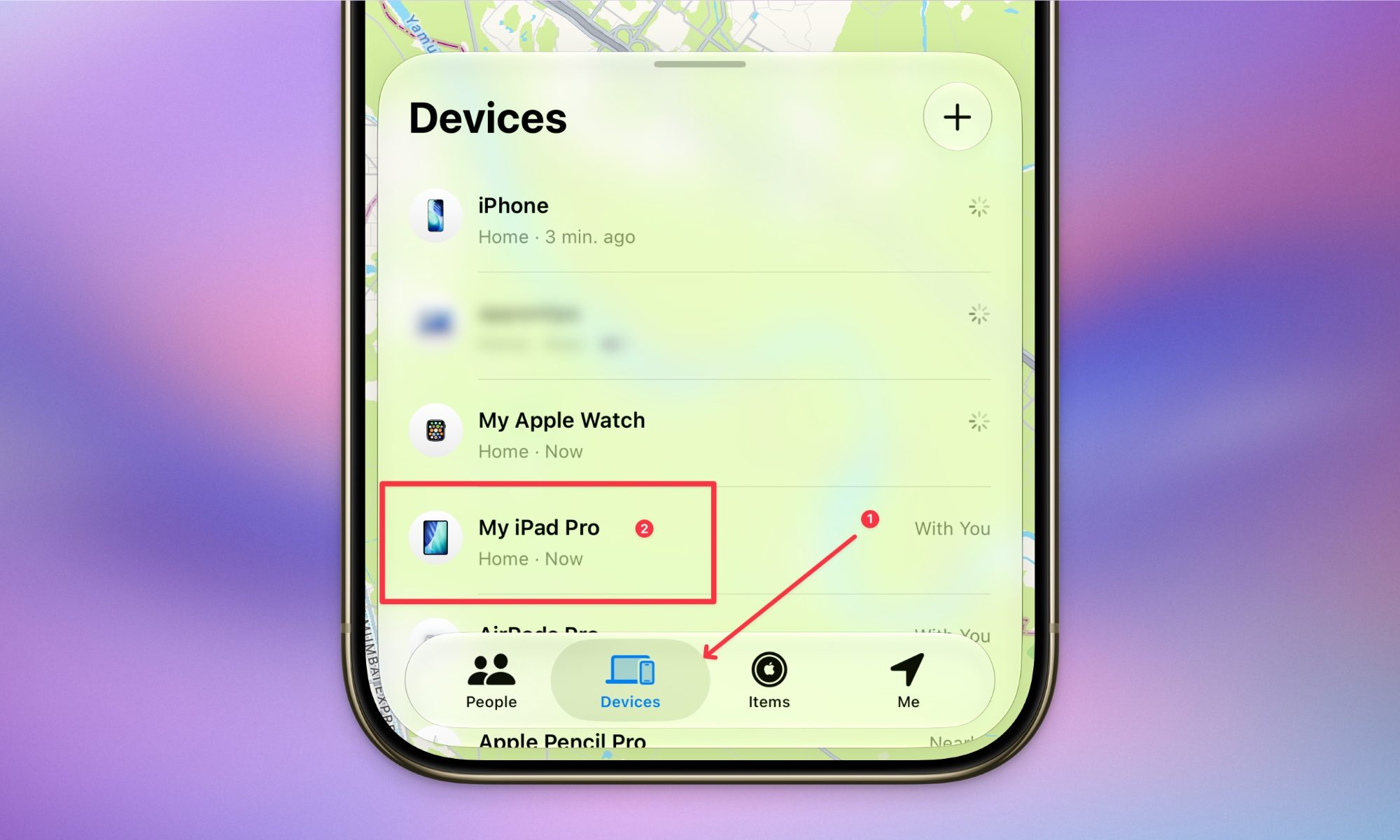
Step 3: Now, tap the three-dot menu and select the Erase option.
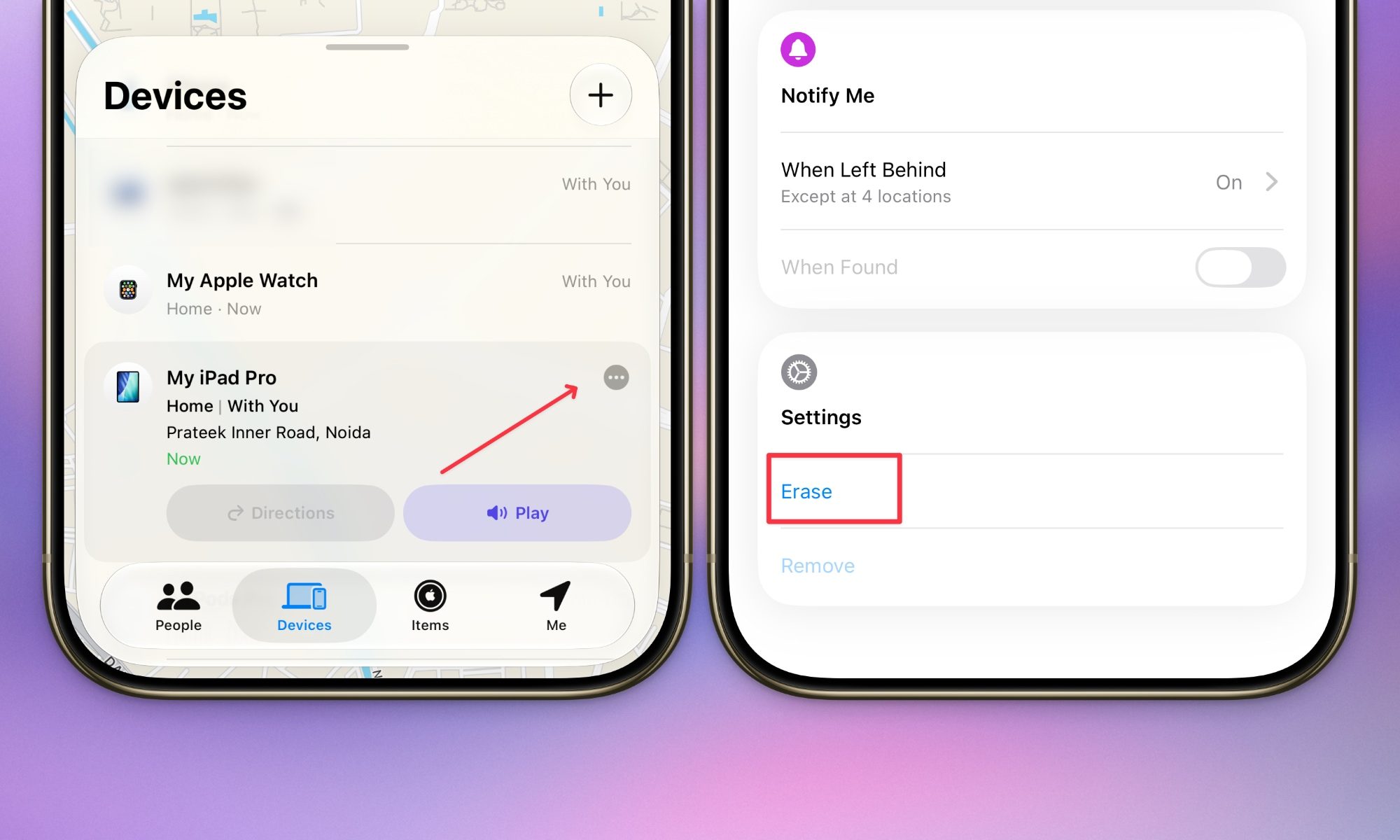
Step 4: Follow the prompts to confirm.
One thing to keep in mind is that erasing this way doesn’t turn off Activation Lock automatically. Your iPad will stay tied to your Apple ID until you manually remove it from your account under Find My. That’s a good thing if your iPad was stolen, since nobody can activate it without your Apple ID password. Just remember to remove it yourself if you’re handing the iPad off to someone else.
When a soft restart, force restart, or factory reset isn’t enough
Every once in a while, an iPad runs into an issue that none of these three fixes can touch, usually because the software itself has become corrupted rather than just glitchy. In these rare cases, Apple has a deeper recovery option that involves connecting your iPad to a computer and reinstalling iPadOS entirely through Finder or iTunes.
This is a more involved process than anything covered above, and it’s really meant as a last resort when your iPad won’t even get past the Apple logo. If you find yourself in that situation, your best bet is heading straight to Apple’s support site or a Genius Bar, since the exact steps vary depending on your iPad model and how it’s currently behaving.
Setting up your iPad for a new owner
Selling your iPad or passing it down to a family member doesn’t require anything special beyond a standard factory reset. There’s no extra setting to dig through or hidden option you’re missing.
Step 1: Back up anything you want to keep, using either iCloud or your computer.
Step 2: Follow the factory reset steps above to erase the device.
Step 3: If you erased it through Find My instead, remove the iPad from your account so the new owner can activate it
FAQ about resetting an iPad
Does resetting or restoring an iPad delete my Apple ID?
Restarting an iPad does not erase any information on it, so when it finishes booting back up everything should be just as you left it, including your Apple ID.
Restoring your iPad back to factory settings will remove the Apple ID from your iPad since you’re effectively returning it to the same state it was in when you first bought it. However, it will not erase your Apple ID on Apple’s servers, nor will it remove any data that you have stored in iCloud. This data can be transferred back onto your iPad when you set it up again, either by restoring from an iCloud backup or syncing with iCloud to download your photos, calendars, contacts, messages, and more.
Since restoring your iPad to factory settings removes your Apple ID from the iPad, this will also disable features like Find My iPad and Activation Lock. That’s a good thing if you’re planning on selling your iPad or giving it away to someone else, but if you’re planning to set it up again for yourself, just make sure these features are re-enabled during the setup process.
Does restarting an iPad make it faster?
Just like a computer, rebooting an iPad can sometimes speed things up — or at least make it seem that way. However, that shouldn’t really be the norm; if you find that you frequently need to restart or reset your iPad to improve performance, there’s likely something else going on. Apple’s iPadOS does a very good job of managing apps, memory, and background processes, which means it shouldn’t normally let anything get away with slowing down your iPad behind the scenes.
Will a restart or factory reset help battery life?
As with improving performance, restarting your iPad or even resetting it to factory settings shouldn’t make a noticeable difference in battery life unless there’s a bigger problem under the hood. While bugs occasionally occur in iPadOS that impact battery life, Apple tries to make sure that doesn’t happen, and third-party apps are rarely allowed to continue running in the background where they can eat up your battery while you’re not looking.
If you do find that your battery life regularly improves after a hard reset, chances are you’ve encountered a glitch that will be fixed in a future iPadOS update. You may also want to check out our roundup of common iPad problems and how to fix them to see if there’s another solution you may have overlooked.
My iPad was stolen. Should I erase it?
This one’s a genuine tradeoff, so think it through before you act. Once you erase your iPad remotely, you lose the ability to track its location through Find My, since the device essentially goes dark to your account. If getting it back matters more to you than the data on it, consider using Lost Mode instead. It locks the iPad with your passcode, disables Apple Pay, and lets you display a message on the lock screen, all without erasing a single file.
If protecting your personal data is the priority instead, go ahead and erase it through Find My. Just know your iPad needs to actually come online for the wipe to go through, and Apple’s servers will keep trying to send the command until it does, even if that takes weeks.
Whether you’re dealing with a sluggish app, a completely frozen screen, or getting your iPad ready for its next owner, there’s a reset here that fits the situation. Try the least drastic option first, work your way up only if you need to, and always back up before you do anything permanent. Your future self will thank you.