How to Reset Xbox Game Bar on Windows 11 in Simple Steps
Readers help support Windows Report. We may get a commission if you buy through our links.
Read our disclosure page to find out how can you help Windows Report sustain the editorial team. Read more
If Xbox Game Bar is not working properly, it can affect your recordings and in-game overlays. Using the steps from this guide, you can reset the app and restore it to default settings so it works smoothly again.
How to Reset Xbox Game Bar?
1. Reset Xbox Game Bar on Windows 11
- Open Settings by pressing Windows + I.
- Go to Installed Apps from the left Apps menu.
- Locate Xbox Game Bar by searching for it, then click the three dots and choose Advanced options.

- Reset the app by scrolling to the Reset section. First, click Repair to fix minor issues. If problems continue, click Reset to clear the cache and settings.

- Restart your PC to apply the changes.
This process restores Game Bar to its original state and usually fixes most glitches.
For a full guide on setting it up from scratch, see how to install Xbox Game Bar.
2. Alternative Method Using PowerShell
- Press the Windows key, type PowerShell, and select Run as administrator.
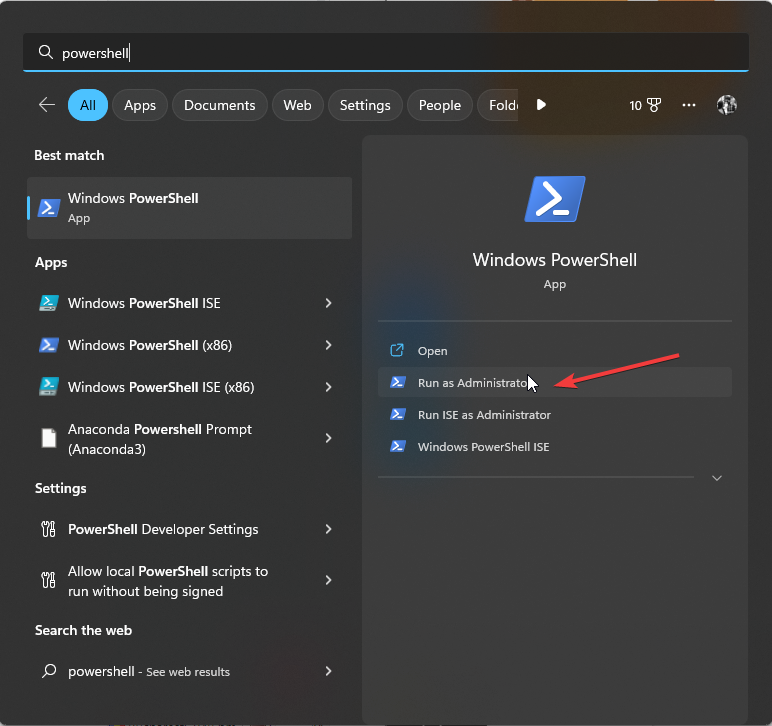
- Enter this command and press Enter:
Get-AppxPackage *Microsoft.XboxGamingOverlay* | Reset-AppxPackage - Restart your PC once the process is complete.
This method forces a clean reset directly at the system level.
If you also plan to capture content again after resetting, check this guide on how to record with Xbox Game Bar.
FAQs
Reset the app in Settings. If that fails, reinstall it from Microsoft Store.
No. Your saved clips remain in the Videos > Captures folder.
Yes. Uninstall it in Settings, then download it again from the Microsoft Store.
Crashes usually happen because of outdated system files or corrupted app data. Resetting or updating Windows often fixes the issue.
Conclusion
Resetting Xbox Game Bar is a quick way to fix crashes, bugs, and performance issues. Whether you use the Settings menu or PowerShell, these methods bring the app back to default and let you continue recording and streaming without interruptions.
If you want to completely remove the tool instead, see how to uninstall Xbox Game Bar.