How to Run ePSXe on Windows PC Quickly
Want to run ePSXe to play your favorite PlayStation 1 games on PC? This guide shows every step from download to first gameplay, plus optional tweaks.
How to Run ePSXe on Windows PC?
1. Download the software
Start by getting the emulator on your PC and placing its files in a tidy folder.
- Go to the official ePSXe website and download the latest Windows version.

- Right click the downloaded ZIP and choose Extract All.
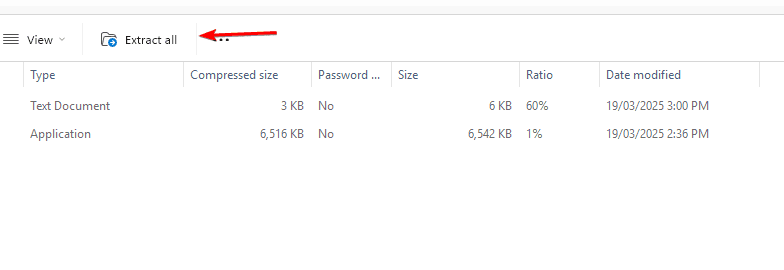
- Pick a location such and click Extract.
2. Add the PlayStation BIOS File
You need a PS1 BIOS for accurate boot and compatibility; use a dump from your own console.
- Obtain the PS1 BIOS file (commonly SCPH1001.bin).
- Place the file inside the bios folder in your ePSXe directory.
- Verify the filename and that it appears in ePSXe’s BIOS list.
3. Configure ePSXe
Run the first time setup to select BIOS and core plugins for video, audio, and CD.
- Open ePSXe.exe.
- Click Config Wizard and choose your BIOS.
- Select a graphics plugin such as Pete’s OpenGL2 Driver and click Next.

- Complete sound and CD ROM plugin setup.
- Click Done to save settings.
If ePSXe crashes during setup or game launch, check out our detailed guide on how to fix ePSXe keeps crashing issues for quick troubleshooting tips.
4. Set Up the Controller
Map buttons to your keyboard or gamepad so gameplay feels natural.
- Go to Config > Gamepad > Port 1 > Pad 1.

- Press each key or controller button to assign inputs.
- Save your layout and close the window.
5. Load and Run a PS1 Game
Point ePSXe to your disc image and start playing in a few clicks.
- Launch ePSXe.
- Click File > Run ISO.
- Select your game file such as .bin or .iso.
- Wait a moment for the game to boot.
6. Save and Load Game States
Use instant save states to preserve progress anywhere in the game.
- Press F1 to save the current state.
- Press F3 to load a saved state.
- Or use Run > Save/Load State from the menu.
7. Optimize Graphics (Optional)
Tweak visuals for better performance or clarity on modern displays.
- Open Config > Video.
- Select your plugin and click Configure.
- Adjust resolution, filtering, and texture settings.
- Apply changes and restart the game.
What Is ePSXe?
ePSXe is a PlayStation 1 emulator for Windows that offers high compatibility, enhanced graphics, and robust controller support, making it a popular choice for playing PS1 games on PC.
For more details about other similar emulators, see our full comparison of the best PSX emulators for Windows.
FAQs
Yes, the emulator is legal. Downloading BIOS or game files you do not own is not.
Lower resolution, reduce texture filtering, and disable heavy post processing in video settings.
Yes, most USB gamepads work after mapping buttons in Config > Gamepad.
Use original discs or make legal backups of games you already own.
Re select the BIOS, switch video plugins, and confirm your ISO is a good dump; try File > Run BIOS to test core setup.
If you want to explore more options for PlayStation emulation, don’t miss our roundup of top PS1 emulators for PC with performance and feature comparisons.
Final Thoughts
With the BIOS in place and a quick configuration, ePSXe can deliver smooth, improved PS1 gameplay on Windows in minutes.


Readers help support Windows Report. We may get a commission if you buy through our links.

Read our disclosure page to find out how can you help Windows Report sustain the editorial team. Read more