
New in Edge for Business: AI for work, safe from day one
TL;DR: Edge for Business adds agentic browsing in limited preview, a Copilot-inspired new tab page, and mobile availability for multi-tab reasoning and YouTube summarization. These experiences are built on a secure enterprise browser foundation with an IT-managed system of controls—policy-based enablement, tenant protections, and data loss prevention—so AI is safe for work from day one.
AI is moving from answering questions to completing work—and the browser is where that shift becomes real. Business users want the latest AI capabilities to help with everyday work without adding another tool, and IT wants to deliver them—but the bar is higher: productivity must come with security, compliance, and IT control.
Today, we’re introducing agentic browsing in Edge for Business in limited preview and expanding AI experiences that help users get started faster, connect information across tabs, and make decisions more quickly—all on a secure enterprise browser foundation with IT-managed controls from day one.
Here’s a look at what’s new:
Introducing agentic browsing with Copilot in Edge for Business
Agentic browsing lets Copilot complete multi-step tasks on approved sites, with IT controls and user oversight.
Business users across your organization often spend time on repetitive, multi-step work in the browser—filling out forms, navigating sites to complete tasks, and pulling information across tabs. It’s exactly the kind of work people want to shortcut.
Available today in limited preview, agentic browsing with Copilot in Edge for Business brings multi-step task completion into a managed enterprise experience. Copilot can navigate pages, fill in information, and complete workflows—helping users save time without turning to unsanctioned AI.
For IT, enabling Copilot to browse doesn’t mean giving up control: you decide when to turn it on and exactly where it can run. You enable it through its own policy and is scoped to sites you designate, so you can roll it out deliberately. Purview continues to enforce data protection policies, such as copy/paste of sensitive data, while Copilot browses. For users, clear visual indicators show when Copilot is taking action, and they can pause or stop it at any time. For sensitive actions such as entering passwords or credit card numbers, Copilot pauses for user input.
IT admins can request to join the limited preview. Available worldwide with a Microsoft 365 Copilot license, excluding the European Economic Area.
Quickly move from tabs to decisions
Beyond agentic browsing, we’re expanding AI capabilities that help users get oriented faster, pull together information across tabs, and get to an answer—right in the flow of work.
Copilot-inspired new tab page
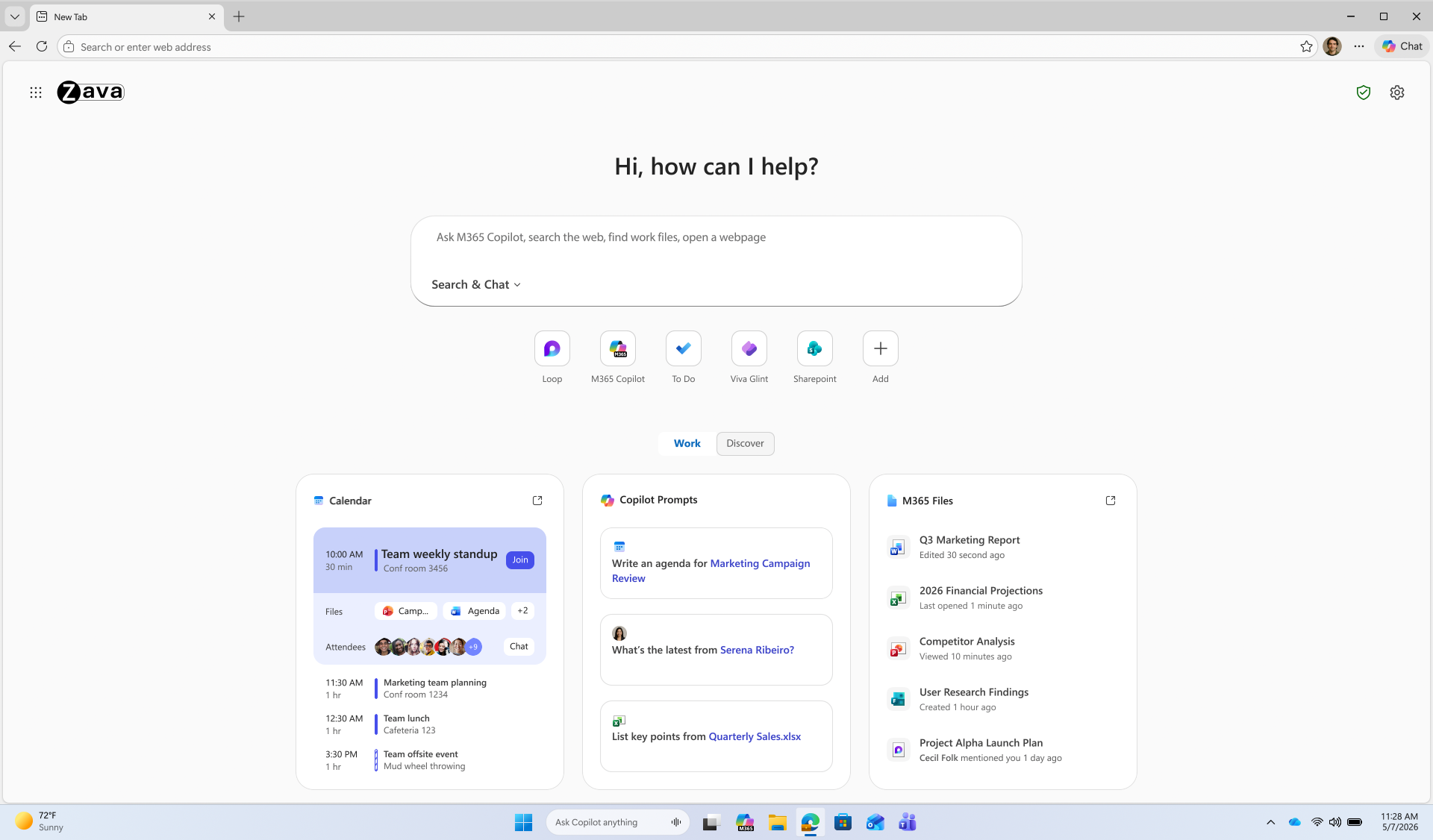
The Copilot-inspired new tab page brings calendar, files, and prompts into one work dashboard—generally available on desktop and mobile.
Every day starts the same way: users open the browser, review their calendar, and track down files. A reimagined new tab page brings calendar, files, and Copilot prompts into one view, reducing the need to switch between tools. An intelligent box enables chat and search from one entry point, while work cards surface upcoming meetings, Microsoft 365 files, and suggested Copilot prompts for quick action. The experience becomes even more personalized with a Microsoft 365 Copilot license.
Generally available today on desktop and mobile. Learn how to configure.
Multi-tab reasoning and YouTube summarization
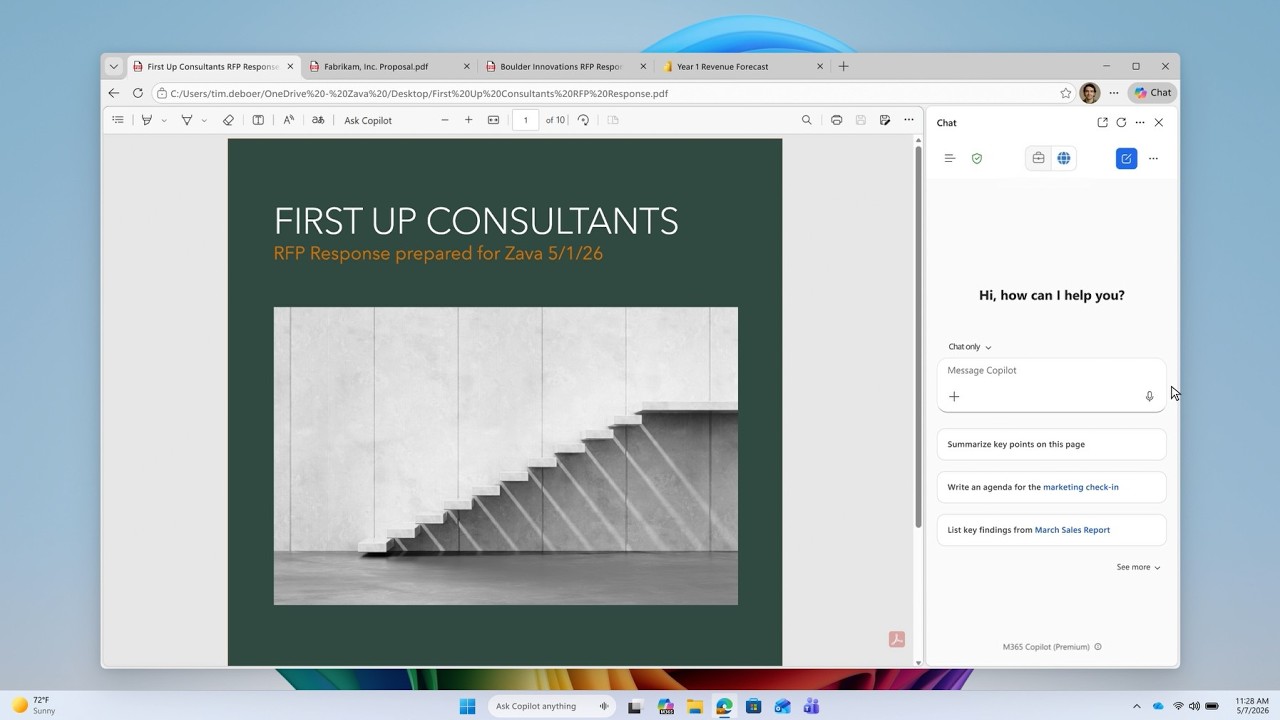
Multi-tab reasoning and YouTube summarization are now available on mobile, in addition to desktop, turning open tabs and videos into quick takeaways.
Users live in tabs—jumping between docs, web pages, and videos just to piece together an answer. Multi-tab reasoning and YouTube summarization help turn that scattered information into quick answers, without adding yet another tool.
Multi-tab reasoning analyzes open tabs to generate comparisons, summaries, and insights. For example, users can compare product specs across tabs, summarize vendor documentation, or pull key differences from multiple pages into one answer. And because it’s Edge for Business, Purview policies exclude sensitive content from reasoning.

When users only need a few key answers from a 15-minute video, YouTube summarization pulls out the takeaways and even answers questions—whether they’re reviewing a product demo, an industry presentation, or a webinar.
Learn how to configure multi-tab reasoning and YouTube summarization.
Deliver AI securely—without losing control
Edge for Business offers an IT-managed system of controls for AI—policies, tenant protections, and data protection enforcement—available from day one.
AI in the browser is moving fast, and IT teams are under pressure to deliver new capabilities without becoming the team that slows everyone down. Most organizations don’t want an “all or nothing” switch—they want to adopt AI in stages without changing their security posture or creating new exceptions.
With Edge for Business, our mission is to offer AI experiences with enterprise-grade security and controls built-in from day one — through a system of controls that provides differentiated compliance and security for AI. That’s what you should expect from an industry-leading secure enterprise browser.
Edge for Business is the only major enterprise browser that protects company data in AI by enforcing data protection in the browser and keeping sensitive interactions within the tenant. Protections you rely on, such as blocking copy/paste, continue to be enforced on AI-assisted workflows. And because Microsoft 365 Copilot includes enterprise data protection, prompts, responses, and files stay within your tenant and are not used to train models. These protections apply natively when users sign into Edge for Business with an eligible Entra ID, no extensions required.
A single policy enables AI features like summarization and multi-tab reasoning to help you get started quickly. For advanced AI, Copilot Mode is evolving into granular controls—so you can enable each feature individually instead of through a single toggle, making it easier to pilot and deploy advanced AI with more predictable outcomes. Existing configurations are honored for organizations that previously enabled Copilot Mode.
The result: you can roll out AI on your terms—enabled by policy and fully under IT control.
Protect against shadow AI in the browser
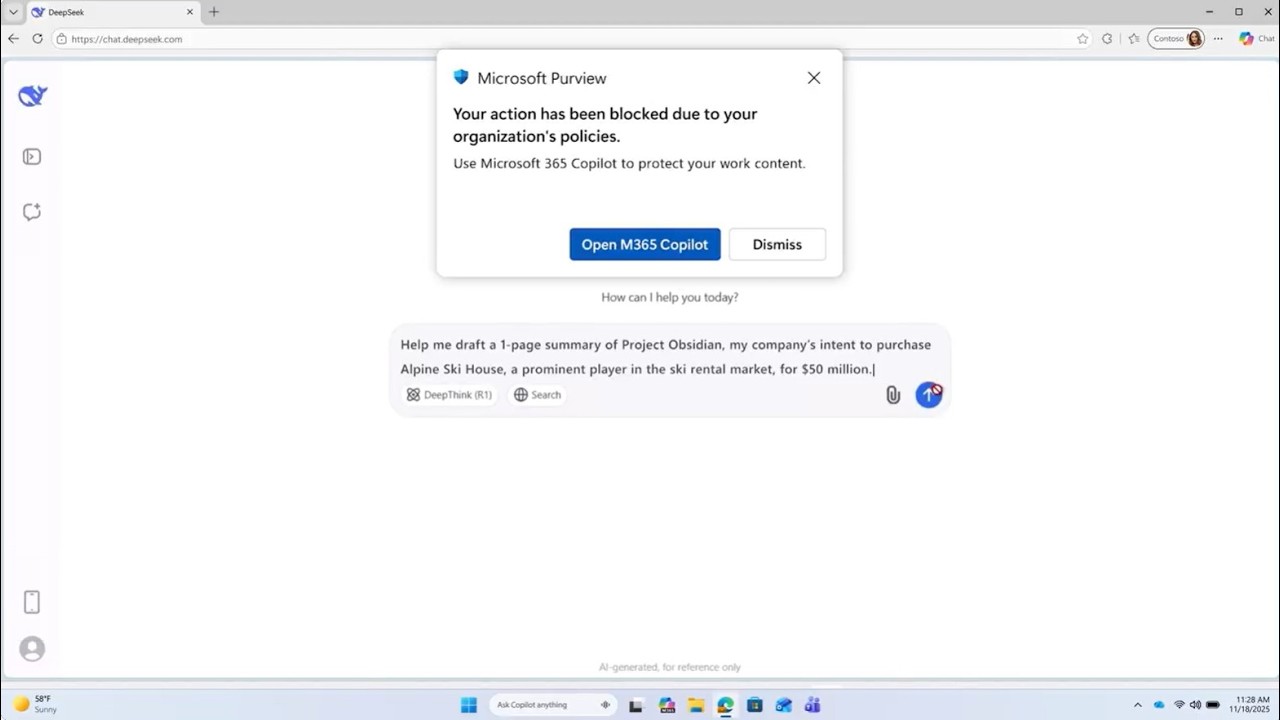
Purview data protections in Edge for Business can audit or block sensitive prompts and uploads on common consumer AI apps and redirect users to Copilot for protected work AI.
What happens when users don’t follow rules and use unsanctioned AI? Organizations need the ability to audit prompts and block sensitive uploads, especially on consumer AI tools. With Edge for Business, consumer AI doesn’t have to be a gap.
Shadow AI protections powered by Purview bring inline data loss prevention into the browser for the most common AI apps. Purview analyzes prompts and file uploads: when sensitive data is detected, the action is audited or blocked. Users receive a clear, policy notification and are redirected to Microsoft 365 Copilot, where enterprise data protection and DLP policies apply. These protections work on managed and unmanaged devices when users are signed into Edge for Business with their eligible Entra ID.
Requires Microsoft 365 E5; pay as you go pricing applies. Learn more.
Get started
IT admins can request to join the limited preview for agentic browsing in Edge for Business to experience how it works in a managed environment.
Edge for Business plays a key role in delivering AI securely—where users already work and where controls are already in place. Request to join the limited preview for agentic browsing in Edge for Business to evaluate the experience and help shape what comes next.
Note: learn more about Microsoft 365 Copilot availability here.