NVIDIA App Finally Adds Global DLSS Override and More Cool Features
Readers help support Windows Report. We may get a commission if you buy through our links.

Read our disclosure page to find out how can you help Windows Report sustain the editorial team. Read more
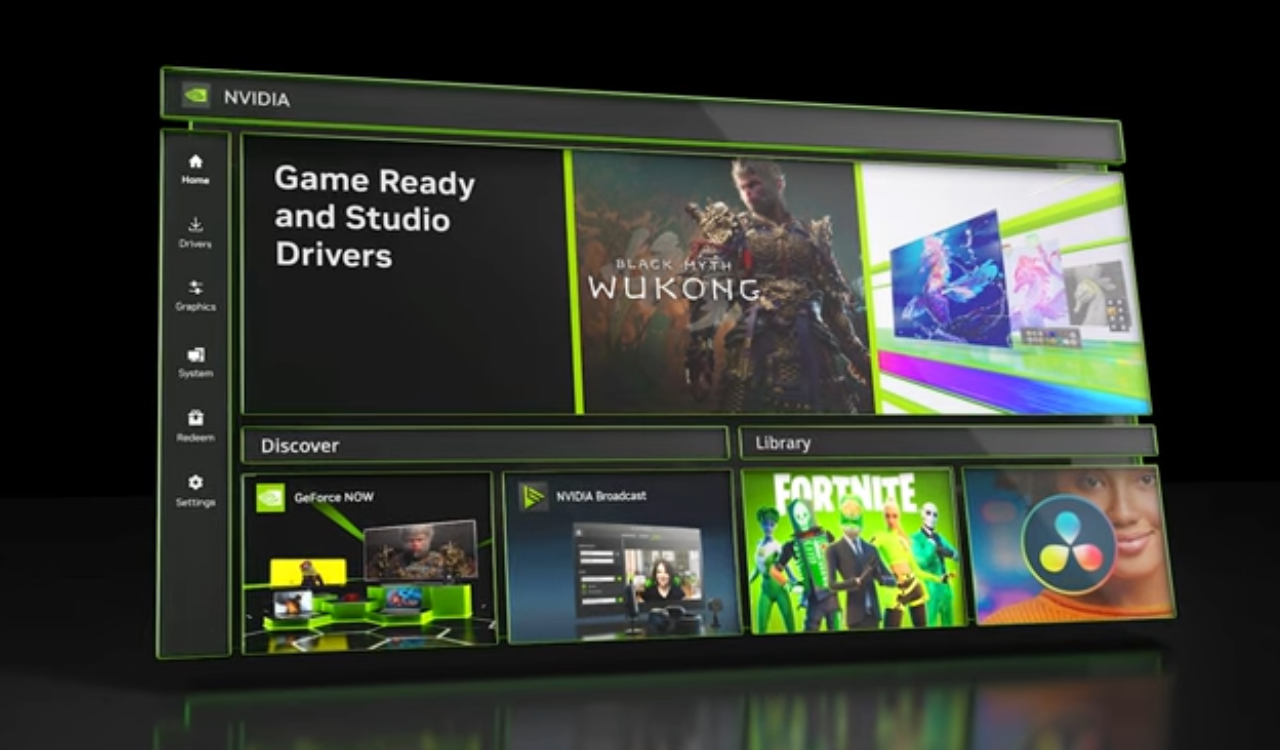
If you’re tired of clicking through each game to tweak settings, NVIDIA’s latest app update has your back. Starting August 19, the NVIDIA App gets a major overhaul packed with global DLSS toggles, better motion smoothing, Project G-Assist upgrades, retro 3D options, and more.
There are even smoother setup tools for multi-display gaming. Let’s break down what you can expect, starting with something that saves you time right out of the gate.
Ever wanted to force a DLSS setting across your entire game library? Well, now you can. The new global DLSS override brings all compatible games under one roof. Want to use the latest transformer model? Done. Prefer Ultra Performance or DLAA mode? One option for all.
You can still dial settings per-game if needed, but this feature alone is a time saver, especially if you have a monster library. Wondering if it’s active while gaming? The DLSS override appears right in your in-game overlay (Alt+R), showing the DLSS status next to FPS and GPU usage. Handy, right?
NVIDIA also notes that context switching is smoother than ever. The company has also extended the Smooth Motion AI tool to all RTX 40-Series GPUs. Whether you’re playing a modern game or an older DX11/Vulkan title, you can now inject smoother gameplay even if the game doesn’t support frame generation natively.
That’s not all; G-Assist now runs on all RTX GPUs with 6GB+ VRAM, including laptops, and uses 40% less memory. It’s smarter at picking the features you need, plus it’s more stable and responsive. And yes, you can now install plugins directly from mod.io in just a few clicks.
If you’re a multi-monitor flight or racing fan, NVIDIA has you covered. The updated NVIDIA app includes a streamlined NVIDIA Surround setup for easier horizontal or vertical arrangements. Want older games to look crisp? Legacy 3D settings like anisotropic filtering or PhysX are now back in the app, both globally and per-game.
The company further says that laptops equipped with Advanced Optimus can now show you which apps are stopping dynamic GPU switching. You’ll also get better notifications, so you’re never left wondering why your GeForce GPU isn’t kicking in.
NVIDIA isn’t stopping here, as it plans to bring more legacy control panel options, new features, and fine-tuned updates in future releases. If you’ve got any questions or need to report anything, head to the “Feedback” or “Report an issue” buttons inside the app.