What is WhatsApp? How to use the app, tips, tricks, and more
There’s no shortage of messaging apps out there. The past decade has given us more options than we know what to do with, largely because smartphones demanded something better than plain old SMS.
Both the App Store and the Play Store are packed with apps that promise to revolutionize the way we communicate. Most of them didn’t make it. The truth is, a messaging app is only as good as the number of people using it, and most apps never cross that threshold.
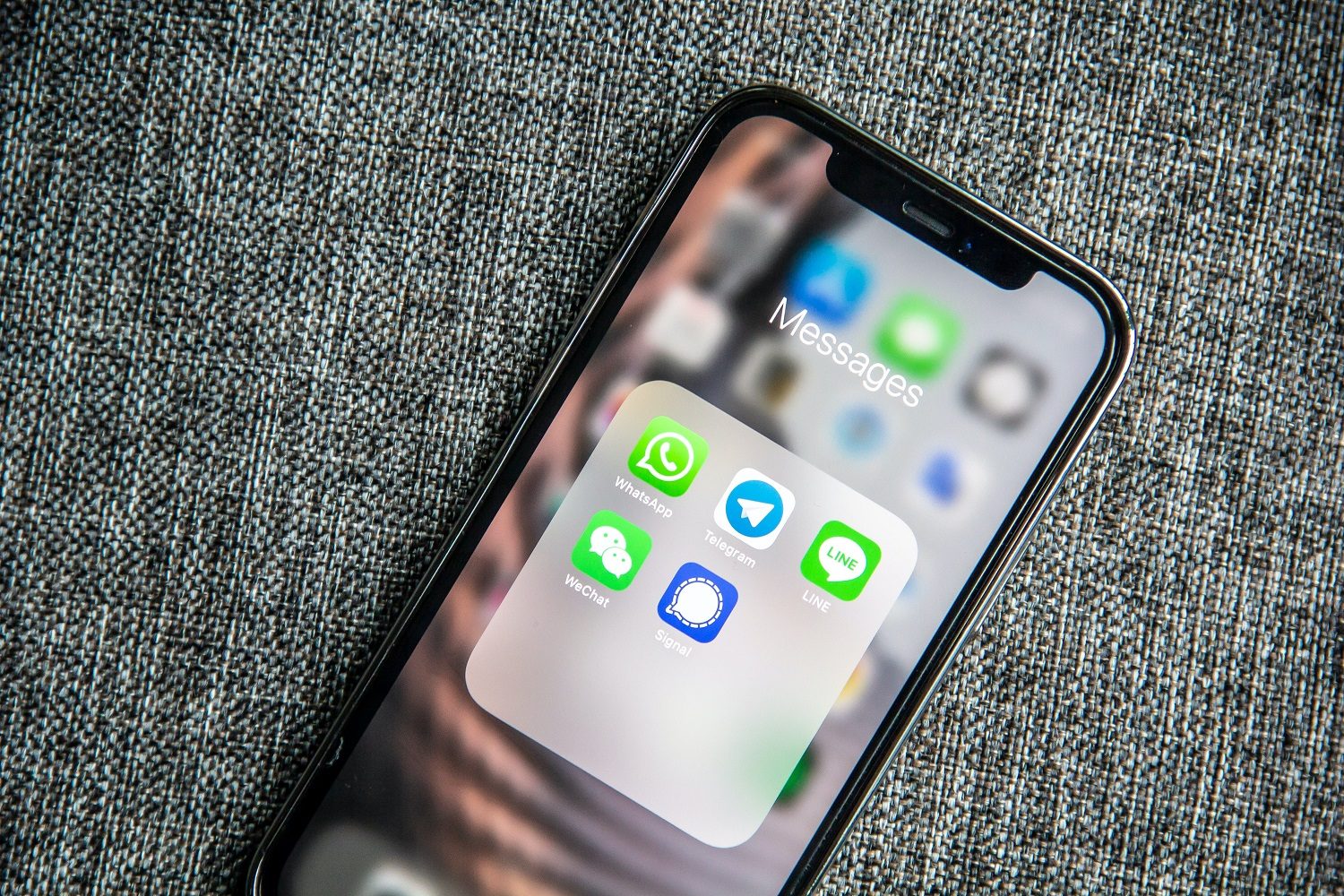
WhatsApp seem to be one of the few chat apps that have crossed it. What began in early 2009 as a small project by two former Yahoo engineers to replace SMS struck a chord, acquiring a quarter-million users in its first year and growing to 400 million by the end of 2013.
Since its 2014 acquisition by Facebook (now Meta), WhatsApp has reached a point where it’s now become the de facto standard for cross-platform messaging worldwide, with over 5 billion installs from the Google Play Store and 3 billion active monthly users.
What is WhatsApp?

At its most basic level, WhatsApp is a chat app for exchanging messages with friends, not unlike the SMS text messaging built into nearly every phone. But it was built to replace SMS, and for good reason.
SMS is stuck in the dark ages, with 160-character limits and no support for anything beyond plain text. Its younger sibling, MMS, allows for small media exchanges like low-resolution photos, but it is effectively useless for videos and still lacks read receipts and status indicators.
WhatsApp wasn’t the only app to tackle this problem. Apple did something similar in 2011 with iMessage, and Google took several stabs at it before finally embracing the RCS messaging standard, which now supports rich media, read receipts, and more across Android devices.
But Apple’s solution was limited to its own ecosystem and Google’s efforts were slow to gain traction. In recent times, Apple has added support for RCS messaging, but it’s still in its nascent stage and cross platform messaging is still a mess.

On the other had, WhatsApp created a platform-agnostic solution that just works. It runs equally well on iPhone and Android, with dedicated Mac and Windows apps, and even a web client that works in any modern browser.
Much of WhatsApp’s appeal lies in its simplicity. Like iMessage, there are no accounts to create. Everything is tied to your phone number, so you don’t need to remember usernames or handles. Your entire profile is just a name, a photo, and a 140-character “about” status.
And it goes well beyond simple chats. You can share full-resolution photos, videos, documents, audio recordings, stickers, and GIFs. You can create group chats with up to 1,024 people and make audio or video calls to any WhatsApp user worldwide. That combination of simplicity and versatility is exactly why billions of people use it every day.
How to download WhatsApp
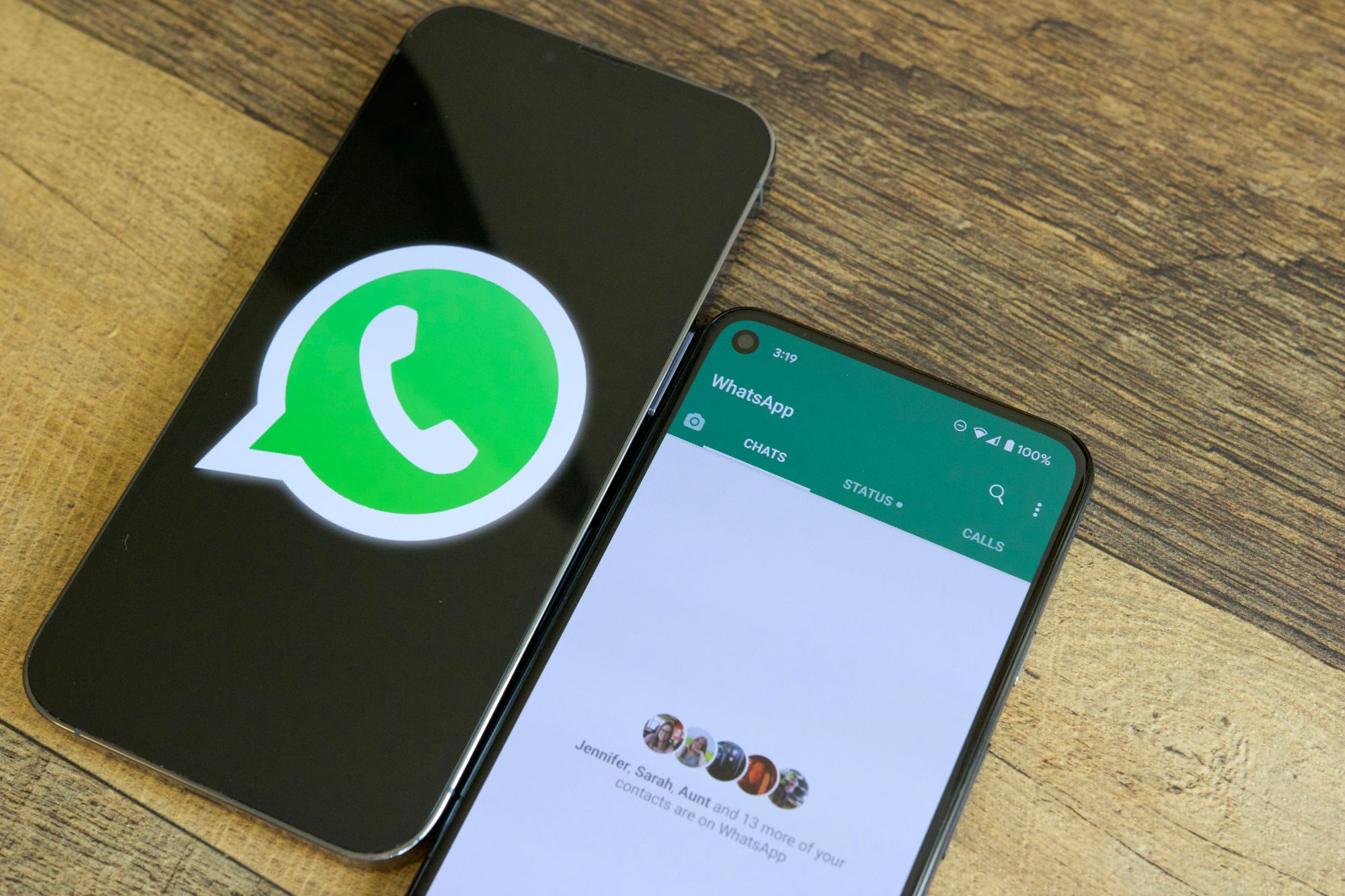
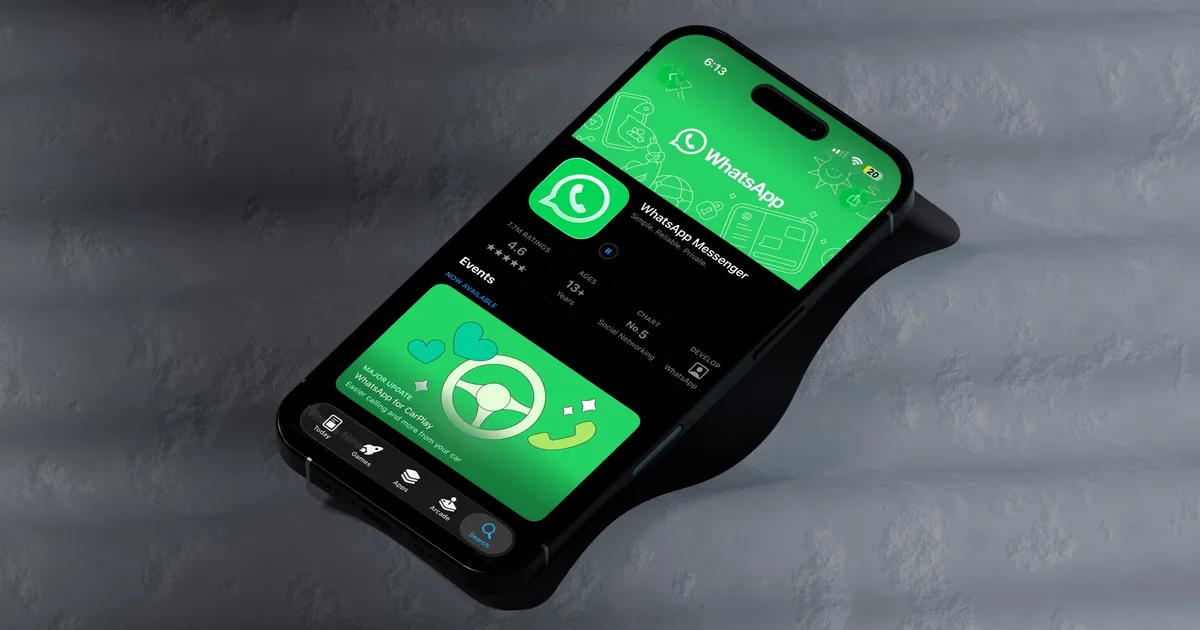
WhatsApp is available in mobile versions for both Android and iPhone; you can find it on the Google Play Store or Apple App Store. Note that WhatsApp does not provide a version of the app that’s optimized for Android tablets or iPad. WhatsApp requires Android 4.1 or newer or iOS 12 or newer, so compatibility shouldn’t be a problem.
There are also WhatsApp Desktop apps for both Windows and macOS. These are distributed through the Microsoft Store and Mac App Store and set a similarly low bar for system requirements: Windows 10.1 or newer for Windows PCs or macOS 12.1 or newer for Macs.
How to get started with WhatsApp
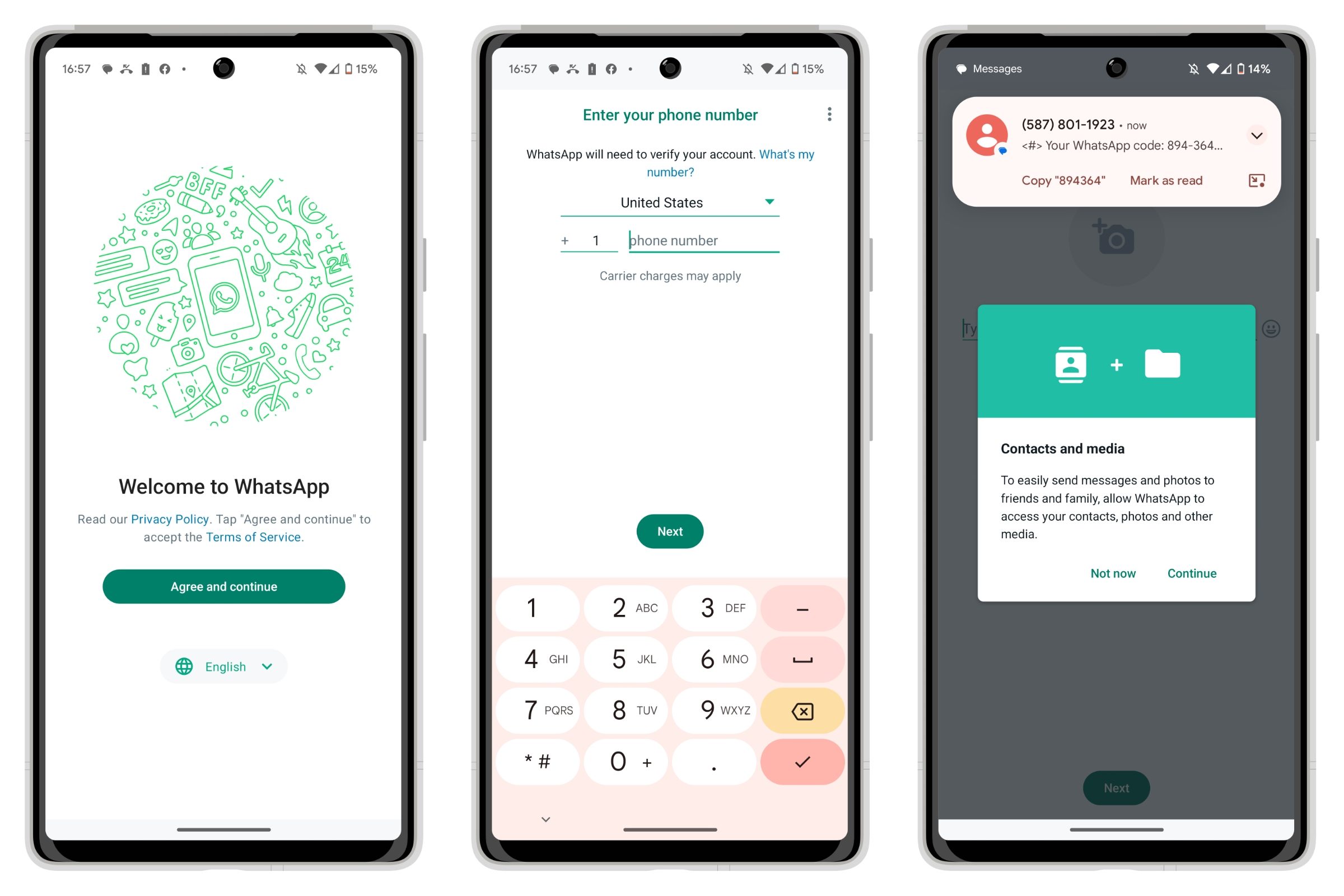
Although WhatsApp is available for iPhone, Android, macOS, and Windows, you’ll need to start with your smartphone. Remember that WhatsApp doesn’t have user accounts in the traditional sense; you sign up using your mobile phone number, which is validated by sending an SMS message to your phone. This also means you must have an active cellular plan; WhatsApp can’t be set up on a Wi-Fi-only mobile device.
As a result, setting up WhatsApp is pretty straightforward. You need only open the app and to walk through the steps, entering your mobile phone number when prompted. This becomes your WhatsApp “address” and your account ID. An SMS message will be sent to your phone to confirm that you actually own the number in question.
If you’re using an Android phone, WhatsApp will pick up this SMS message automatically in most cases and carry on with the registration process. Registering WhatsApp on an iPhone will require you to manually punch in the six-digit code, or at least tap on the autofill code above your keyboard, much like how SMS two-factor authentication works in other apps.
Once your phone number has been registered, WhatsApp will take you through a couple more prompts to request permission to access things like your contacts and photos, after which you’ll be ready to go. If you grant WhatsApp access to your contact list — an entirely optional step — the app will show you a list of people you know who have also registered their phone numbers to use WhatsApp.
How to get WhatsApp on your computer

As we mentioned earlier, you can get WhatsApp on your Mac or Windows PC, but it’s important to note that this isn’t a standalone app. Instead, it’s a companion to WhatsApp on your iPhone or Android phone.
To use WhatsApp on a Mac or Windows PC, you’ll need to link your computer with WhatsApp using your phone. The first time you open WhatsApp Desktop, you’ll be shown instructions on how to do this, including a QR code you can scan from WhatsApp on your phone.
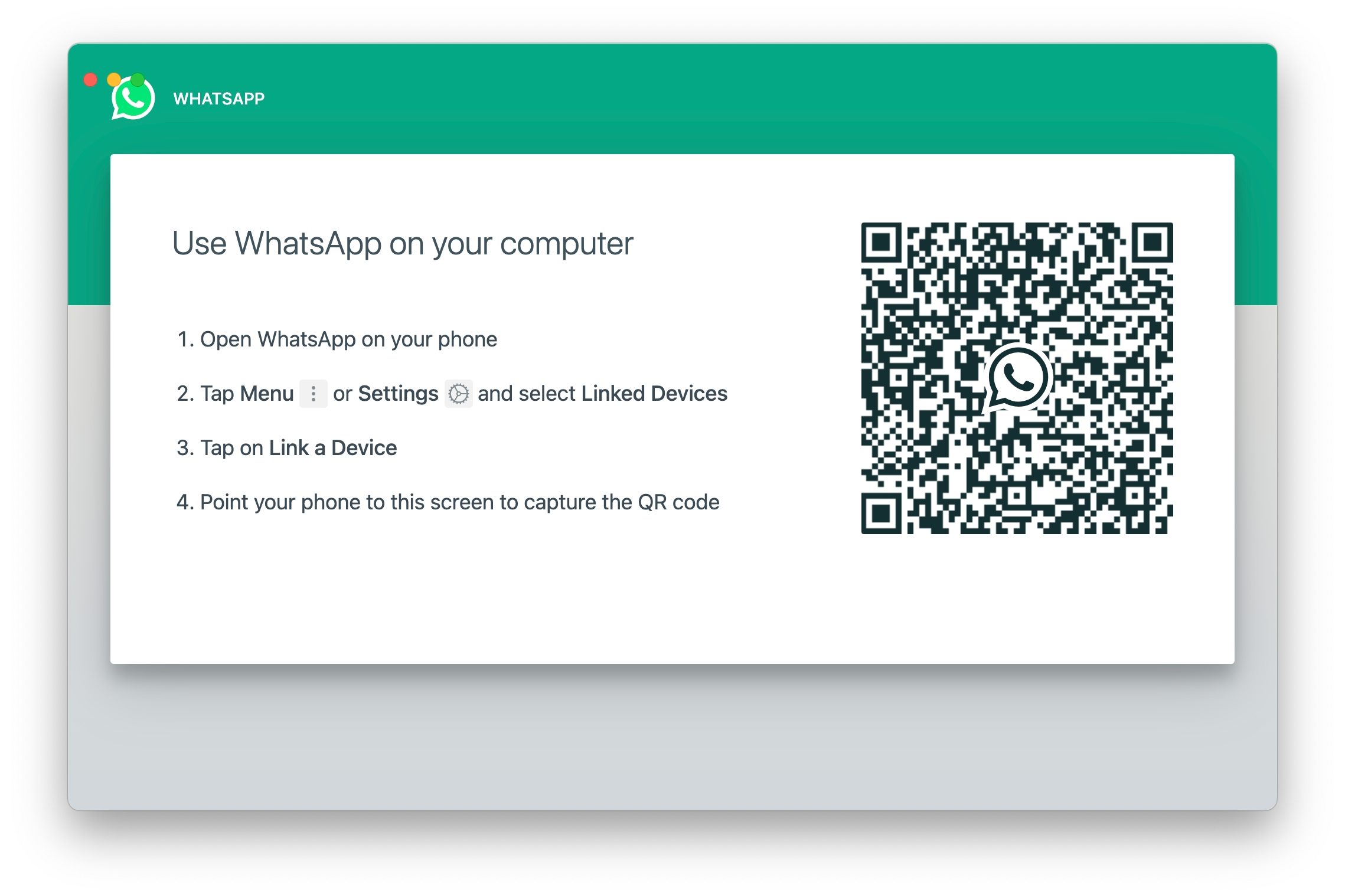
In its original form, WhatsApp Desktop relied on syncing with the mobile version, which means you couldn’t send or receive messages unless your iPhone or Android phone was online. Fortunately, the company released a significant update to WhatsApp for Windows and macOS last year, allowing the desktop app to communicate directly with the WhatsApp service independently of your smartphone. You still need to use WhatsApp on your phone once in 14 days to keep the desktop apps active.
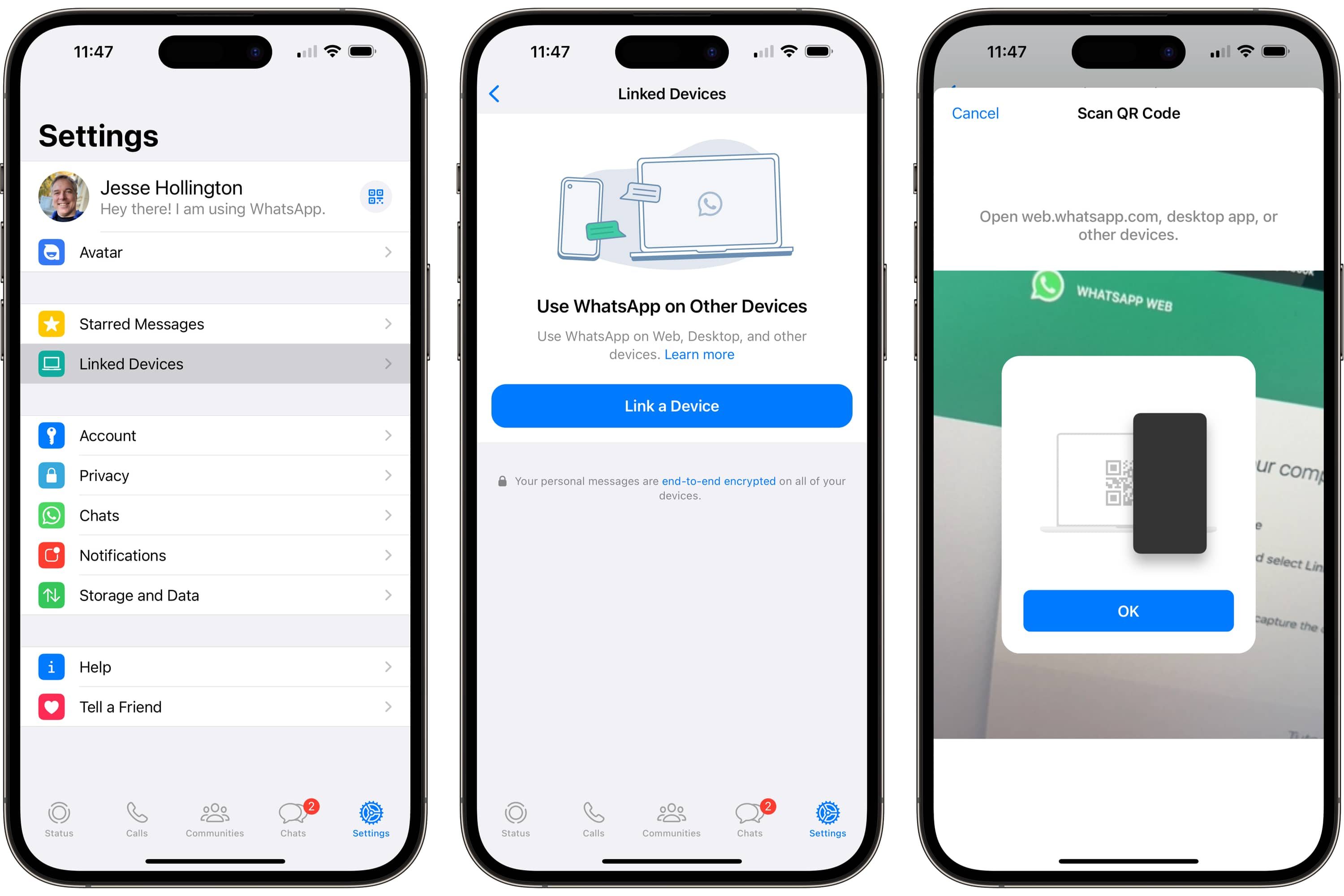
When using these newer full-featured versions, you’ll still need your smartphone to set up WhatsApp Desktop, but once that’s done, you can exchange messages with other WhatsApp users from your Mac or Windows PC, even when your phone’s battery is dead or you’re outside of coverage.
The browser-based WhatsApp Web also remains available, letting you connect to WhatsApp from any modern web browser. It’s not nearly as full-featured as the new Windows desktop app, but it’s an excellent option when you want to connect to WhatsApp from a PC at work or school, where you can’t realistically install the standalone app.
Is WhatsApp encrypted?

WhatsApp uses end-to-end encryption throughout the service. Whether you’re simply chatting via text, sending photos and videos, or placing a voice or video call, it will be between only you and the recipient(s). The nature of end-to-end encryption makes it impossible for anybody else — even WhatsApp — to eavesdrop on your chats and conversations.
You can confirm that end-to-end encryption is working properly in a given conversation by selecting the contact name at the top of a chat and choosing Encryption. You’ll be shown a QR code and a 60-digit number unique to your conversation. This should match what the other person sees when they open the same screen on their end.
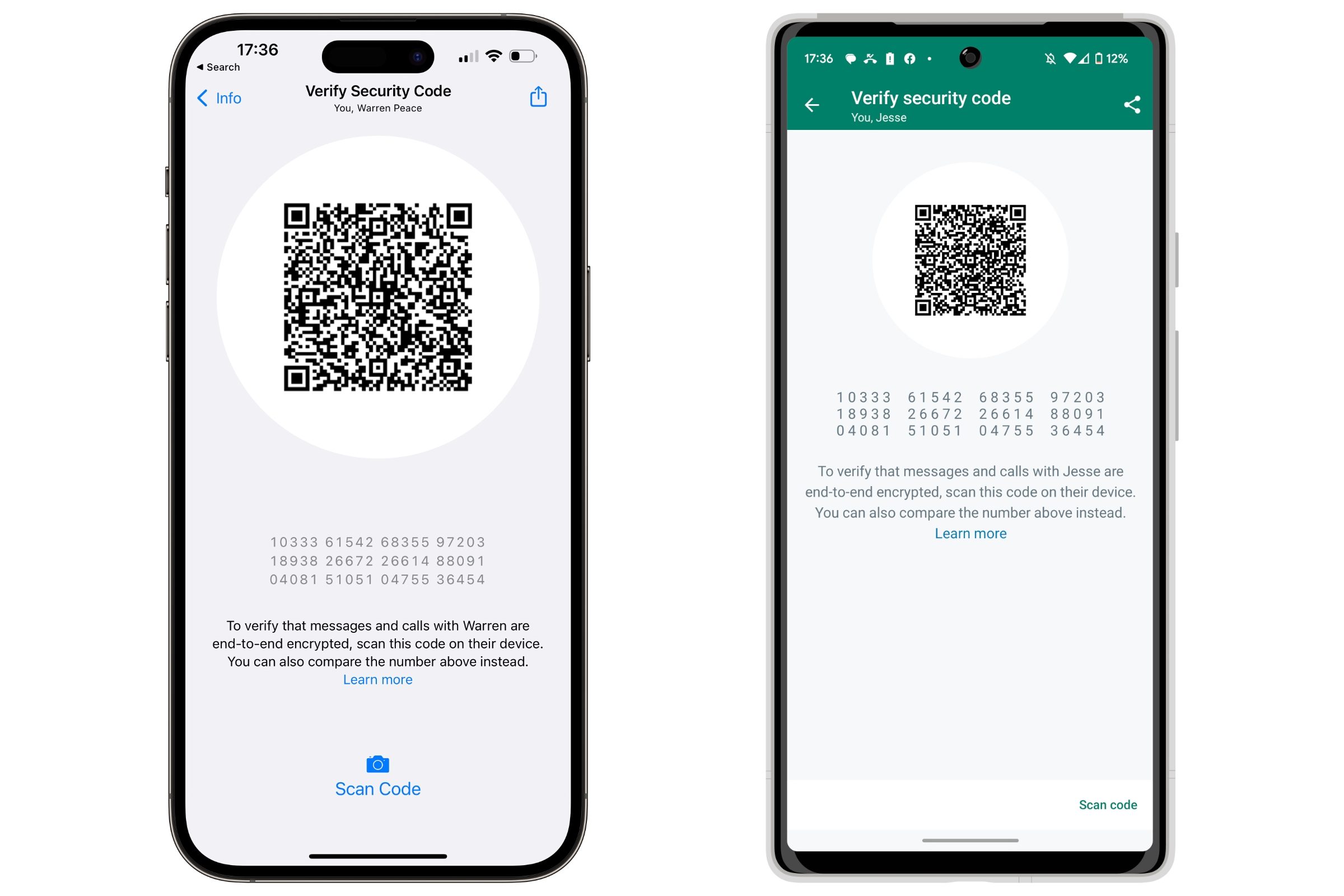
You can also enable end-to-end encryption for the backups of your WhatsApp profile and user data, ensuring that your data remains secure and private, even when storing your device backups in iCloud or Google Drive.
Is WhatsApp safe?
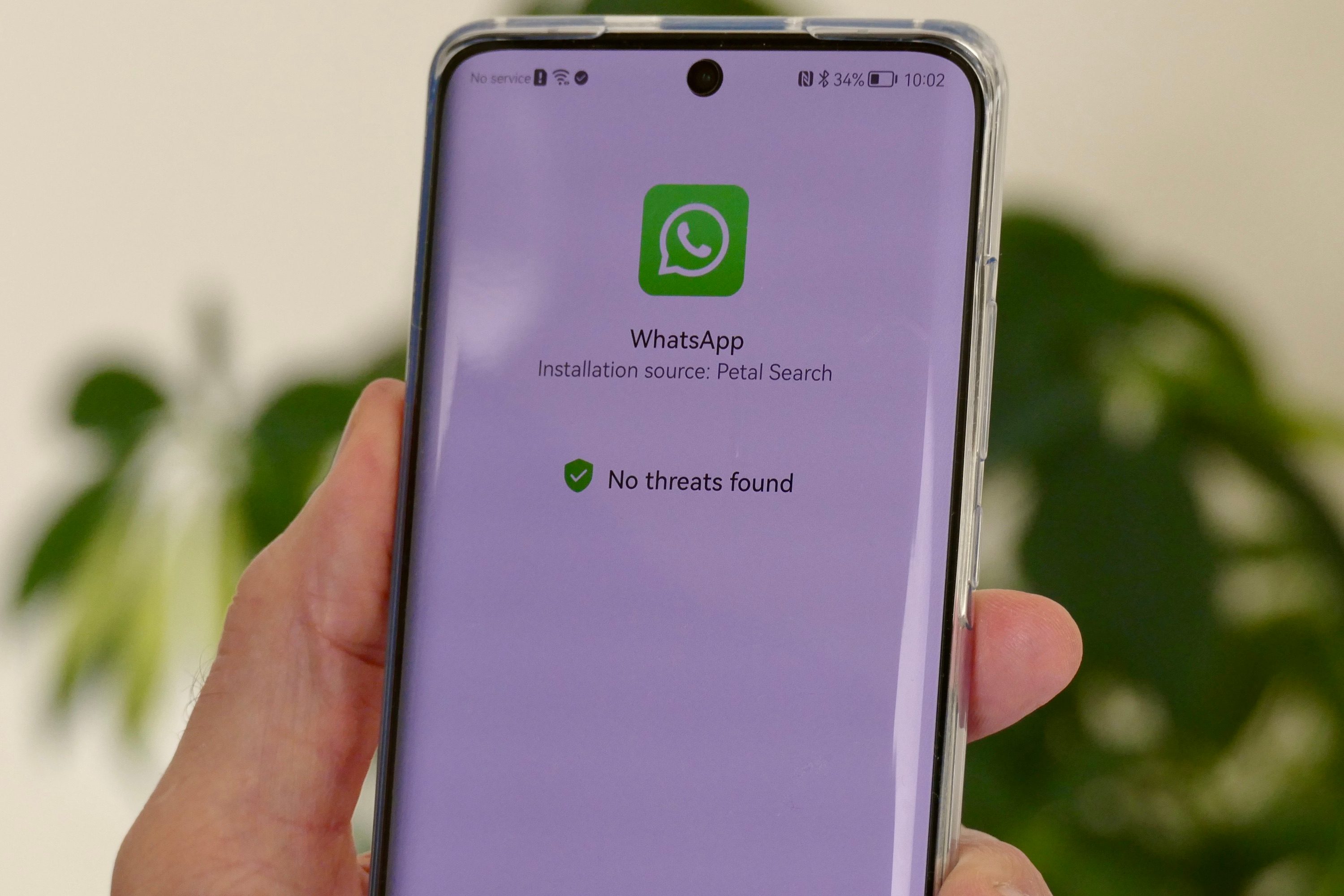
Through the use of end-to-end encryption and verified phone numbers, WhatsApp is a safe and secure messaging platform — at least for people you know.
Like any messaging platform, WhatsApp is not free from miscreants. The popularity of WhatsApp means you’ll find lots of spammers and scammers lurking about, so you should always be cautious about who you start a conversation with — and never give you personal information unless you’re absolutely sure you know who you’re talking to.
Fortunately, WhatsApp offers a wide range of tools to help you maintain your privacy and deal with unsolicited messages. You can restrict the visibility of your profile information, such as your photo, online status, and more, limiting it to only your contacts, or nobody at all, if you prefer.
You can also not only block unwanted contacts, but even report them if they’re harassing you. Since everything on WhatsApp is end-to-end encrypted, reporting a user sends WhatsApp staff the last five messages sent to you by that person so they can see what’s going on.
Is WhatsApp free?

At one time, WhatsApp operated on a subscription model, charging a nominal amount per year to use the service — generally the rough equivalent of $1 per year in whatever country a user resided. However, in 2016, WhatsApp proudly announced that it would be free for all, and it’s remained that way ever since.
WhatsApp is free to use and, for now, keeps your chats private with end-to-end encryption. But Meta is slowly finding ways to monetize the platform. WhatsApp Business lets companies pay to engage with customers, with fees based on conversation volume.
Meta has also introduced Channels, a broadcast feature that businesses and creators can use to reach large audiences. And if you have been noticing ads creeping into the WhatsApp Status area, that is no accident. It is all part of Meta’s broader plan to turn WhatsApp into a revenue-generating platform, one quiet feature at a time.
WhatsApp tips and tricks to get more out of the app
WhatsApp is a versatile messaging app that packs tons of hidden features, which not many people know about. In this section, I will share some of my favorite WhatsApp tips and tricks to help you get the most out of this messaging app.
Remove business messages from your main chat view
One thing I hate about WhatsApp is that companies now use it to promote their services, share updates, and sell products. These chats can easily inundate your chat view with frivolous messages.
Even if you delete them, the next message will appear in your chat list. An easy way to resolve this issue is not to delete the business chats, but to archive them. This way, new chats from businesses will go to the Archived chat view directly, leaving your main chat view only for your personal chats.

To archive a chat, simply swipe right-to-left on a chat and tap the Archive button.
Star messages to remember them later
It’s hard to keep track of messages in WhatsApp, especially in a group chat. If there’s something you want to remember, instead of copy-pasting it somewhere, you can simply start it by long-pressing on the chat.

Then you can head over to your profile and tap the Starred section to quickly find the starred messages. You no longer have to hunt around in chats to find them.
Send photos and videos in HD quality
By default, WhatsApp compresses the media you send to save data and space. However, this also means that the photos and videos you sent are of lower quality.
You can prevent this from happening in two ways. In the first method, you can decide the quality of media you want to send each time you do it. When sending a photo or video, simply tap the HD button in the top-right corner.
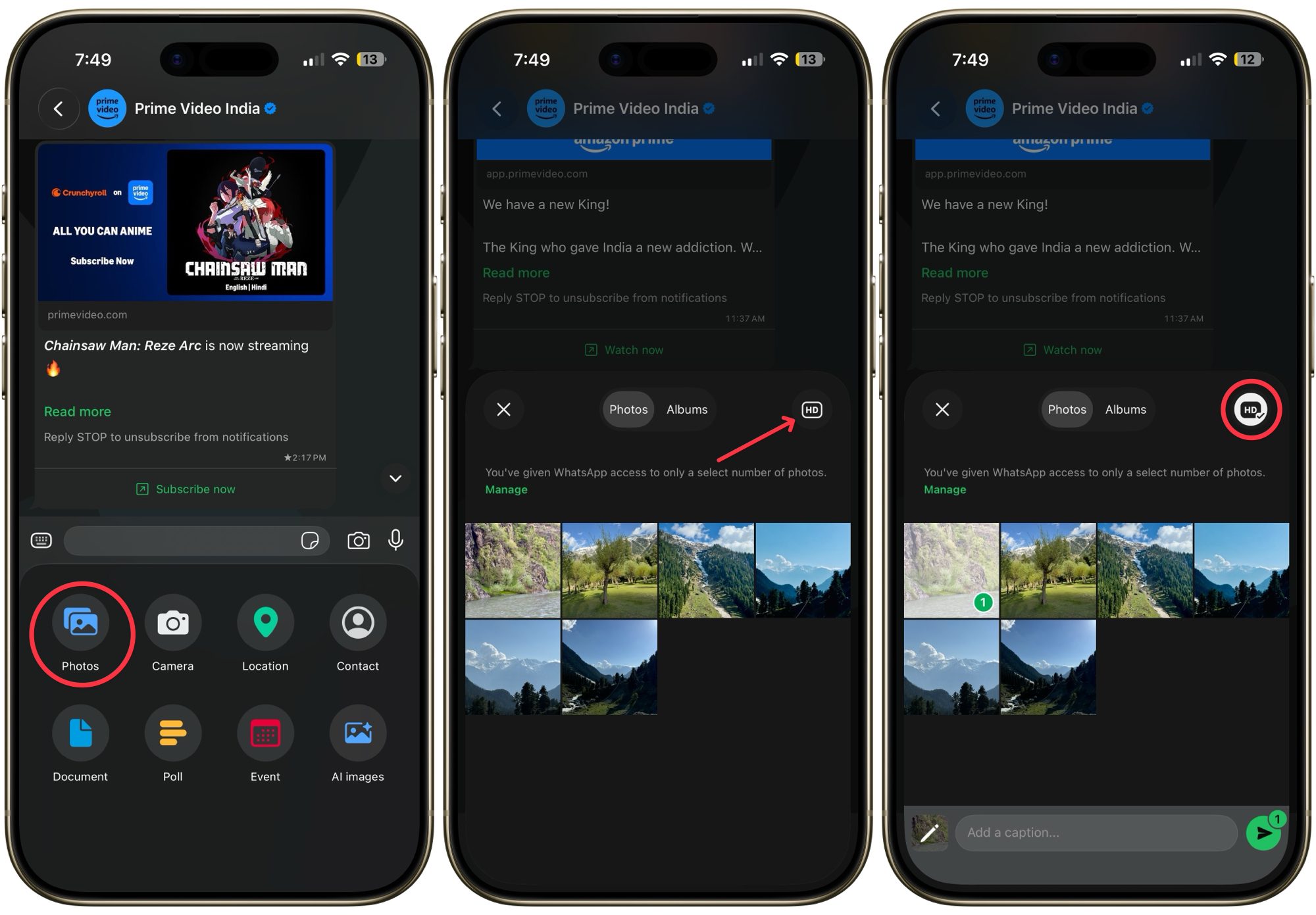
If you don’t want to deal with it every time you share a photo, you can change the upload media settings. To do this, go to your Profile → Storage & Data → Upload Quality, and set it to HD quality.

Set custom alerts for individual contacts
One thing I like to do is assign a custom alert for my favorite contacts, so I know when to pick up the phone immediately and when I can respond later.
To do this, open the chat for which you want to create custom notifications and tap the name at the top. Now, go to Notifications → Alert tone, and choose a custom notification sound.

Do this for all your favorite or VIP contacts, and you can easily triage your messages just via notification sound.
Mute chats to prevent unnecessary headache
We are all part of a chat group that we want to leave, but we cannot. An easy way to deal with such a chat group is to mute it. That way, you are not unnecessarily disturbed and can check on those messages at your leisure.
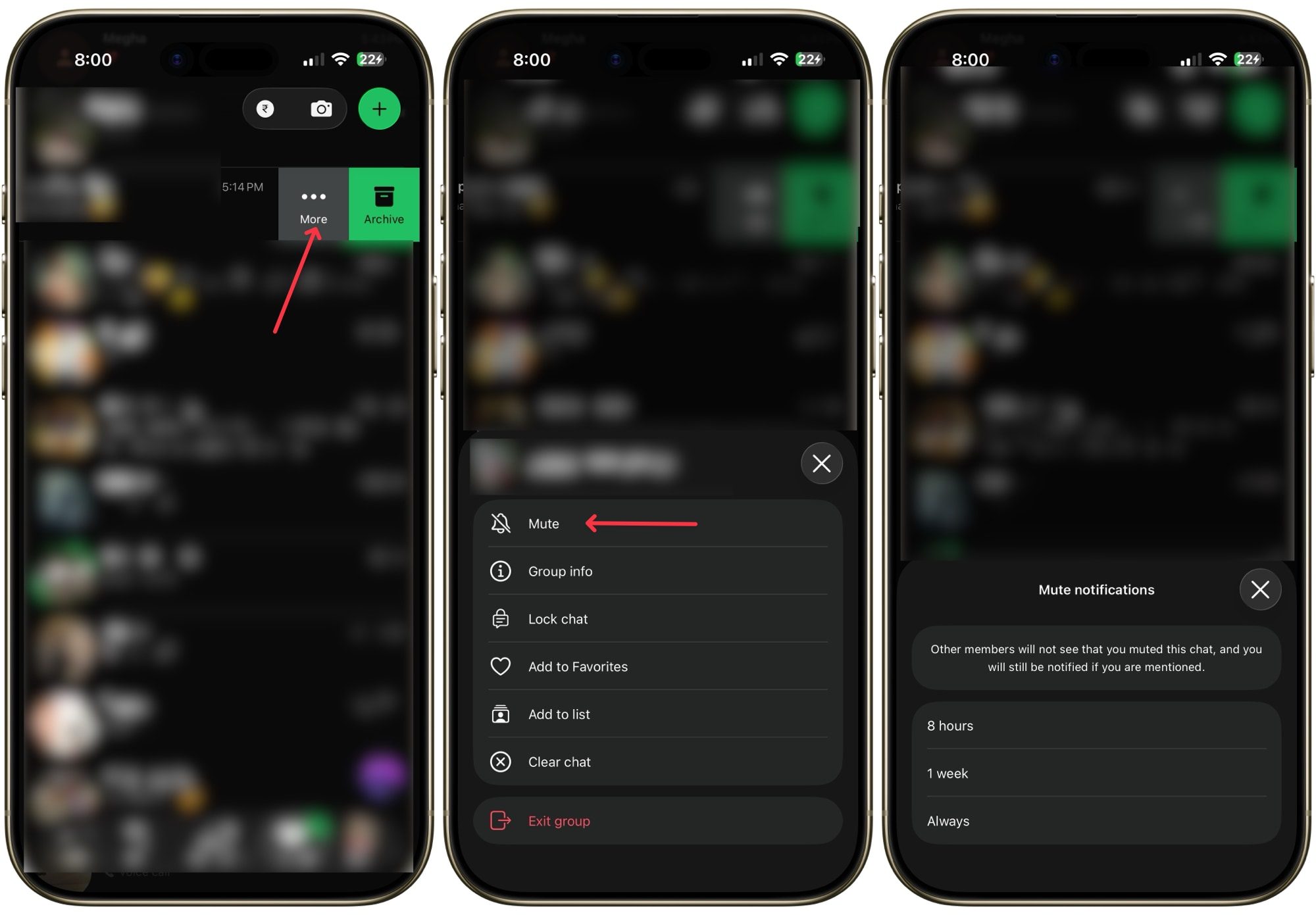
To do this, simply swipe right-to-left on a chat or a group chat and tap the three-dot menu. Now tap on Mute and select the time duration. That’s it. Now those active group chats won’t disturb your sleep.
Send photos in one view
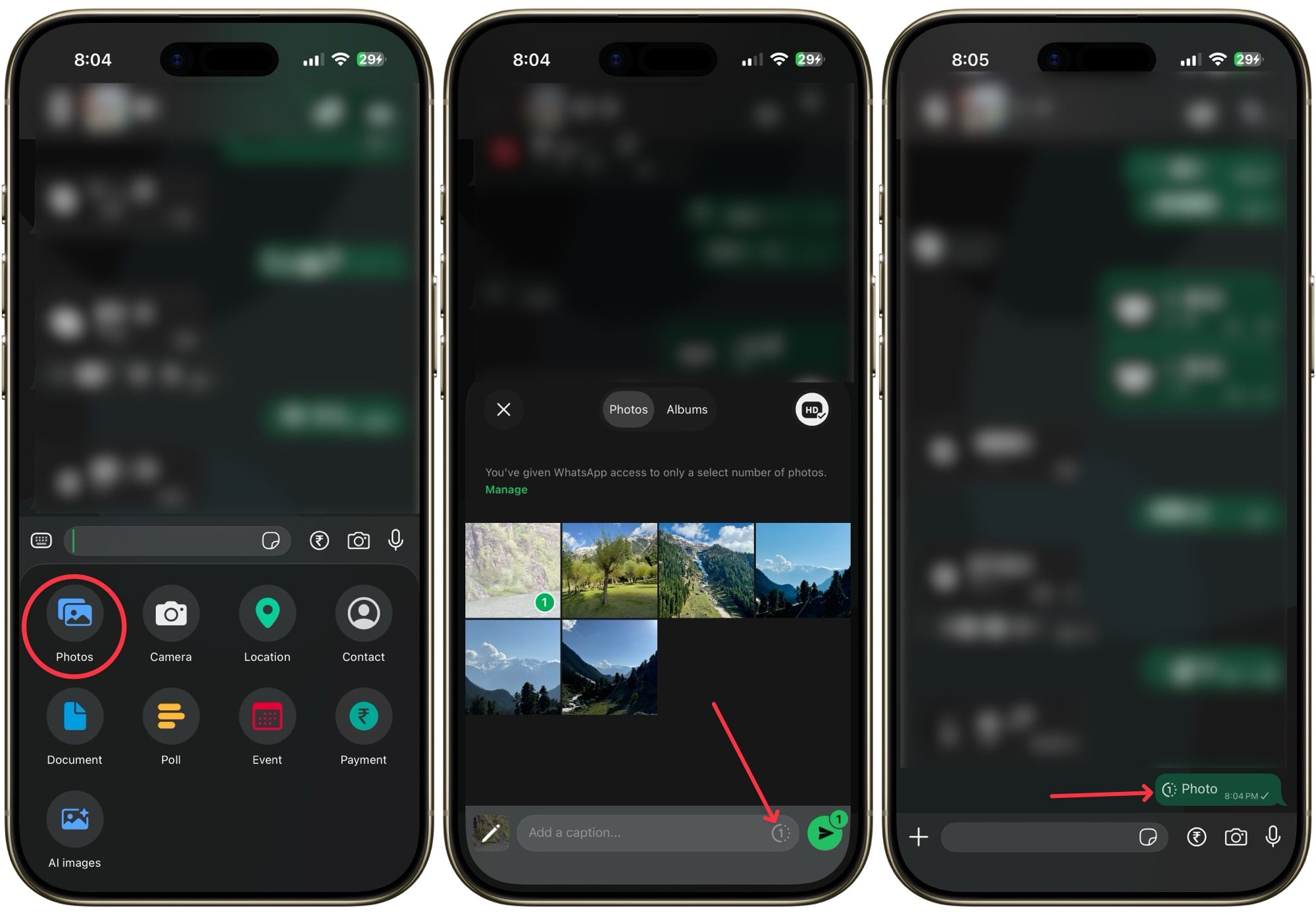
Sometimes you want to share a confidential photo and don’t want the other party to have access to it after they view it. You can do that by sending the photo in one view mode, which automatically deletes the photo after the other party has seen it. To do this, tap the one-view button before sharing the photo.
Turn off last seen & online
I like to keep my last seen and online statuses turned off. It removes the unnecessary pressure to reply to a message immediately after I have read it. The price you pay is that you also won’t be able to see when others are online, but I am okay with it.
If you also want to do the same, open your Profile and go to Privacy → Last seen & online and set it to Nobody. While you are in Privacy settings, you can also turn off “Read receipts” so no one knows when you have read their messages.

These are just some of the WhatsApp tips and tricks that I use to keep control of my chats. I hope these tips can help you keep your chats organized and keep this amazing messaging app under your control, and not the other way around.