How to Set Up a WiFi Extender in Minutes
XINSTALL BY CLICKING THE DOWNLOAD
FILE
A WiFi extender boosts weak wireless coverage by repeating your existing router signal. Many users want a simple setup method without dealing with complex menus. This guide shows how to install and configure any WiFi extender or repeater using clear steps.
How to Set Up a WiFi Extender or Repeater?
How to set up a WiFi extender
- Place the extender halfway between your router and the low coverage area while avoiding appliances and metal surfaces.
- Plug the extender into a power outlet and wait for its LED indicators to stabilize.
- Press the WPS button on your router.
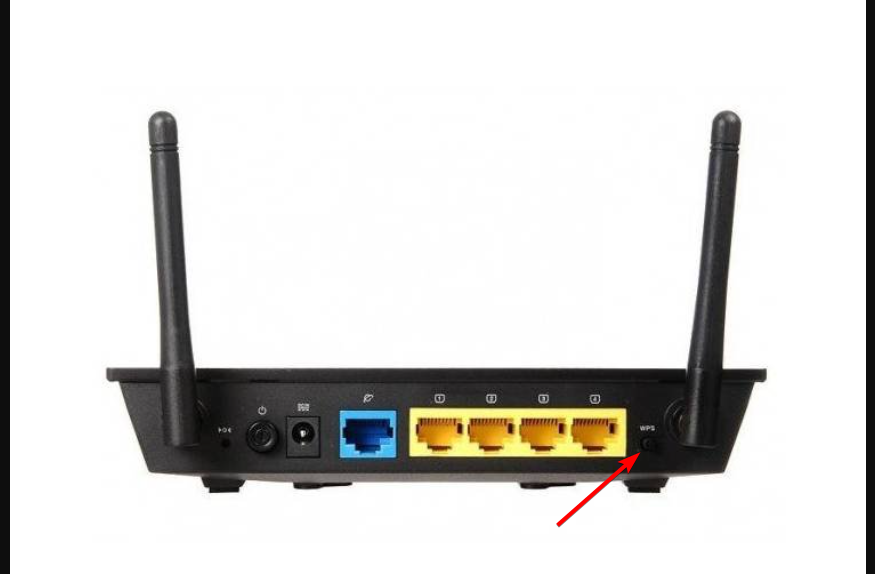
- Press the WPS button on your extender within two minutes.
- Wait for the extender’s WPS light to turn solid to confirm a successful connection.
- If WPS is unavailable, connect to the extender’s default WiFi network and access the setup page through 192.168.0.1, 192.168.1.1, or the specific address printed on the device.

- Enter the default login credentials from the extender label.
- Select your main WiFi network and enter its password.

- Save your settings and allow the device to reboot.
- Move the extender to its final midpoint location and check the signal strength indicators.
If your extender connects but refuses to accept the correct password, check this guide on what to do when the WiFi extender password is not working.
How to set up a WiFi repeater
- Plug the repeater into a power outlet near your router for initial configuration.
- Connect to the repeater’s default WiFi network such as RepeaterSetup or Wireless-N.
- Open your browser and enter the configuration address, often 192.168.10.1.
- Log in using the default username and password listed on the repeater.
- Select your main WiFi network and enter its password.

- Assign an extended network name if supported.
- Save your changes and wait for the repeater to reboot.
- Move it to a midpoint where it receives a stable signal.
If your repeater refuses to connect during setup, try the solutions in this guide for when a WiFi repeater will not connect.
Why your WiFi extender may not work
- Router uses incompatible security modes
- Extender placed too far from the router
- Wrong WiFi password entered
- Outdated firmware
- Interference from walls, appliances, or cordless devices
Tips for stronger WiFi coverage
- Use the 2.4 GHz band for better range
- Keep the extender elevated for fewer obstructions
- Update router and extender firmware regularly
- Avoid placing the extender behind large furniture
- Use Ethernet backhaul if the extender supports it
FAQs
Place it at the midpoint between your router and the low signal area while ensuring it receives a moderate signal.
Most extenders reduce speed because they rebroadcast the signal. Tri band extenders handle this better.
Yes, but connect each one to the router directly instead of chaining them.
Mesh systems offer smoother roaming and better stability but cost more. Extenders suit smaller coverage needs.
Setting up a WiFi extender or repeater becomes easy when you place it correctly, connect it through WPS or the setup page, and reposition it for optimal coverage. These steps help eliminate weak spots in your home network and provide smoother wireless performance.
If you want an alternative method, you can also turn your computer into a wireless booster by following this guide on how to use your PC as a WiFi extender.


Readers help support Windows Report. We may get a commission if you buy through our links.

Read our disclosure page to find out how can you help Windows Report sustain the editorial team. Read more