How to Uninstall KB5063878 Update to Fix SSD Failures on Windows 11
Readers help support Windows Report. We may get a commission if you buy through our links.

Read our disclosure page to find out how can you help Windows Report sustain the editorial team. Read more
Last month, reports of SSDs failures after installing Windows 11 update KB5063878 quickly raised alarms among users. At first, many suspected the update itself was to blame. However, storage maker Phison and Microsoft also clarified that retail SSDs are unaffected. During the last weekend, while PCDIY group on Facebook linked the SSD failures to engineering firmware present only on review samples. Phison has also confirmed the PCDIY’s report earlier today by issuing a statement.
In other words, regular consumer drives remain safe, and the issue is far narrower than initially feared. However, if your SSDs have been affected, uninstalling Windows 11 24H2 KB5063878 update is the only solution. In this guide, we’ll walk you through each and every step on how to fully remove the alleged faulty update.
How to uninstall Windows 11 24H2 KB5063878 update to fix SSD failure and corruption issues
- Open Settings on your Windows 11 PC.
- Navigate to System.
- Click on the Optional features page.
- Under Related settings, select More Windows features.
- If applicable, uncheck Windows Sandbox to disable it (this can help prevent error 0x800F0825 while uninstalling KB5063878).
- Click OK.
- Click Restart now to apply changes.
- After reboot, open Settings again.
- Go to Windows Update.
- Click Update history.
- Under Related settings, select Uninstall updates.
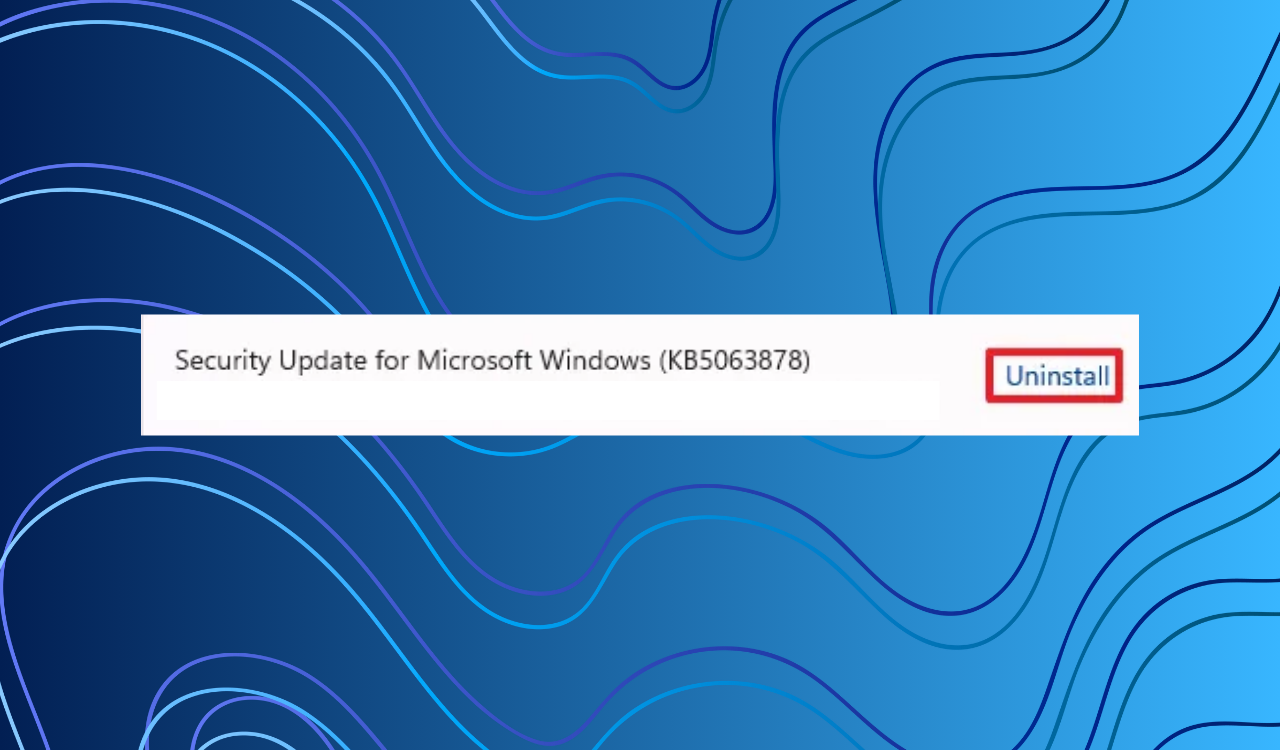
- Find KB5063878 (build 26100.4946) and click Uninstall.
- Click Restart now to complete the removal.
- Open Settings again.
- Go to Windows Update and click Pause updates for 1 week to prevent the update from reinstalling automatically.
Re-enable Windows Sandbox if needed
- Go to Settings > System > Optional features > More Windows features.
- Check the Windows Sandbox option.
- Click OK.
- Click Restart now.
After this, the problematic update will be removed, preventing the SSD from disappearing again. If your device has already lost access to storage after the update, uninstalling KB5063878 may restore functionality. However, if data loss has occurred, the only option is to recover files from a previous backup, since no permanent fix is yet available.
Why You Should Resume Updates Afterward
Even if KB5063878 caused trouble, don’t leave updates disabled. Security patches and driver updates are critical to system health. Once Microsoft issues a permanent fix, make sure to resume updates.
Summing Up
While Phison and PCDIY confirmed retail drives are safe, uninstalling KB5063878 remains a practical workaround for anyone hit by the SSD bug. You need to ensure to keep backups handy, remove the update if needed, and stay alert for Microsoft’s follow-up patches.
FAQs
The issue was linked to engineering firmware on test drives, not consumer SSDs.
Yes, but you should resume updates later to keep your system secure.
You may need to restore from a backup or check with your SSD vendor for firmware support.