Disable Related Matches in Microsoft Edge Quickly
If you use Find on Page in Microsoft Edge and see extra words highlighted, the Related Matches feature is turned on. This can make searches messy when you only want exact matches.
Here’s how to disable related matches in Edge using different methods.
1. Turn Off Related Matches in Edge Settings
You can quickly switch off the feature from Edge’s Settings menu.
- Open Microsoft Edge.
- Click the three dots in the top-right corner.
- Select Settings.

- Choose Privacy, search, and services.

- Click Address bar and search.
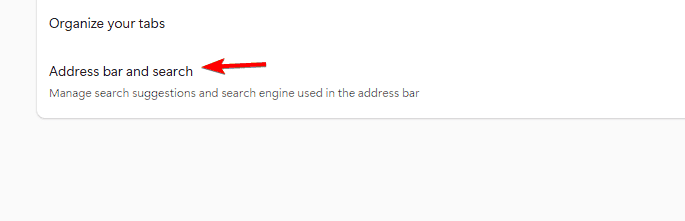
- Find Show related matches when using Find on Page.
- Toggle it Off.
To personalize your new tab layout, see how to add quick links in Edge.
2. Disable Related Matches Using Edge Flags
If the toggle is missing in Settings, use the experimental Flags menu.
- Open a new tab and type edge://flags in the address bar.
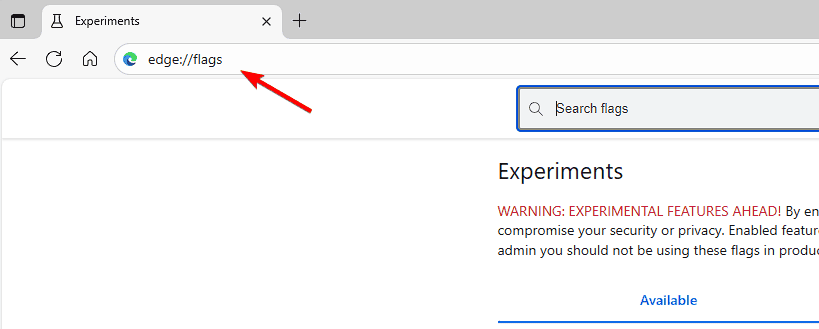
- Press Enter.
- Search for related matches.
- Open Show related matches in Find on Page.
- Select Disabled.
- Restart Edge.
Learn more about safe experimentation in how to enable Edge flags.
3. Use Windows Registry to Disable Related Matches
Enforce the setting system-wide with a quick Registry change.
- Press Windows + R, type regedit, and press Enter.

- Go to
HKEY_LOCAL_MACHINE\SOFTWARE\Policies\Microsoft\Edge - Right-click Edge, select New > DWORD (32-bit) Value.
- Name it
FindOnPageRelatedMatchesEnabled - Set Value data to 0.
- Close Registry Editor and restart Edge.
4. Re-enable Related Matches Later
You can restore the feature at any time.
- Return to the same toggle, flag, or registry value.
- Set it back to On or change the value to 1.
- Restart Edge to apply the change.
What Are Related Matches in Edge?
When you use Ctrl + F, Edge may highlight similar terms or alternate spellings. For example, searching “color” can also show “colour.” If you are tuning other behavior, you might also review how to allow pop-ups in Microsoft Edge.
FAQs
They are extra highlights for similar or related words during in-page searches.
The feature expands results to include similar terms and spellings.
Yes. It only affects how search highlights display and does not harm privacy or performance.
Yes. It limits highlights to exact terms, which keeps searches clean and fast.
Conclusion
Turning off Related Matches gives you precise, distraction-free searches. Use Settings for a quick change, Flags if the toggle is missing, or the Registry for an enforced configuration across your system.


Readers help support Windows Report. We may get a commission if you buy through our links.

Read our disclosure page to find out how can you help Windows Report sustain the editorial team. Read more