Instagram Links Not Working In App? Try This
Readers help support Windows Report. We may get a commission if you buy through our links.

Read our disclosure page to find out how can you help Windows Report sustain the editorial team. Read more
Instagram links may stop opening due to app glitches, browser issues, or connection problems. This guide shows you simple steps to fix the issue quickly.
What can I do if Instagram links are not working?
1. Restart the App or Browser
A quick restart can remove temporary glitches stopping links from opening.
- Close Instagram completely from recent apps.
- Force stop the app on Android or swipe it away on iPhone.
- Relaunch Instagram and test the link.
If you still face login problems after restarting, see this guide on fixing Instagram login issues.
2. Check Internet Connection
Unstable connections often block Instagram from loading external pages.
- Turn off Wi-Fi and switch to mobile data.
- Test a link again to see if it loads.
- Restart your router if using Wi-Fi.
3. Update Instagram
Running an outdated app version may cause problems with links.
- Open the App Store or Google Play.
- Search for Instagram.
- Tap Update if available.

- Reopen Instagram and check the link.
4. Clear Cache and Data
Corrupt cache files can prevent links from working correctly.
- On Android, go to Settings > Apps > Instagram.
- Tap Storage and select Clear Cache.
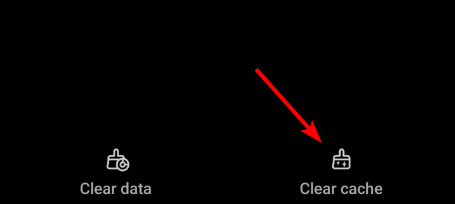
- If needed, also Clear Data.
- On iPhone, uninstall and reinstall the app.
5. Disable In-App Browser
Sometimes Instagram’s built-in browser fails to load external pages.
- Long-press the link in Instagram.
- Select Copy Link.
- Open Chrome, Safari, or another browser.
- Paste and open the link directly.
When links attached to posts or photos fail to open, follow these steps to fix Instagram links on photos not working.
6. Turn Off VPN or Proxy
VPNs and proxies may block or filter certain web addresses.
- Open your phone’s VPN app.
- Disconnect or disable it.
- Retry opening the Instagram link.
- If using a proxy, remove it from settings.
7. Check for Restrictions
Blocked or unsafe links can be restricted inside Instagram.
- Confirm the link is not flagged as unsafe.
- Try using a different URL format.
- Use a shortened link service if needed.
- Report the issue to Instagram if it persists.
Conclusion
Most Instagram link issues are solved by restarting the app, checking your connection, or opening links in a separate browser. If the problem continues, reinstall the app or contact Instagram Support. For related fixes, see how to solve Instagram not sharing to Facebook.
FAQs
This usually happens due to poor internet, app glitches, or restrictions on the link.
Copy the link from Instagram, open your browser, and paste it into the address bar.
Yes. VPNs or proxies can block or filter certain links, so disabling them often helps.
Not always. Try restarting, updating, or clearing cache first. Reinstall only if nothing else works.